Let’s be completely honest, we have all been there. You are working on a massive project, the deadline is creeping up fast, and suddenly your text boxes jump out of alignment. Or maybe your fonts completely break after an unexpected software crash. It is incredibly easy to make simple mistakes that ruin hours of hard work when using a complex tool like Adobe InDesign.
The newest 2026 update releases, including version 21.2 and 21.3, brought incredible changes like automatic AI,generated alt text, and the smart Flex Layout system.
However, even with these amazing upgrades, basic layout errors can still happen if you do not set up your document correctly.
The Morphic Studio shares the information about the seven practical steps to keep your files perfectly clean, organized, and completely free from frustrating formatting mistakes.
1. Master the Base Grid Structure in Adobe InDesign
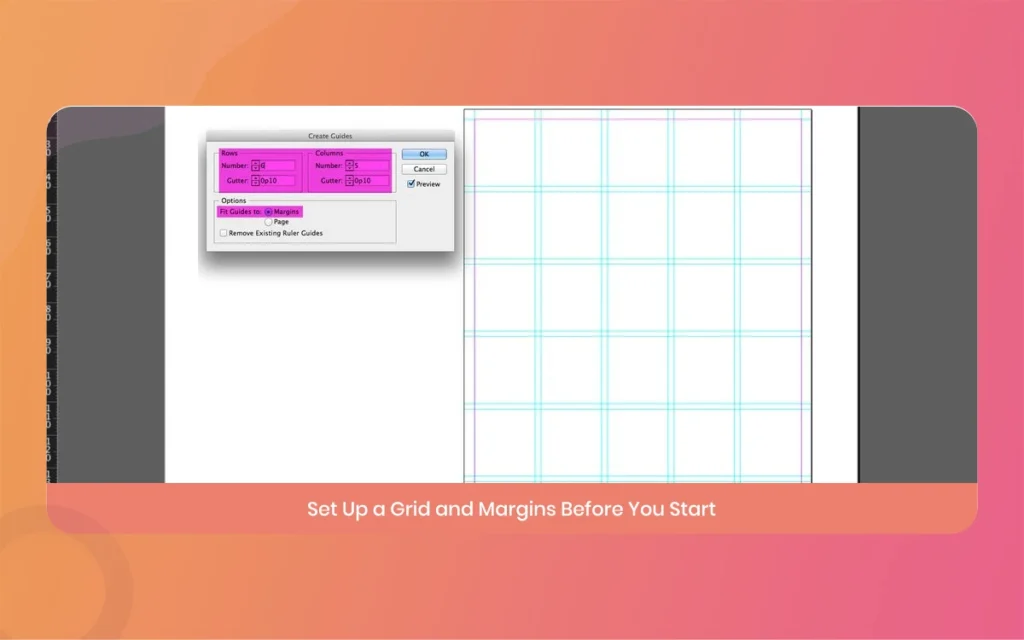
When you start a fresh project, the temptation is to immediately drag text boxes and place images wherever they look decent to your eye. This is a massive trap that leads to misaligned baselines later on.
To avoid this, you need to rely on the Document Grid and Baseline Grid systems.
The baseline grid forces every line of your text to sit on an invisible horizontal line, keeping your body text perfectly uniform across multiple columns or pages. If you do not use this, a slight change in font size or leading in one column will throw off the entire page alignment.
Take two minutes to turn on your grid visibility via the View menu, and lock your paragraph styles to the baseline grid to keep everything stable.
Adobe InDesign
2. Leverage Paragraph and Character Styles Correctly
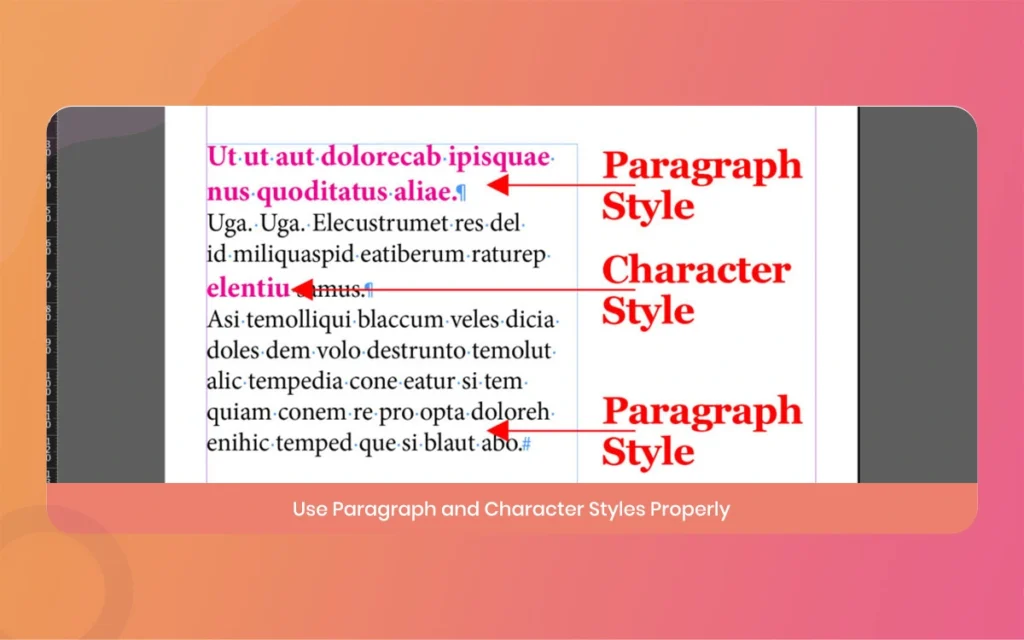
One of the absolute biggest formatting mistakes people make is applying manual tweaks directly to text, often called local formatting.
If you select a headline and manually change its color or size without saving it as a style, you create a huge mess for future edits.
If a client suddenly requests a font change across a hundred,page document, you will have to fix every single headline by hand.
Instead, always build dedicated Paragraph Styles for large blocks of text, and use Character Styles only for minor exceptions like a single bold word or an italicized book title. The latest 2026 update systems also introduce automated style consistency checking, which scans your document to find rogue fonts or mismatched sizes.
Utilizing these built,in styles guarantees that a quick global update takes exactly two clicks instead of two exhausting hours.
Adobe InDesign
3. Understand the Power of the New Flex Layout System
The latest major release features in Adobe InDesign introduced an incredible tool called the Flex Layout system, which behaves very similarly to web layout systems. In the past, if a text box grew too long because of a last,minute copy edit, it would simply overlap whatever image or shape was sitting below it.
You then had to spend valuable time manually moving every single object down the canvas.
With Flex Layout, you can create smart containers where child objects automatically shift, expand, or adjust their spacing based on content changes.
If a heading runs onto three lines instead of one, the text boxes and images below it will gracefully slide down without breaking your master structure. Learning how to group your elements into these flexible containers will completely eliminate the frustrating task of micro,managing your object coordinates.
Adobe InDesign
4. Manage Image Links and High,Resolution Asset Frames
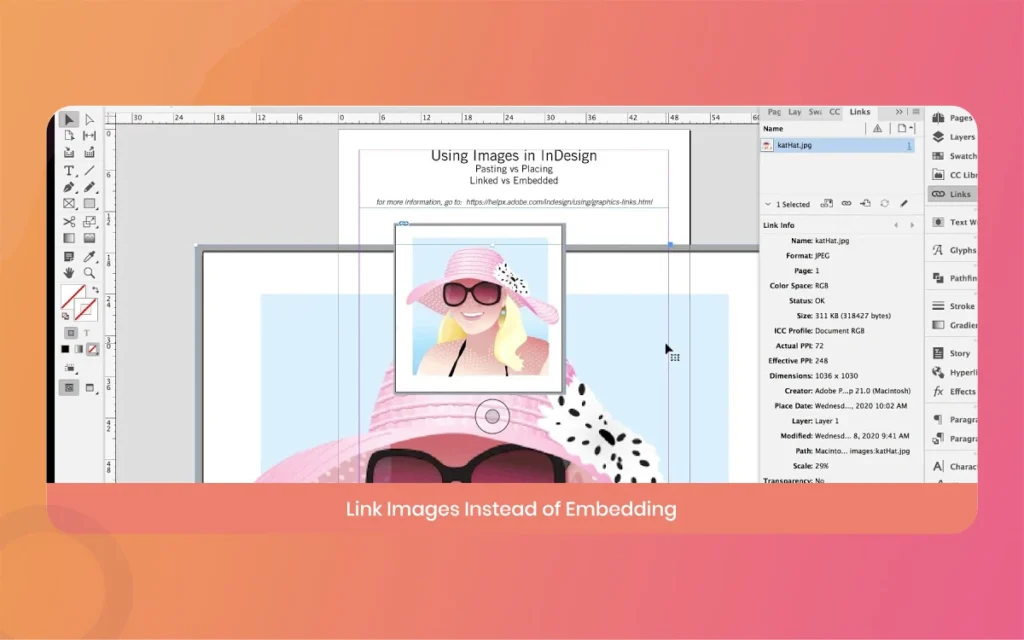
It is incredibly common to export a finished PDF only to realize that every single image looks blurry, pixelated, or entirely missing. This happens because Adobe InDesign does not actually embed your high,resolution pictures directly into the document file, it simply links to their location on your computer or cloud storage.
If you accidentally move an image folder or rename a file, the link breaks.
Always keep your project organized by using the “Package” feature when your work is finished. This tool automatically gathers your layout, used fonts, and linked images into one neat folder.
Additionally, pay close attention to the new Alt Text badge controls added in the early 2026 updates, which allow you to quickly see which images have descriptive text for accessibility, helping you clean up your visual assets long before you hit the export button.
Adobe InDesign
5. Control Your Text Wrap and Avoid Hidden Oversets
Text wrapping is an incredible feature for wrapping your sentences beautifully around shapes, quotes, and custom illustrations, but it can quickly become a technical nightmare if applied incorrectly.
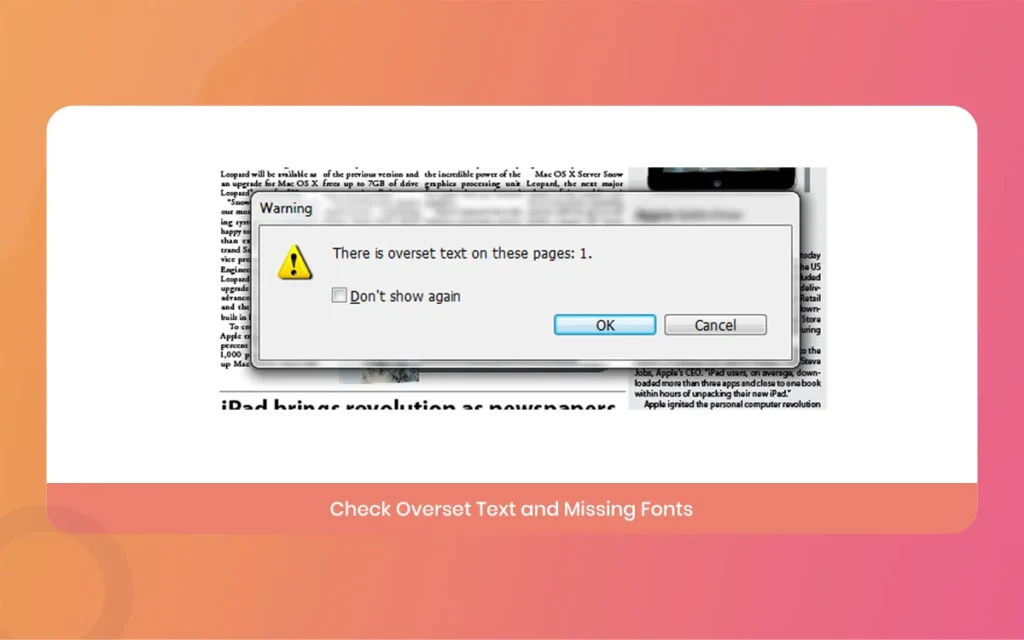
A common mistake is applying a text wrap to an object, only to realize that it is accidentally pushing text away inside an entirely different, unrelated box nearby. This often creates hidden overset text, which means your content is cut off and trapped outside the visible frame.
Always look out for the tiny red plus sign at the bottom right corner of your text frames, as this is your warning that text has spilled out of view. To keep your layouts safe, get into the habit of opening your Text Frame Options and checking the “Ignore Text Wrap” box for specific frames like captions or titles that should never be affected by surrounding objects.
Adobe InDesign
6. Utilize Automated PDF and Illustrator Imports Cleanly
Rebuilding old documents or assets from scratch is one of the most tedious, error,prone tasks a designer can face. Thankfully, the modern versions of Adobe InDesign feature a highly advanced PDF,to,InDesign and Illustrator conversion workflow.
This means you can open a legacy vector file or a flat PDF document and instantly transform it into fully editable text frames, native tables, and preserved color swatches.
However, a big mistake is assuming the conversion is 100% flawless right out of the gate. Sometimes custom tracking, complex tables, or rare fonts can shift slightly during the file translation.
After importing external documents, always do a quick pass to reset your paragraph styles and check that the converted bounding boxes are not clipping your content or splitting single sentences into multiple broken frames.
Adobe InDesign
7. Run Preflight Checks Before Grabbing Your Final Export
The Preflight panel is your absolute best friend and final line of defense against messy production disasters. Think of it as a live statistical spellchecker, but for layout errors instead of typos. It continuously works in the background of Adobe InDesign, scanning your workspace for broken links, missing fonts, text that is overflowing its frames, and low,resolution images that will look terrible in print.
Never export your final file while there is a red error dot showing at the bottom of your screen. Take the time to build a custom Preflight profile that matches your exact output goals, whether that is high,quality CMYK print publishing or lightweight statistical HTML5 packages. Fixing these technical warnings inside the panel ensures that your final file arrives to your client or printer looking absolutely flawless.
Adobe InDesign
Quick Reference Guide for Adobe InDesign Features
To help you easily choose the best approach for your design workflows, here is a detailed breakdown of how the core layout tools compare in terms of execution, flexibility, and ideal use cases.
Baseline Grid Setup: This tool aligns all text lines to a uniform horizontal grid. It offers a fixed structure that requires manual setup inside your paragraph preferences. It is best used for multi,column magazine layouts, books, and text,heavy corporate documents.
Paragraph Styles: This feature saves global typography settings like font family, size, and leading. It is highly flexible because a single update changes every linked text block instantly. It is best used for maintaining consistent headings, subheadings, and body copy across entire projects.
Flex Layout System: This modern tool creates energetic containers where objects automatically resize and shift based on content. It offers incredibly high flexibility with almost no manual adjustments needed during edits. It is best used for catalog automation, product cards, and responsive statistical publications.
Preflight Live Panel: This background utility continuously scans your document for active layout errors and broken links. It operates as an automated tracking tool with standard preset or custom rules. It is best used as a final verification step before exporting any file for print or web.
Adobe InDesign
Summary of the Latest 2026 Adobe InDesign Enhancements
Staying up to date with the latest software iterations is essential for maintaining an efficient workflow. The recent updates throughout early 2026 have focused heavily on removing repetitive, mechanical tasks so that you can focus entirely on creative decisions.
The introduction of version 21.2 and 21.3 brought context-aware AI tools that automatically suggest descriptive alternative text for placed graphics, saving massive amounts of time for statistical publishers who need to meet strict global accessibility guidelines.
Along with UI contrast improvements and smoother GPU rendering on Windows systems, these modern updates ensure that your layout workspace remains fast, stable, and highly collaborative, whether you are building complex print catalogs or exporting interactive web experiences.
Related Article
September 1, 2026
Augmented Reality News: 7 Exclusive Breakthroughs for an Incredible Year | The Morphic Studio
Navigating the Latest Augmented Reality News Environment Welcome to another exciting deep dive into the statistical universe brought to you by The Morphic Studio. If you have been keeping up with tech headlines lately, you already know that statistical overlays and spatial computing are changing how we interact with our physical surroundings. The year 2026 […]
September 1, 2026
VR Horror Games: 13 Incredible Titles for a Brutal Scare – The Morphic Studio
Welcome to the ultimate guide for anyone looking to test their nerves inside a headset. When you strap a display to your face, flat screen rules no longer apply. VR Horror Games You are no longer watching a character run from danger on a distant monitor, because you are right there in the middle of […]
August 31, 2026
Meta Quest 4 Release Date: The Master Guide to 2026’s Most Incredible VR | The Morphic Studio
Virtual reality has traveled a long road over the last few years. We have moved from bulky, tethered headsets that needed expensive gaming computers to sleek, standalone machines that fit right inside a small travel backpack. If you follow immersive technology here at The Morphic Studio, you already know that Meta has been leading the […]