Welcome to The Morphic Studio. If you are a designer, or maybe a video editor, you probably know how important good tools are for your daily job. Sometimes we think we know absolutely everything about our software, but the truth is, things change really fast in the tech world.The new year is already here, and with it comes a lot of exciting new stuff. Today, we are talking about how to truly optimize your whole Adobe Creative Cloud process.
These ten ultimate secrets will definitely save you hours of frustrating work. I have seen so many talented creatives lose their precious work just because of silly little mistakes.
Let us make sure that does not ever happen to you. We are going to dive really deep into the absolute best ways to manage your creative projects. By the end of this read, you will feel so much more confident when you open your apps.
The Latest 2026 Adobe Creative Cloud Updates
Before we jump right into the main secrets, we really have to talk about what is new this year. The 2026 updates for Adobe Creative Cloud are actually kind of mind blowing, to be honest. Do you think of the MAX event from late last year?
They announced the new Firefly Image Model 5, and now it is fully rolled out for everyone to use. We also have some top tier third party AI models integrated directly into the software.
You can actually use Google Gemini 2.5 Flash Image, or even Black Forest Labs, right inside Photoshop for your Generative Fill tasks. There is also this amazing Generative Upscale feature that is powered by Topaz Labs, which makes low resolution images look super crisp. Plus, apps like Lightroom now finally support WebP files natively, and Illustrator has a really cool Turntable feature for viewing 3D objects.
It is a lot to take in, I know. But staying updated with these new features is the very first step to avoiding massive workflow disasters. Oh, and keep a close eye on your subscription billing, because general prices went up by about eight to twelve percent this year.
Adobe Creative Cloud
The 10 Secrets to Master Adobe Creative Cloud
Secret 1, Perfecting File Management in Adobe Creative Cloud
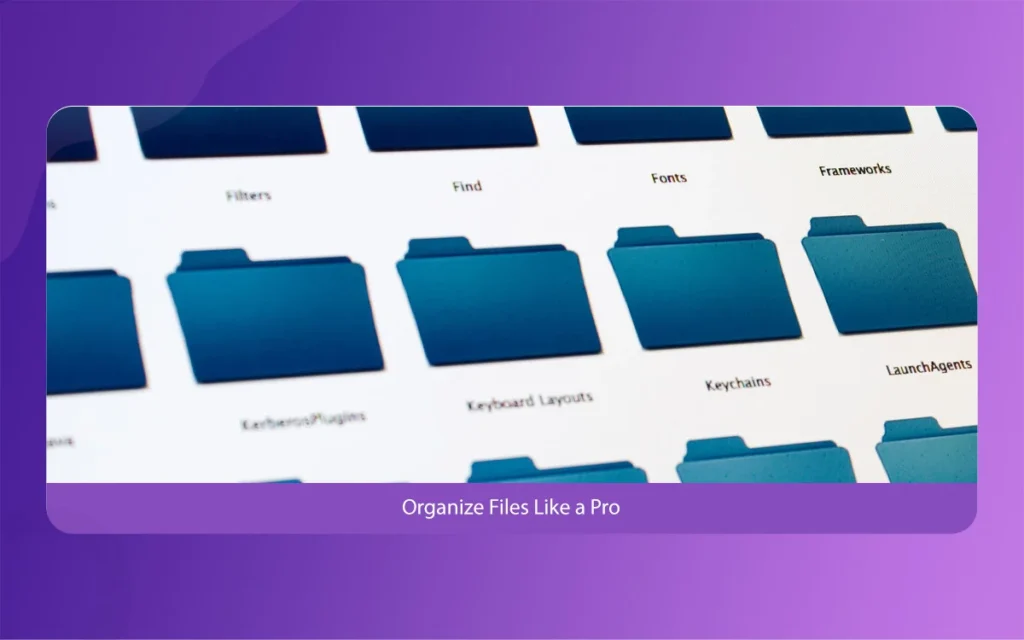
File management sounds super boring, I totally get it. But messy folders are honestly the number one reason people lose money, and their valuable time. When you are using Adobe Creative Cloud, it is super tempting to just save everything directly to your computer desktop.
Please, do not ever do that. You need to create a very strict folder structure for every single project you take on.
Keep your raw camera files, your working project files, and your final client exports in completely separate places. This very simple habit will absolutely save you when a client suddenly asks for a weird revision six months later.
Trust me on this one, because I learned it the really hard way after accidentally deleting a massive Premiere Pro project file last year.
Setup your folders before you even open the software, and make it a daily habit to keep things clean.
Secret 2, Optimizing Your Adobe Creative Cloud Preferences
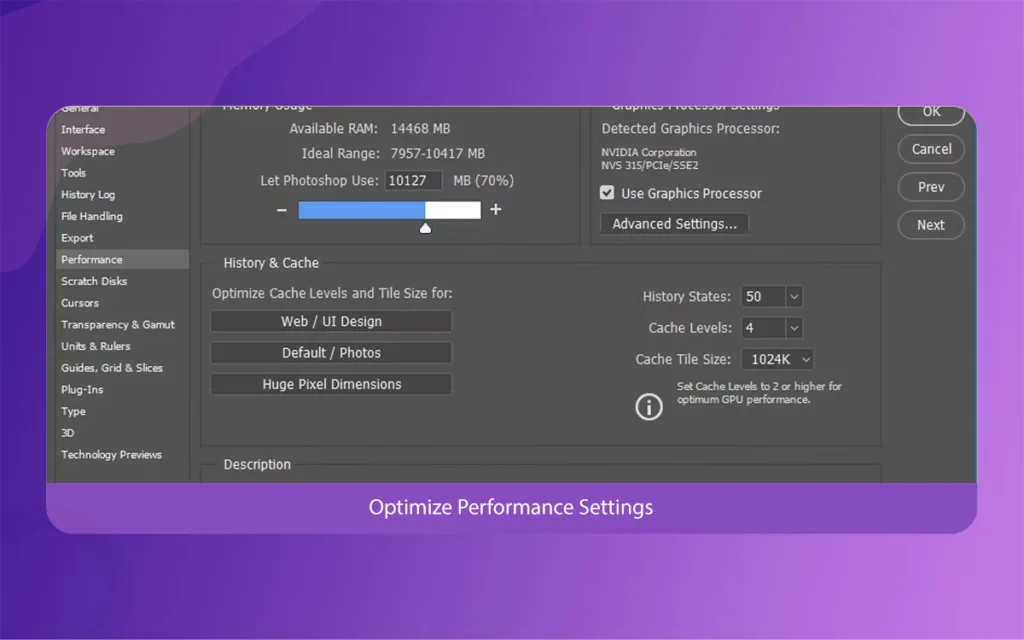
Almost everyone completely skips the preferences menu when they install new software. They just open the app, and start designing right away. But tweaking your Adobe Creative Cloud settings can actually make your computer run so much faster and smoother. Go into the memory settings right now, and allocate more RAM to the heavy apps you use the most, like After Effects or Photoshop. Also, scratch disks are super important for performance. Make sure your primary scratch disk is set to your fastest internal solid state drive, not some slow external USB hard drive. If you decide to skip this crucial step, you will definitely experience annoying software crashes. And let us be real, nobody likes it when the software just freezes right in the middle of painting a masterpiece. Take just five minutes today to check your preference menus, and adjust them for much better speed.
Adobe Creative Cloud
Secret 3, Getting the Most Out of Adobe Creative Cloud Libraries
Are you currently using libraries yet? If not, you are really missing out on a huge workflow booster. Adobe Creative Cloud libraries let you save your favorite colors, company logos, and specific character styles all in one safe place.
You can instantly access these saved assets across all your different installed apps. So, if you create a nice vector logo in Illustrator, you can just drag it right into your Premiere Pro sequence without having to export a picture file first.
It is honestly like magic, and it saves so much daily hassle. Sometimes people still manually copy and paste hex color codes between different apps, and that just leads to simple human error, like typing the wrong number by accident.
Setup your customized libraries for each specific client or brand you work with. It keeps everything visually consistent, and saves you a ton of unnecessary mouse clicks.
Adobe Creative Cloud
Secret 4, Managing Your Adobe Creative Cloud Sync Settings
Having cloud storage is undeniably great, but it can also really slow down your internet connection if you are not being careful. Adobe Creative Cloud tries to sync absolutely everything automatically in the background.
If you are actively working on massive video files, this constant background syncing can completely ruin your internet bandwidth. You need to go into your main Creative Cloud desktop app, and manually adjust those sync preferences. You can easily pause the file syncing while you are working on heavy tasks during the day.
I usually only let it sync at the very end of my work day, when I am stepping away from the desk to go home. This completely prevents my computer from randomly lagging when I am on an important video zoom call with a new client. It is a very small trick, but it makes a massive difference for your daily workflow peace of mind.
Adobe Creative Cloud
Secret 5, Navigating Adobe Creative Cloud Pricing and Subscriptions
Let us talk about something a bit stressful for a moment, the software pricing. As of the new 2026 changes, Adobe officially increased the cost of their standard plans. It is super important to actively manage your team seats if you run a studio. You should definitely do a quick audit of your active users this week.
Many studios blindly pay for expensive licenses that nobody even uses anymore.
If you are just a solo freelancer, look closely into the specific individual apps you actually need for your job.
Sometimes buying a single app subscription is much cheaper than holding onto the complete all apps plan, depending entirely on your professional focus. Do not just let your expensive subscription auto renew without checking your actual software usage first.
Saving ten percent on your monthly overhead costs is always a very smart workflow decision for any creative business.
Clicking through endless drop down menus is definitely a rookie mistake in the design world. If you truly want to speed up your daily work in Adobe Creative Cloud, you absolutely have to learn the keyboard shortcuts.
You should start with the simple basics, like saving, copying, and pasting your layers. Then, slowly move on to the more app specific shortcuts.
For example, learning the basic timeline tool shortcuts in Premiere Pro will honestly cut your video editing time right in half. You can even fully customize your own unique keyboard shortcuts inside the edit menu.
I personally mapped my most used brush tools to the extra little buttons on my gaming mouse. It took a few frustrating days to get fully used to it, but now my fingers just fly across the keyboard without even looking down. It is a total game changer for your general daily productivity.
Adobe Creative Cloud
Secret 7, Integrating Adobe Creative Cloud with New AI Tools
Artificial intelligence is literally everywhere now, and Adobe is leaning into it really hard this year. With the brand new 2026 software updates, properly integrating AI into your standard Adobe Creative Cloud workflow is pretty much essential.
You can now use amazing tools like Project Light Touch, or Project Motion Map, directly within the software ecosystem.
But, please do not rely on the AI to do absolutely everything for you. You should use it as a helpful starting point, instead of a final solution. Generate your basic background elements, and then use your own human creativity to carefully refine them.
A lot of lazy designers make the mistake of leaving AI generated art completely untouched, and it usually looks a bit weird or fake.
Always blend the cool new AI tools with your traditional artistic skills for the absolute best possible creative results.
Adobe Creative Cloud
Secret 8, Securing Your Adobe Creative Cloud Backups
I really can not stress this next point enough, please back up your work! Even though Adobe Creative Cloud has its own cloud storage system, you still desperately need a local physical backup. Online servers go down, internet connections suddenly fail, and project files randomly get corrupted all the time. You should always keep a fresh copy of your active projects on an external solid state drive. Some smart creatives strictly use the famous three two one backup rule. That means keeping three total copies of your data, on two different types of media, with at least one copy stored safely offsite. You might honestly think this is total overkill, until the exact day your main computer hard drive permanently crashes. Taking just ten minutes every single Friday to properly back up your files will give you so much mental peace of mind over the weekend.
Adobe Creative Cloud
Secret 9, Streamlining Your Adobe Creative Cloud Workspace
Have you ever looked at a new software interface and just felt totally overwhelmed? The default workspaces in most Adobe Creative Cloud apps are completely packed with random panels you probably never even use.
You can actually just close all those extra distracting tabs. You should create a minimal custom workspace that only shows the specific tools you need for your daily job.
If you only do color correction work, just hide the text and shape building panels entirely. Think of to save your custom layout, so you can always go quickly back to it if things get accidentally messed up.
A clean, minimal workspace really helps you focus on the actual art, instead of constantly hunting for tiny hidden buttons. It is a very simple workflow fix that greatly improves your creative mental clarity while you are working on complex designs.
Adobe Creative Cloud
Secret 10, Keeping Your Adobe Creative Cloud Apps Updated Safely
Software updates are usually great, but they can also be incredibly dangerous for your current projects. Whenever a major new version of an Adobe Creative Cloud app suddenly drops, do not update it immediately if you are right in the middle of a big client project.
Sometimes these brand new versions have hidden bugs that can completely mess up your complex files.
The recent 2026 updates are truly fantastic, but it is always much safer to wait a week or two before installing them. Let other brave people find the annoying glitches first.
When you finally do decide to update, make sure you actively check the little option box to keep your old app versions installed, just in case something breaks. This easy safety net ensures you can always open your important files, and meet your strict client deadlines without any sudden software panic.
Adobe Creative Cloud
Adobe Creative Cloud Application Breakdown Points
Instead of a boring standard chart, here is the important application information broken down into easy, readable points.
Application Name, Photoshop
Main Use, Complex image editing and photo compositing
2026 Feature, Generative Fill using third party AI models like Gemini
Workflow Tip, Always use non destructive adjustment layers to protect your original image
Application Name, Premiere Pro
Main Use, Professional video editing and film production
2026 Feature, AI Object Masking and new intuitive video transition handles
Workflow Tip, Setup low resolution proxy files for much faster 4K video editing
Application Name, Illustrator
Main Use, Scalable vector graphic design and logo creation
2026 Feature, Turntable view for 3D objects and importing SVG files directly as vectors
Workflow Tip, Keep your pen tool paths clean with fewer anchor points to avoid huge file sizes
Application Name, Lightroom
Main Use, Statistical photo grading and fast batch editing
2026 Feature, Generative Upscale for low resolution images and enhanced crop tools
Workflow Tip, Create custom color presets for much faster batch processing on big photoshoots
Adobe Creative Cloud
Final Thoughts on Your Adobe Creative Cloud Ride
Improving your daily process obviously takes a little bit of time and some dedicated effort. But once you fully implement these ten secrets, you will definitely notice a huge difference in your speed.
Your Adobe Creative Cloud software should always feel like a natural extension of your own hands, not an annoying obstacle you constantly have to fight against.
Here at The Morphic Studio, we are all about working smarter, not harder. So please take just an hour this coming weekend to properly organize your messy folders, fix your sluggish preferences, and learn a few new helpful shortcuts.
The creative design industry in 2026 is highly competitive, and your general efficiency is honestly your absolute best weapon. Keep practicing your craft, keep learning the new tools, and do not ever let silly software errors slow down your amazing creative potential. Thanks for reading, and happy creating!
Related Article
September 1, 2026
Augmented Reality News: 7 Exclusive Breakthroughs for an Incredible Year | The Morphic Studio
Navigating the Latest Augmented Reality News Environment Welcome to another exciting deep dive into the statistical universe brought to you by The Morphic Studio. If you have been keeping up with tech headlines lately, you already know that statistical overlays and spatial computing are changing how we interact with our physical surroundings. The year 2026 […]
September 1, 2026
VR Horror Games: 13 Incredible Titles for a Brutal Scare – The Morphic Studio
Welcome to the ultimate guide for anyone looking to test their nerves inside a headset. When you strap a display to your face, flat screen rules no longer apply. VR Horror Games You are no longer watching a character run from danger on a distant monitor, because you are right there in the middle of […]
August 31, 2026
Meta Quest 4 Release Date: The Master Guide to 2026’s Most Incredible VR | The Morphic Studio
Virtual reality has traveled a long road over the last few years. We have moved from bulky, tethered headsets that needed expensive gaming computers to sleek, standalone machines that fit right inside a small travel backpack. If you follow immersive technology here at The Morphic Studio, you already know that Meta has been leading the […]