Why Adobe Photoshop Remains the Top Choice in 2026
If you have ever wanted to create stunning visuals that grab attention, Adobe Photoshop is the tool you need. Even in 2026, Adobe Photoshop continues to lead the industry for photo editing, graphic design, and statistical art.
Professional designers, social media creators, and hobbyists all rely on Adobe Photoshop because it combines powerful features with an intuitive interface that grows with your skills.
The latest Adobe Photoshop 2026 update (version 27.0) brings game-changing AI tools that make complex edits feel effortless.
From generative fill to smart upscaling, Adobe Photoshop now does more of the heavy lifting while you stay in creative control.
This means you can produce professional results faster than ever before, even if you are just starting out.
Adobe Photoshop
What’s New in Adobe Photoshop 2026 Update
Adobe Photoshop 2026 dropped at Adobe MAX with exciting AI-powered features that truly change how we create. The update includes generative partner models like Nano Banana and Flux, which improve Generative Fill quality significantly.
You now get a new Temperature and Tint adjustment layer, on-device Select Subject that works faster without cloud processing, and Generative Upscale powered by both Firefly and Topaz.
Other major improvements include better Harmonize, AI Denoise, AI Sharpen, and an enhanced Remove Tool that cleans up unwanted objects with fewer artifacts. Adobe Photoshop Beta even offers 2K resolution output for cleaner anatomy and better face detail in generative fills.
These updates make Adobe Photoshop 2026 the most powerful version yet.
Getting Started with Adobe Photoshop Basics
Before diving into advanced techniques, you need to understand the Adobe Photoshop workspace. When you open Adobe Photoshop, you will see the home screen with options to create new files, open recent projects, or browse free Adobe Stock images directly inside the app.
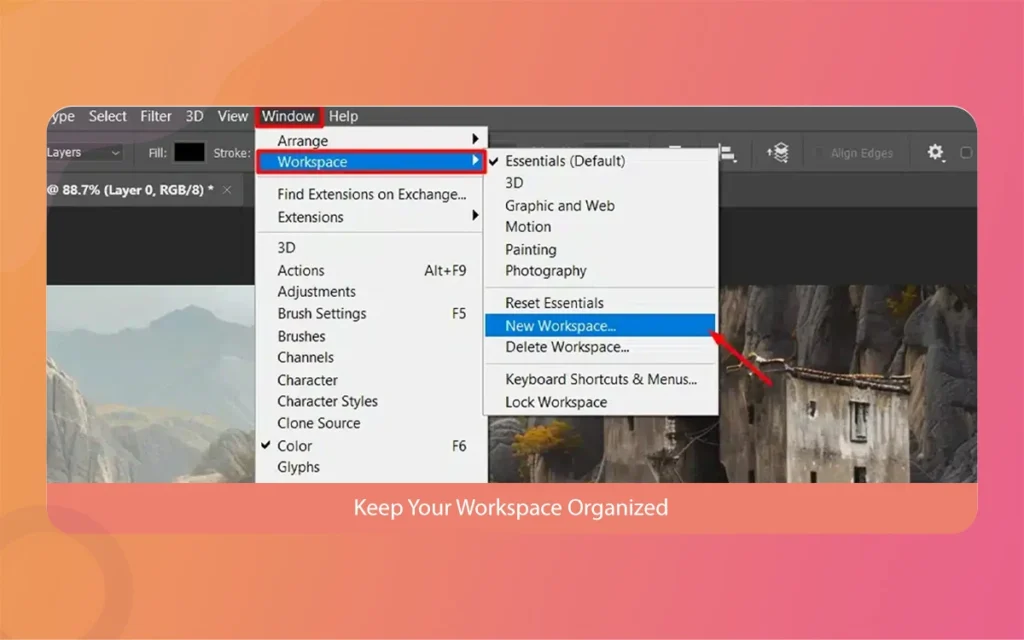
The workspace includes the menu bar at the top, the options bar below it, panels on the right side (like Layers, History, and Properties), and the large canvas in the center where you work.
The three major things in the Adobe Photoshop workspace are the toolbar on the left, the canvas in the middle, and the panels on the right.
You can customize this layout by dragging panels, closing ones you do not use, or creating custom workspaces for different tasks like retouching, design, or painting. Learning to set up your workspace properly saves time and makes working in Adobe Photoshop more enjoyable.
Adobe Photoshop
Understanding Adobe Photoshop Workspace and Tools
Adobe Photoshop comes with over 20 tools, but you will use a handful regularly. The Move Tool lets you reposition layers, the Brush Tool paints freehand, the Text Tool adds typography, and the Zoom Tool helps you see details clearly.
Selection tools like the Quick Selection Tool and Object Selection Tool help you isolate parts of your image, while the Marquee and Lasso tools offer more manual control.
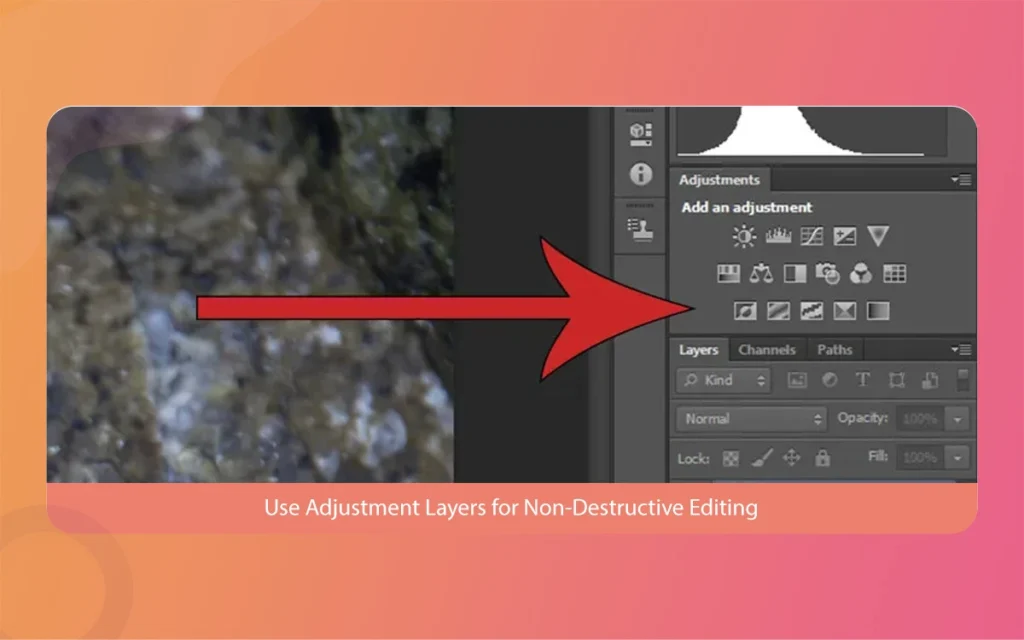
Adjustment layers are one of the most powerful features in Adobe Photoshop. Instead of changing your original image, adjustment layers apply non-destructive edits for color, brightness, contrast, and more.
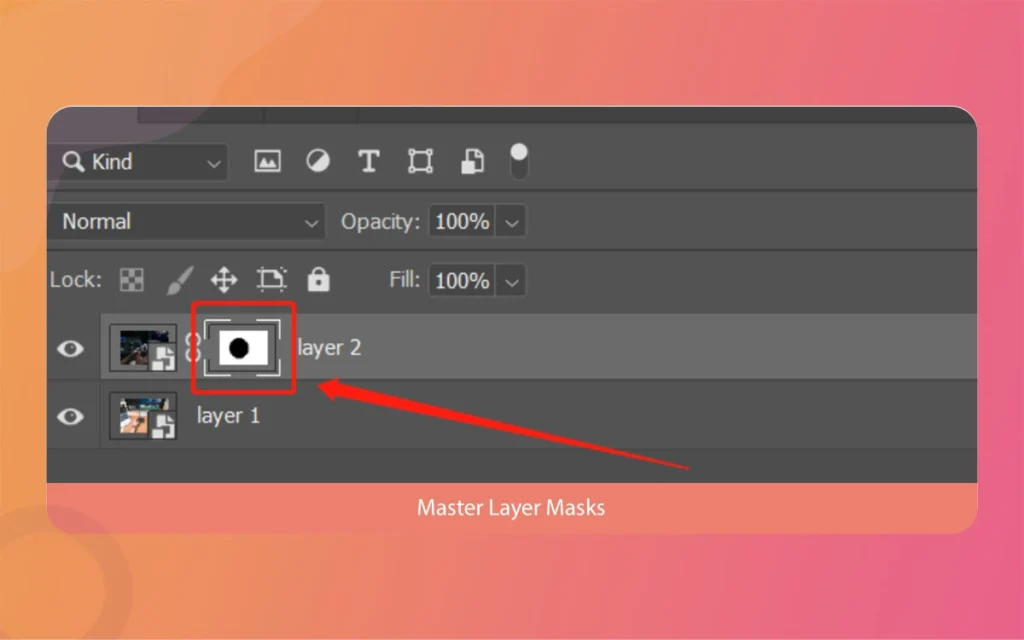
You can mask adjustment layers to affect only specific areas, and you can turn them off or tweak settings anytime. This flexibility is why professionals love Adobe Photoshop for serious work.
12 Proven Adobe Photoshop Techniques for Stunning Visuals
Now let us take a look at 12 proven techniques that will help you create stunning visuals using Adobe Photoshop. These techniques range from beginner-friendly tricks to advanced professional methods, and all of them leverage the latest 2026 features where possible.
Technique 1 to 4: AI-Powered Adobe Photoshop Features
Technique 1: Use Generative Fill with Partner Models
Adobe Photoshop 2026 now includes Nano Banana and Flux as partner models inside Generative Fill. This means you can add, remove, or replace objects by simply typing a text prompt. Select an area with a selection tool, click Generative Fill, and describe what you want. Adobe Photoshop generates multiple variations for you to choose from, and the results look incredibly realistic.
Adobe Photoshop
Technique 2: Apply Generative Upscale for Higher Resolution
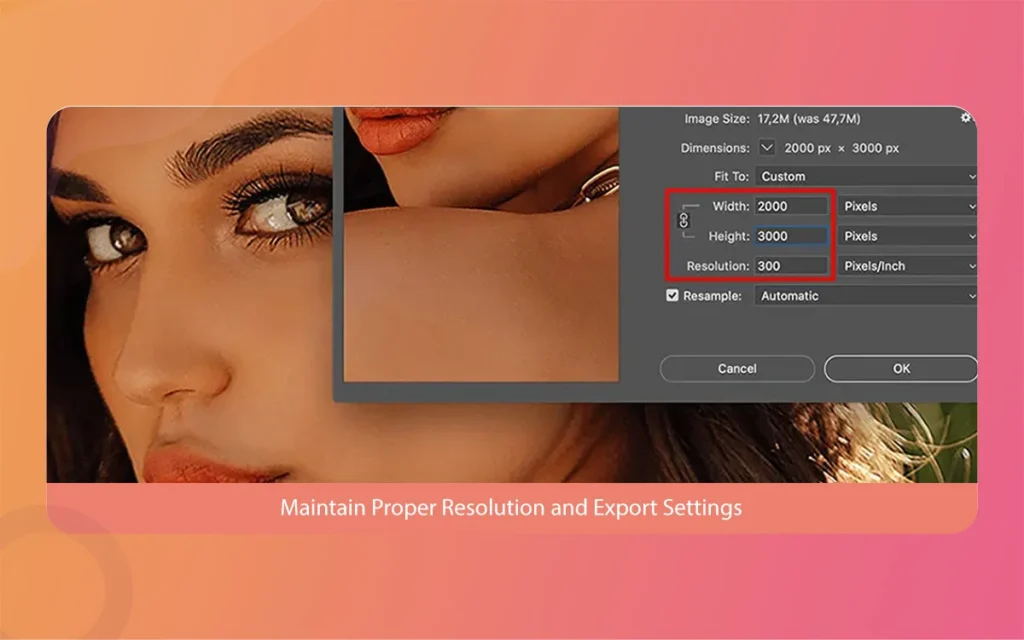
When you need to enlarge an image without losing quality, use Generative Upscale in Adobe Photoshop. This feature combines Firefly and Topaz technologies to add realistic detail while increasing resolution.
Right after opening your image, go to Image > Image Size, choose Generative Upscale, and select your target size. The result is sharper than traditional upscaling methods.
Technique 3: Edit with On-Device Select Subject
The improved Select Subject tool in Adobe Photoshop 2026 works entirely on your device, so it is faster and more accurate. Click Select > Subject, and Adobe Photoshop automatically detects the main subject, including tricky edges like hair strands and brush strokes.
You can then refine the selection using Select and Mask for perfect cutouts.
Technique 4: Remove Objects with the Enhanced Remove Tool
The Remove Tool in Adobe Photoshop now delivers 2K resolution output with fewer artifacts. Simply brush over unwanted objects like power lines, tourists, or blemishes, and Adobe Photoshop fills the area seamlessly. This tool is smarter than the old Content-Aware Fill and works great for both small corrections and large removals.
Adobe Photoshop
Technique 5 to 8: Advanced Editing with Adobe Photoshop
Technique 5: Harmonize Subjects into New Backgrounds
When you composite a subject into a new background, Harmonize in Adobe Photoshop matches lighting, color, and shadows automatically.
After placing your subject on a new background, go to Edit > Harmonize, and Adobe Photoshop analyzes both layers to create a cohesive look. This saves hours of manual color grading and makes composites look photorealistic.
Adobe Photoshop
Technique 6: Apply AI Denoise and AI Sharpen
Noisy or soft photos get a major boost with AI Denoise and AI Sharpen in Adobe Photoshop. These tools use machine learning to reduce grain while preserving detail, or to sharpen edges without creating halos. Find them under Filter > Neural Filters, adjust the strength sliders, and watch your photos transform. This is especially useful for high-ISO shots or scanned images.
Technique 7: Use Temperature and Tint Adjustment Layer
The new Temperature and Tint adjustment layer in Adobe Photoshop gives you quick color balance control. Unlike the old Color Balance or Photo Filter, this dedicated layer combines Temperature, Tint, Saturation, and Vibrance in one place.
Add it from the Adjustment Layers panel, slide the controls until colors look natural or creative, and mask it to affect only specific areas.
Adobe Photoshop
Technique 8: Create Clarity and Dehaze Adjustments
Adobe Photoshop 2026 introduces Clarity and Dehaze adjustment layers, plus a Grain layer for texture. Clarity boosts midtone contrast for punchier images, Dehaze removes fog or haze from landscapes, and Grain adds film-like texture. All three are non-destructive and maskable, so you can fine-tune their impact without harming your original photo.
Technique 9 to 12: Professional Touches in Adobe Photoshop
Technique 9: Search and Place Free Adobe Stock Images
You can now search, filter, and place free Adobe Stock images directly inside Adobe Photoshop without opening a browser. Go to Window > Libraries or use the Assets panel, type your keyword, and drag stock photos straight onto your canvas. This speeds up mockups, backgrounds, and composite work significantly.
Adobe Photoshop
Technique 10: Use Reference Image for Object Fill or Swap
Adobe Photoshop now lets you fill or swap objects based on a reference image. For example, if you want a red car instead of a blue one, upload a photo of a red car as a reference, select the blue car, and use Generative Fill with the reference. Adobe Photoshop matches style, lighting, and perspective automatically.
Technique 11: Apply Adjustment Layer Knockouts
For creative text or shape effects, use adjustment layer knockouts in Adobe Photoshop. Create an adjustment layer, set its blend mode to Knockout, and place it above the layer you want to affect. This makes the adjustment only visible through the shape of the layer below, creating cool masked effects without complex layer masks.
Adobe Photoshop
Technique 12: Master Blend If for Smooth Blending
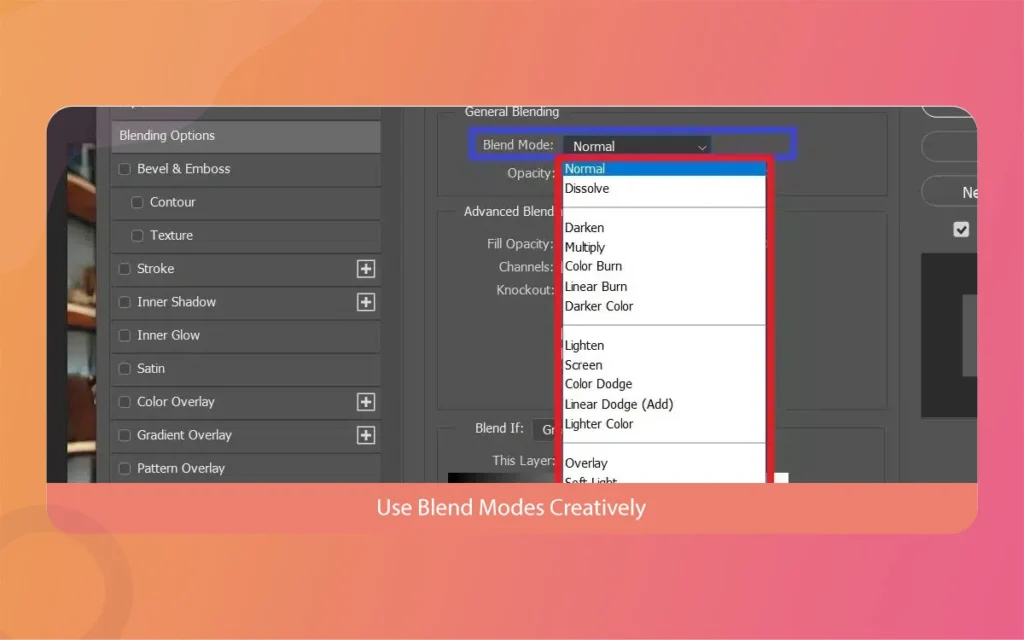
Blend If sliders in Adobe Photoshop let you blend layers based on pixel brightness. Double-click a layer to open Layer Style, find Blend If at the bottom, and drag the black or white sliders. Hold Alt to split sliders for smoother transitions. This technique is perfect for blending skies, removing dark backgrounds, or merging textures seamlessly.
Adobe Photoshop
Common Adobe Photoshop Mistakes to Avoid
Even experienced users make mistakes in Adobe Photoshop that ruin their workflow or final results. One common error is editing directly on the original image instead of using adjustment layers or duplicate layers. This makes it hard to undo changes later, so always work non-destructively in Adobe Photoshop.
Another mistake is ignoring the color mode. Adobe Photoshop documents should usually be in RGB mode for web and social media, or CMYK for print. Printing an RGB file can cause color shifts, so check Image > Mode before exporting. Also, many beginners save only as JPEG, losing all layers. Always save your master file as PSD to keep layers editable in Adobe Photoshop.
Adobe Photoshop
Overusing filters is another pitfall. Applying too many neural filters or heavy sharpening can make images look artificial. In Adobe Photoshop, less is often more. Use subtle settings, preview changes at 100% zoom, and trust your eyes. Finally, not using shortcuts slows you down. Learn essential Adobe Photoshop shortcuts like Ctrl+J (duplicate layer), Ctrl+T (transform), and Ctrl+Z (undo) to speed up your workflow significantly.
Adobe Photoshop
Final Thoughts on Mastering Adobe Photoshop
Adobe Photoshop in 2026 is more powerful and accessible than ever. With 12 proven techniques like Generative Fill, Generative Upscale, Harmonize, AI Denoise, and new adjustment layers, you can create stunning visuals with less effort.
The basics are to practice regularly, experiment with the latest Adobe Photoshop 2026 features, and always work non-destructively.
Adobe Photoshop
Start with the basics, master one technique at a time, and gradually combine them for complex projects. Adobe Photoshop rewards curiosity, so keep exploring tutorials, trying new tools, and pushing your creativity.
Before you know it, you will be creating professional visuals that stand out and inspire others.
Adobe Photoshop
Related Article
September 1, 2026
Augmented Reality News: 7 Exclusive Breakthroughs for an Incredible Year | The Morphic Studio
Navigating the Latest Augmented Reality News Environment Welcome to another exciting deep dive into the statistical universe brought to you by The Morphic Studio. If you have been keeping up with tech headlines lately, you already know that statistical overlays and spatial computing are changing how we interact with our physical surroundings. The year 2026 […]
September 1, 2026
VR Horror Games: 13 Incredible Titles for a Brutal Scare – The Morphic Studio
Welcome to the ultimate guide for anyone looking to test their nerves inside a headset. When you strap a display to your face, flat screen rules no longer apply. VR Horror Games You are no longer watching a character run from danger on a distant monitor, because you are right there in the middle of […]
August 31, 2026
Meta Quest 4 Release Date: The Master Guide to 2026’s Most Incredible VR | The Morphic Studio
Virtual reality has traveled a long road over the last few years. We have moved from bulky, tethered headsets that needed expensive gaming computers to sleek, standalone machines that fit right inside a small travel backpack. If you follow immersive technology here at The Morphic Studio, you already know that Meta has been leading the […]