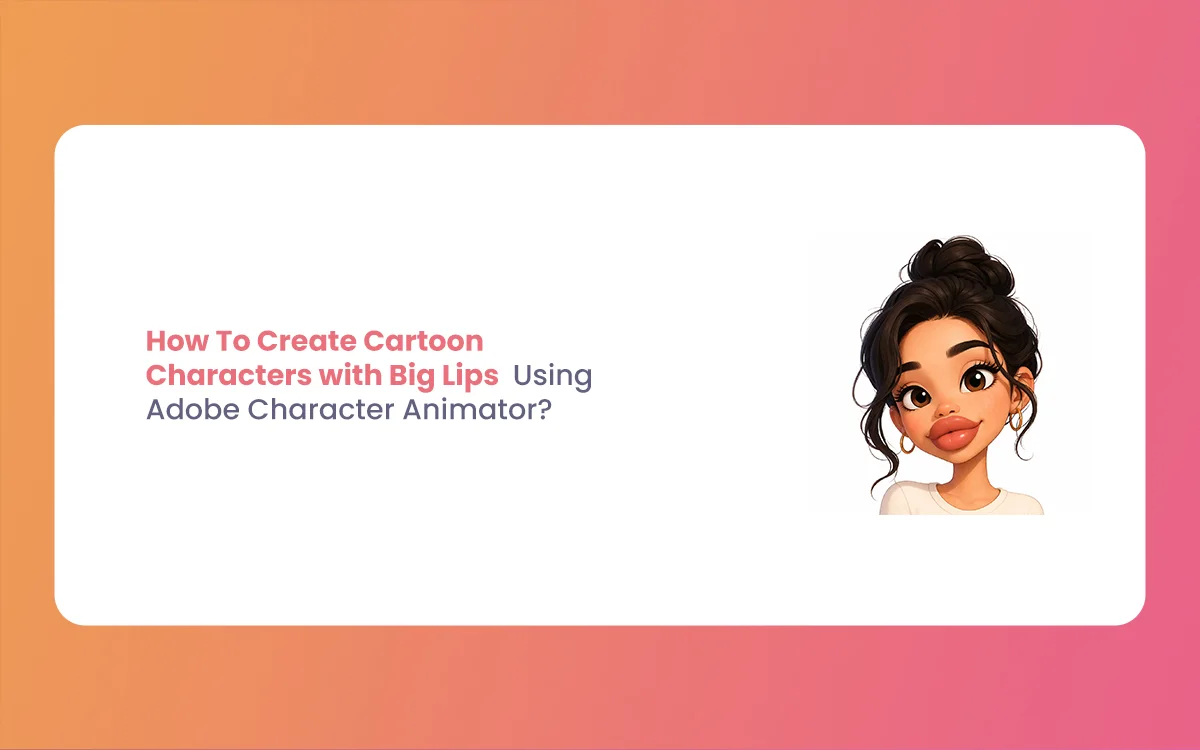
Welcome back to The Morphic Studio! Ever wondered why some cartoon faces “pop” more than others? Designing unique features is what makes a character memorable. Today, we are diving deep into a specific attractive choice that adds tons of personality and expression: Cartoon Characters with Big Lips.
In 2D animation, the mouth is the window to the soul, or at least to the dialogue. Designing Cartoon Characters with Big Lips gives you a broad canvas for emotion. With the 2026Adobe Character Animator (version 26.0), bringing these designs to life is easier and smoother than ever.
Whether you need a diva, sidekick, or high-fashion avatar, this guide shows you how to rig and animate vibrant features like a pro.
Why Choose Cartoon Characters with Big Lips for Your Next Project?
You might ask, “Why the focus on the lips?” Well, in character design, exaggerated features help convey personality instantly. Cartoon Characters with Big Lips are often used to signify confidence, humor, or even a specific cultural attractive. From a technical standpoint, larger lips provide more “real estate” for visemes (the visual shapes for sounds), making your lip-sync look much more dynamic and clear.
In the 2026 animation scene, we are seeing a shift toward more diverse and stylized character models. People want characters that look like them or represent a bold artistic vision. Big lips allow for beautiful color gradients, glossy says, and more pronounced “M” and “P” sounds during animation. It is all about making an impact on the screen.
Designing Your Cartoon Characters with Big Lips in Illustrator or Photoshop
Before you even open Adobe Character Animator, the magic starts in your drawing software. When you are sketchingCartoon Characters with Big Lips, you need to think about the “Mouth Group.” In Adobe Illustrator, try to use the Pencil tool or Pen tool to create smooth, organic curves.
If your character has very large lips, you should consider how they will move. Do they have a thick outline? Is there a shine on the lower lip? These details matter because they will stretch and squash once we start the rigging process. For the best results in 2026, keep your lip artwork on a separate layer from the rest of the face skin. This prevents “skin tearing” when the character opens their mouth wide.
When designing for Cartoon Characters with Big Lips, don’t just stick to one shape. Create a “Neutral” pose where the lips are relaxed. This will be your base. Then, imagine how those big features will look when they are surprised or smiling. The beauty of Character Animator is that it can swap these shapes instantly based on your voice or webcam movement.
Proper Layer Naming for Cartoon Characters with Big Lips
This is the part where most beginners get stuck. If you don’t name your layers correctly, Adobe Character Animator won’t know which part of the drawing is the mouth. To make sure your Cartoon Characters with Big Lips function correctly, you need a specific folder structure.
Inside your “Head” group, you must have a group named “Mouth.” Inside that Mouth group, you will need several layers for different sounds. These are called visemes. Common names include “Ah,” “Ee,” “Oh,” “L,” and “M.” Because you are working with Cartoon Characters with Big Lips, make sure the “M” and “P” layers show the lips fully pressed together, which looks great when they are oversized.
In the January 2026 update, Adobe has made the “Starter Mode” even better at recognizing these layers automatically. Even if you make a small typo in the naming, the AI often figures out that the big, colorful shapes in the middle of the face are indeed the lips. However, sticking to the standard naming convention is always the safest bet for a smooth workflow.
Rigging Cartoon Characters with Big Lips for Life-Like Motion
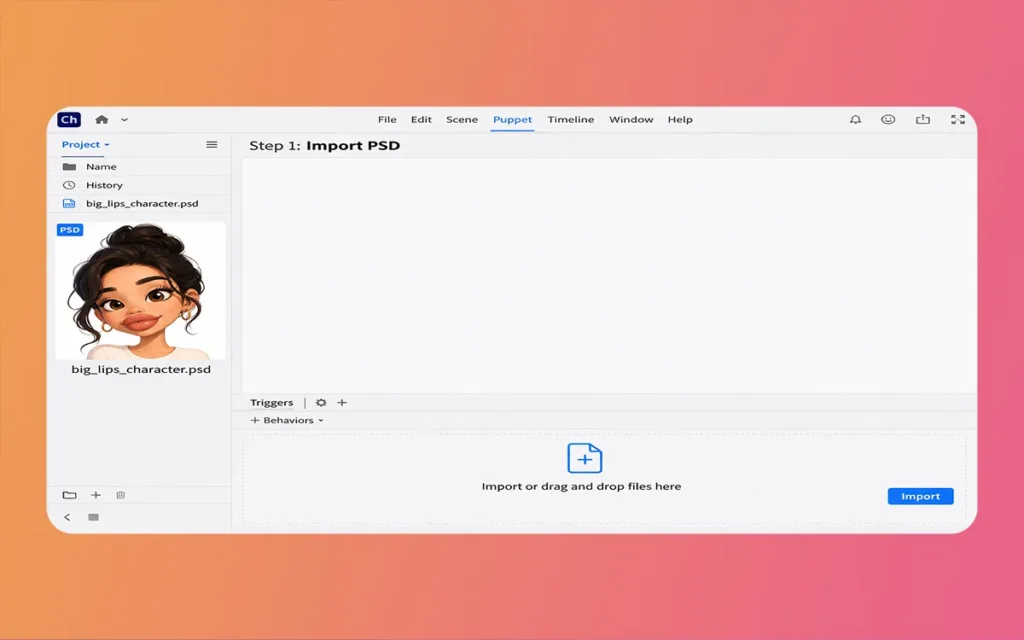
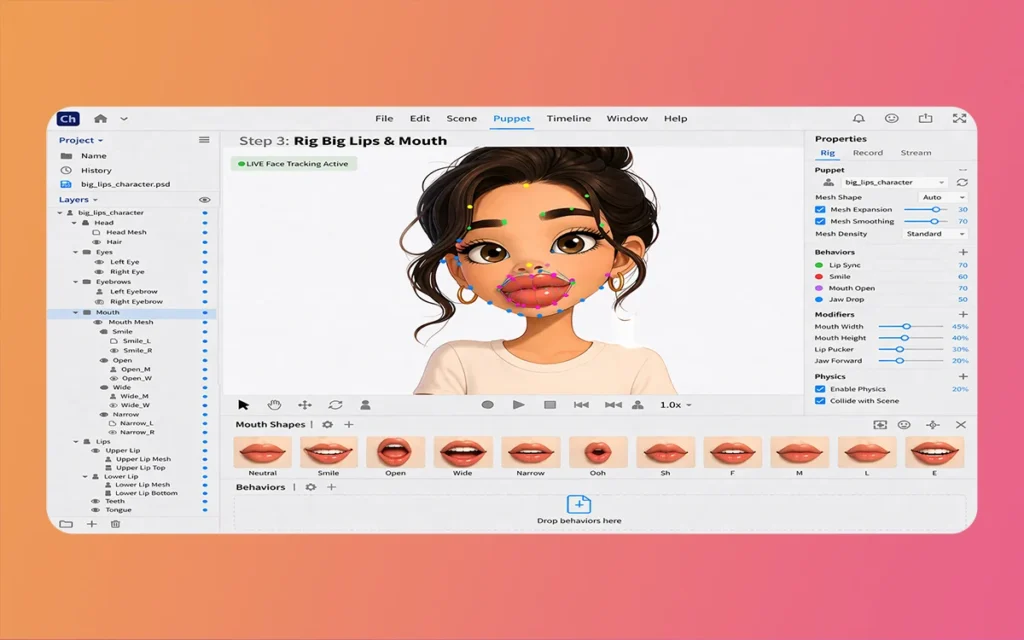
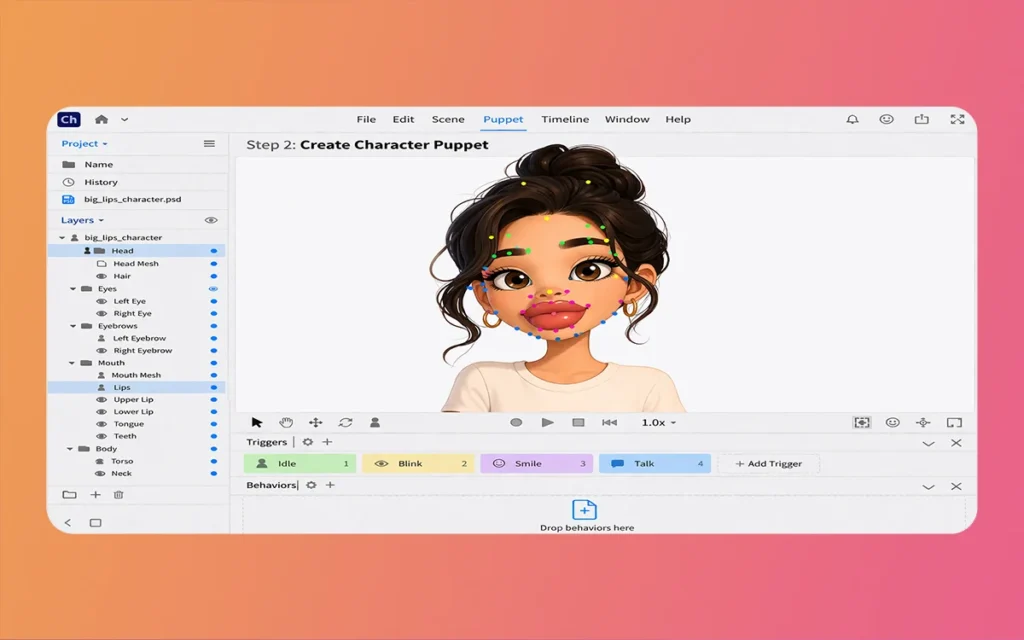
Now, let’s move into Adobe Character Animator. Once you import your Photoshop or Illustrator file, the software uses “tags” to identify the parts of your puppet. When rigging Cartoon Characters with Big Lips, the “Nutcracker Jaw” or “Lip Sync” behavior is your best friend.
Since your character has larger features, you might want to add a bit of “Physics” to the lips. In the rigging panel, you can add “Dangle” handles. This sounds funny, but it actually gives the lips a slight bounce when the character moves their head. It makes the animation feel much more high-end and “squishy,” which is a staple of good cartoon physics.
For Cartoon Characters with Big Lips, pay special attention to the “Mouth Interior.” You want to make sure that when the lips open, there is a dark space, teeth, or a tongue behind them. Because the lips are big, the opening will be large, so don’t ignore what is happening inside. The 2026 version of the software includes improved “Auto-swap” features that make transitioning between these mouth shapes look seamless without any weird flickering.
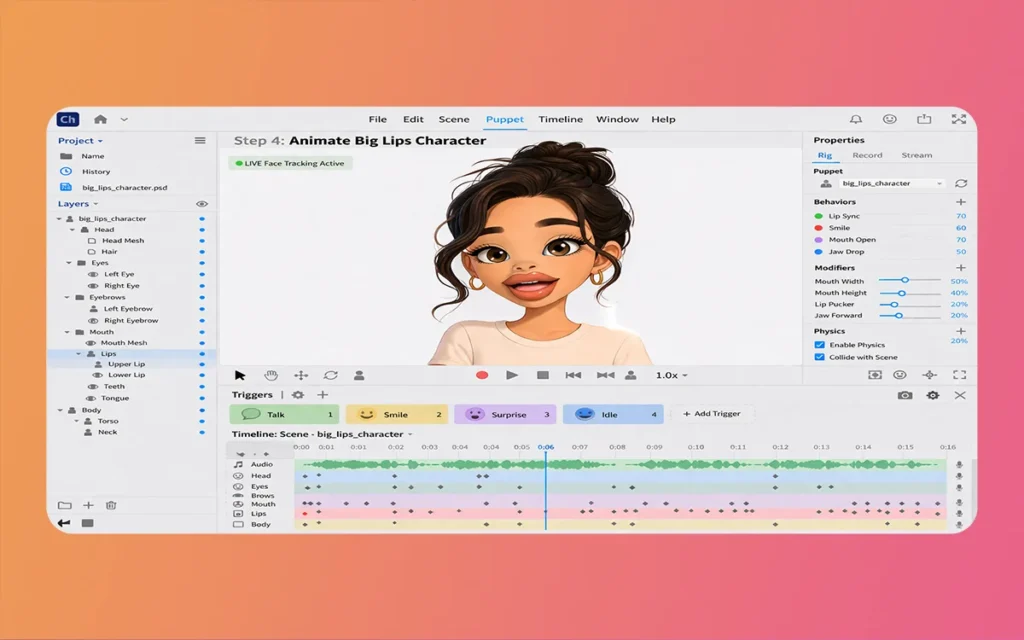
The 2026 release (version 26.0) brought some serious stability to the table. One of the coolest features for anyone creating Cartoon Characters with Big Lips is the “Advanced Lip Sync” powered by Adobe Sensei AI. This AI has been trained on thousands of different voice types to ensure that the mouth moves perfectly with the audio.
If you are using a webcam to perform, the 2026 update tracks your own lip movements with much higher precision. If you pout or stretch your mouth, your Cartoon Characters with Big Lips will do the same in real-time. This is perfect for live streamers who want an avatar that matches their energy.
Another update in 2026 is “Editable Replays.” If you record a perfect line of dialogue but want to change how the lips look on just one word, you can now go into the timeline and swap the viseme for that specific moment across all instances of that character. This saves hours of manual editing and allows you to focus on the creative side of your storytelling.
Important Technical Requirements for Animating Lips
Instead of a standard table, here are the essential technical points you need to know for the 2026 version of Adobe Character Animator:
Operating System Requirements: You will need Windows v24H2 or later, or macOS Sonoma (version 14) to run the latest 2026 features smoothly.
Processor Power: An Intel 6th Gen or AMD Ryzen 1000 series is the minimum, but for complex puppets with big, detailed lips, an Apple M1 or newer is highly recommended.
Memory (RAM): While 8 GB is the minimum, 16 GB is the “sweet spot” for handling high-resolution textures on your character’s face.
Webcam and Mic: To use the real-time tracking for your Cartoon Characters with Big Lips, a standard 1080p webcam and a clear microphone are essential.
Graphics Card: Ensure your GPU supports DirectX 12 or Metal (for Mac) so the “Body Tracker” and “Face Tracker” don’t lag during your performance.
Cartoon Characters with Big Lips
Pro Tips for Perfecting Your Character Design
To really make your Cartoon Characters with Big Lips stand out, think about the lighting. In the 2026 version of the software, you can use “Ray Traced Shadows” (if your hardware supports it) to make the lips cast a small shadow on the chin. This tiny detail adds so much depth!
Also, don’t be afraid to use “Triggers.” You can set a trigger so that when you press the “S” basic, your character blows a kiss or makes a funny face. Since the lips are the star of the show, these custom triggers can really says the work you put into the design.
Lastly, always check your “Mesh.” In the Puppet panel, make sure the yellow mesh covers the entire lip area. If the mesh is too tight, the lips might look “choppy” when they move. You can manually expand the mesh to ensure every curve of those big lips moves smoothly during the animation.
Creating Cartoon Characters with Big Lips in Adobe Character Animator is a fantastic way to experiment with personality and style. With the 2026 updates, the barrier to entry has never been lower. You don’t need to be a master animator to make something that looks professional; you just need a good design, proper naming, and the courage to perform in front of your webcam.
We hope this education guide helps you on your creative ride. Think of, at The Morphic Studio, we believe every pixel counts. So, go out there, start drawing, and let those big-lipped characters speak their truth to the world!
If you ran into any trouble or found a cool new trick in the 2026 version, leave a comment below. We love hearing from our community of creators. Happy animating!
Related Article
September 1, 2026
Augmented Reality News: 7 Exclusive Breakthroughs for an Incredible Year | The Morphic Studio
Navigating the Latest Augmented Reality News Environment Welcome to another exciting deep dive into the statistical universe brought to you by The Morphic Studio. If you have been keeping up with tech headlines lately, you already know that statistical overlays and spatial computing are changing how we interact with our physical surroundings. The year 2026 […]
September 1, 2026
VR Horror Games: 13 Incredible Titles for a Brutal Scare – The Morphic Studio
Welcome to the ultimate guide for anyone looking to test their nerves inside a headset. When you strap a display to your face, flat screen rules no longer apply. VR Horror Games You are no longer watching a character run from danger on a distant monitor, because you are right there in the middle of […]
August 31, 2026
Meta Quest 4 Release Date: The Master Guide to 2026’s Most Incredible VR | The Morphic Studio
Virtual reality has traveled a long road over the last few years. We have moved from bulky, tethered headsets that needed expensive gaming computers to sleek, standalone machines that fit right inside a small travel backpack. If you follow immersive technology here at The Morphic Studio, you already know that Meta has been leading the […]