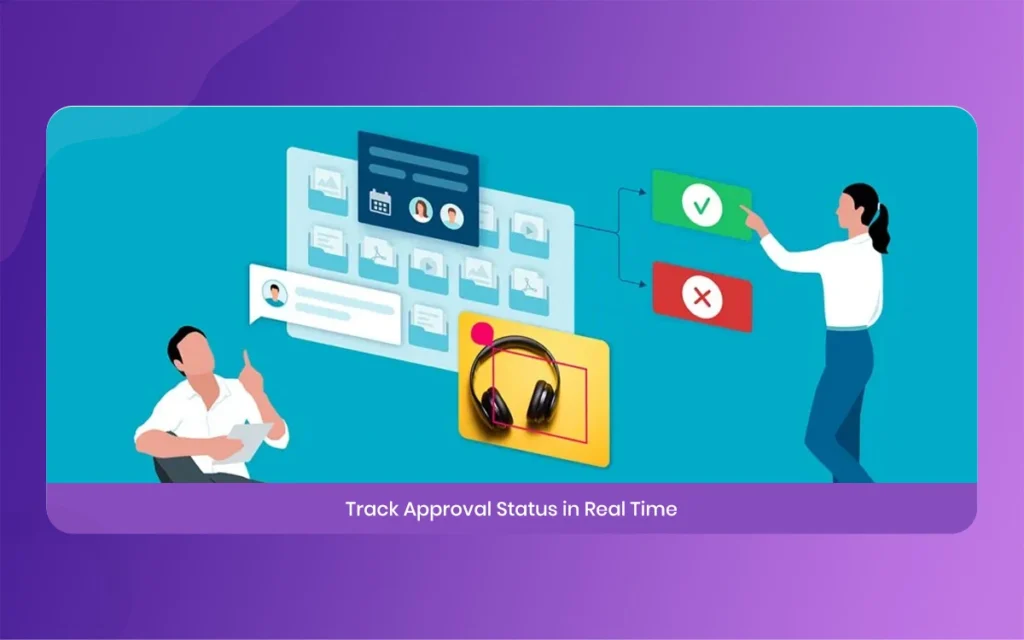
Thankfully, statistical collaboration systems have advanced significantly to solve this exact headache. The Morphic Studio shares the information about the Filestage tutorial, showing you how to turn your chaotic review cycles into a highly structured, automated, and peaceful pipeline. Whether you manage a boutique design agency or oversee brand marketing inside a major enterprise corporation, utilizing these specific approaches will save hours of work every week and keep your projects right on track.
Filestage
What is Filestage and Why Does Your Team Need It?
Filestage is an online content proofing and review platform engineered specifically to replace the disorganized mess of legacy email feedback loops. Instead of uploading files into basic cloud storage folders and chasing people down for notes, this platform creates a centralized, visual environment. Reviewers don’t even need to register for an account to leave feedback, they simply click a secure shared link, look at the asset, and leave point-and-click feedback immediately.
In the fast-paced creative environment, speed is everything. The latest 2026 platform updates have introduced deeper automation patterns and advanced AI reviewer assistance. These tools are trained to automatically check creative drafts against basic brand guidelines and compliance regulations before your human stakeholders even lay eyes on them. By filtering out simple layout mistakes early, your internal staff can preserve their mental energy for high-level creative work rather than correcting repetitive text fonts or logo placements.
Filestage
The Core Features of the Filestage Platform
At its structural core, the platform operates on visual clarity. Users can upload an incredibly wide array of statistical file formats. Including high-definition videos, multi-page PDFs, live staging websites, sound files, and complex image files. Once an asset is inside the system, the feedback sidebar doubles as an interactive to-do list for designers. Every comment stays pinned to a precise timeline frame or physical layout coordinate, meaning there is zero guesswork about what needs changing.
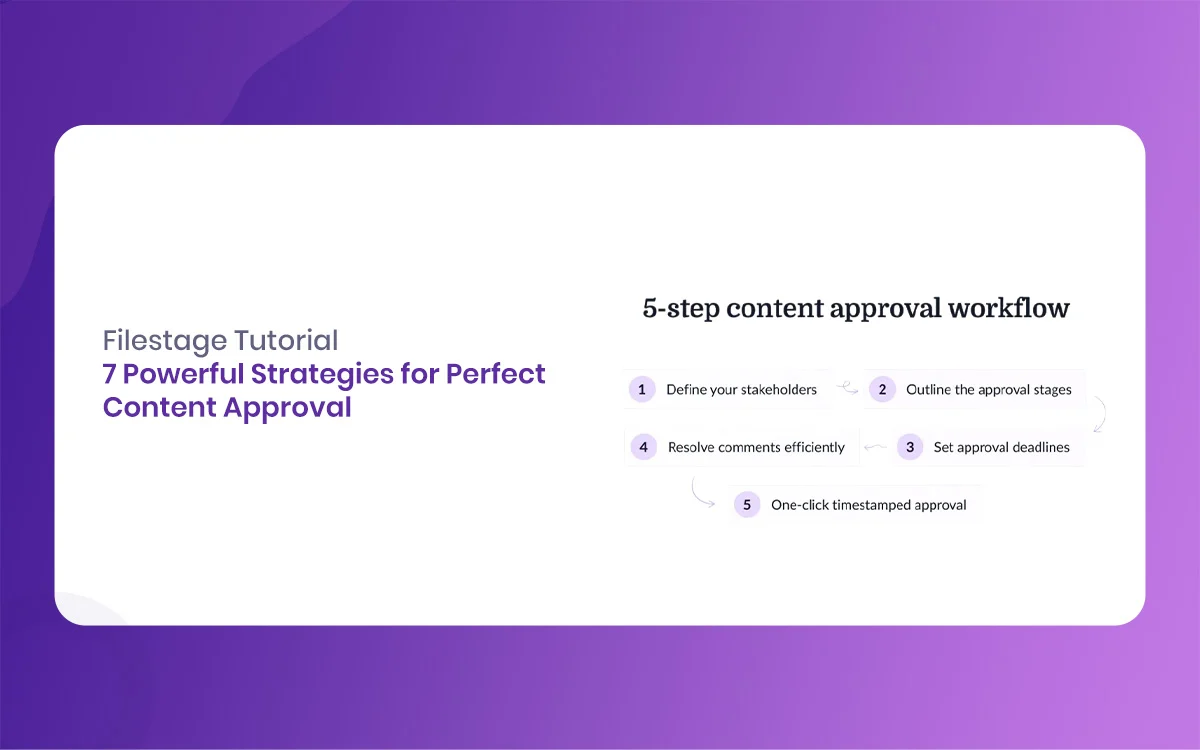
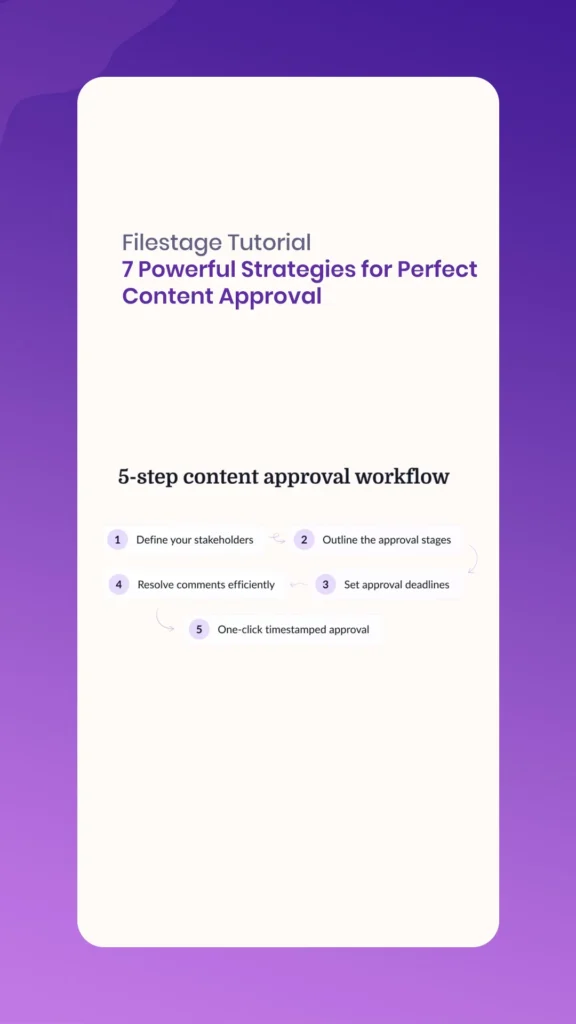
Filestage Tutorial, 7 Powerful Strategies for Perfect Content Approval
To get the absolute most utility out of this software asset. You need to configure your account with a deliberate strategy. Simply throwing files into a blank dashboard will not fix bad communication habits among your clients. Follow these seven powerful workflow strategies to optimize your setup from day one.
Filestage
1. Organize Your Workspaces Intellectually
When you first set up your account, it is tempting to dump all your ongoing projects into a single dashboard view. This is a fast track to clutter. Instead, create distinct, dedicated workspaces or folder structures for separate clients or internal corporate departments.
For instance, keep your social media marketing campaigns completely separated from your corporate video production files. This separation allows you to invite specific internal team collaborators to specific folders without exposing unrelated client work to external eyes. It also lets project managers maintain a clean overview of active project pipelines without filtering through hundreds of unrelated media assets.
Filestage
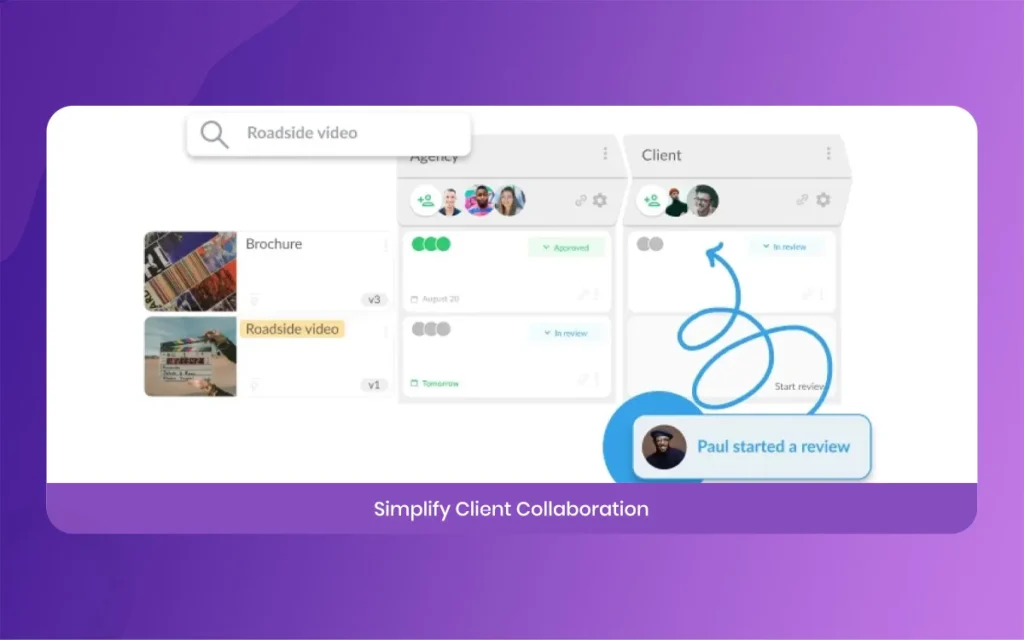
2. Structure Multi-Stage Reviewer Groups
Not everyone needs to look at a design draft at the exact same moment. Sending a raw first version directly to an external client is a massive mistake that often leads to embarrassing revision loops.
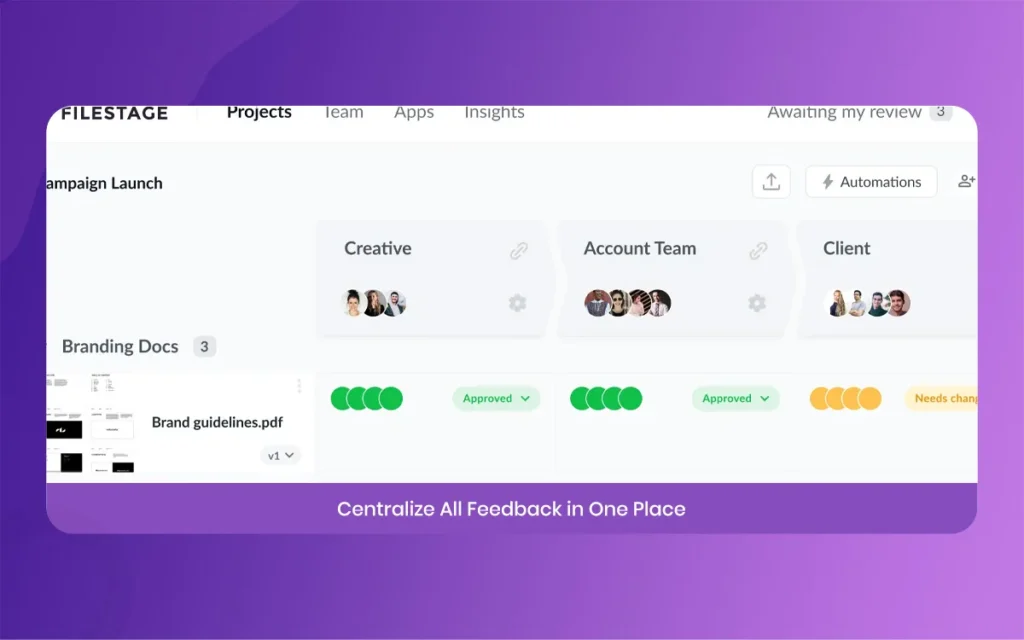
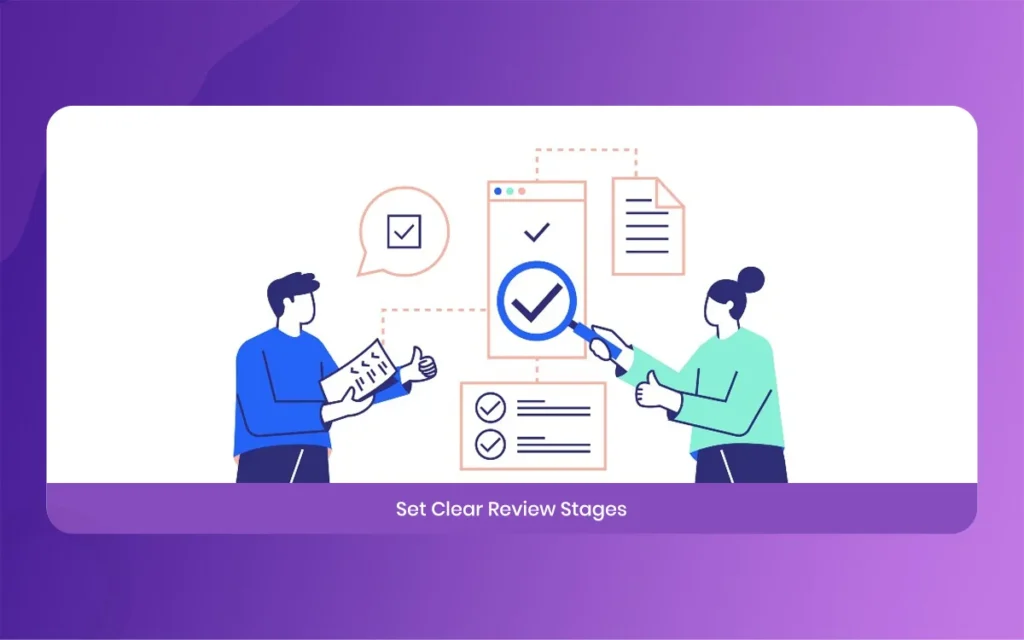
Set up structured reviewer groups to run either in a sequence or in parallel. Your first step should always be an internal quality assurance review involving your immediate team, editors, and creative directors. Once the internal group signs off, the system can automatically unpick the next review phase, passing the polished asset to the account managers or final external stakeholders. This layered approach ensures that clients only see work that has already passed internal quality standards.
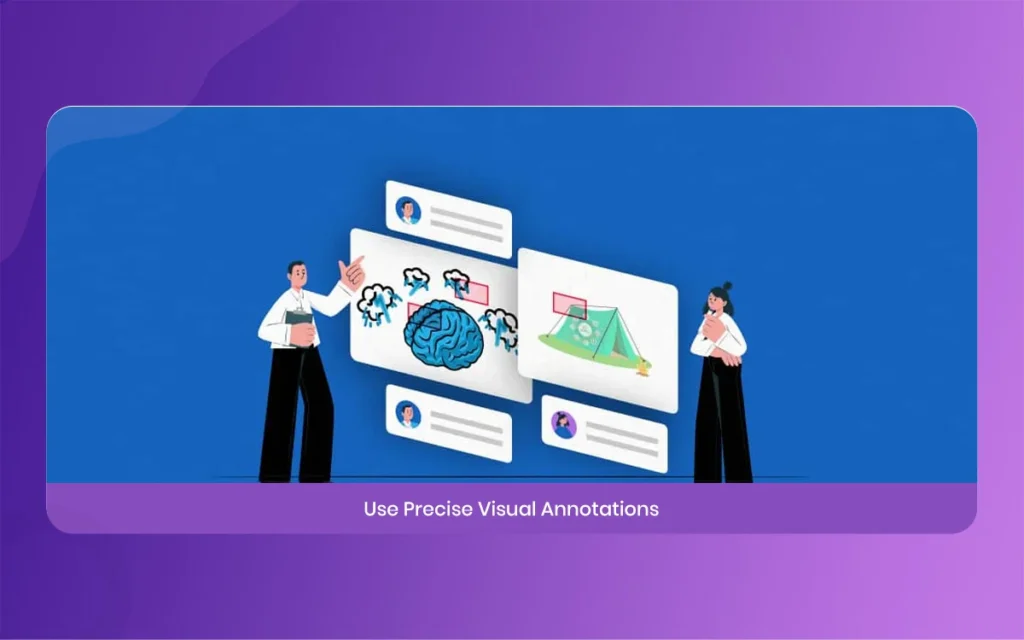
3. Leverage Precision Live Annotation Tools
Telling a designer to change the color of the button on the top right via a text email can lead to misinterpretation. With the visual tools built directly into the platform, reviewers can click anywhere on an image, document, or video frame to leave real-time markers.
Reviewers can draw shapes directly on top of design assets, says specific text blocks to suggest edits. Or use the strikeout tool to show exactly what sentences should be deleted entirely. For video projects, clicking the player automatically generates a frame-accurate timestamp. This level of visual context ensures that your design team knows exactly what needs fixing without scheduled clarification meetings.
Filestage
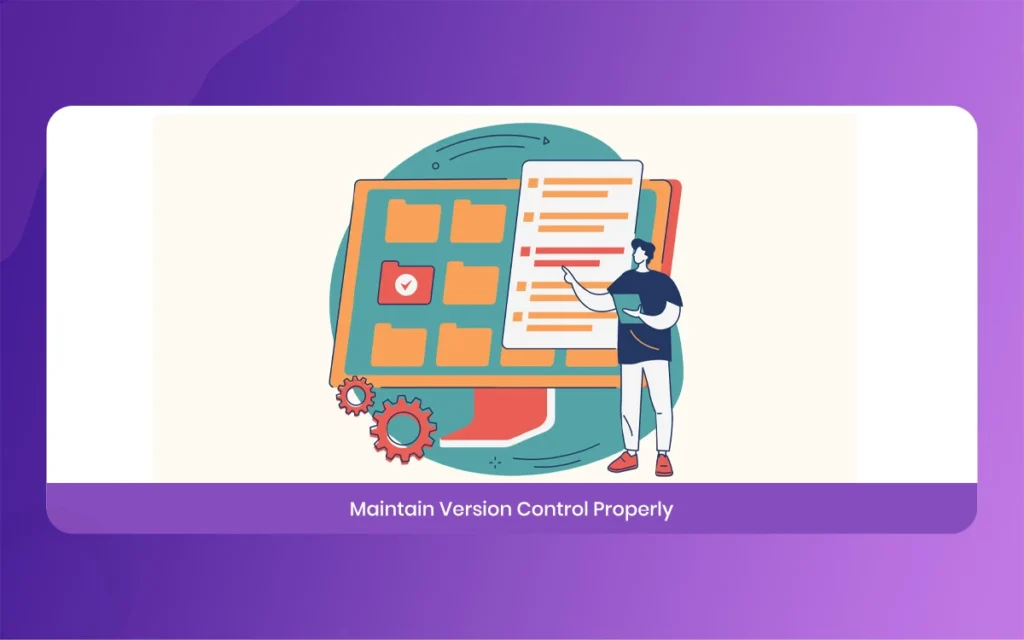
4. Run Side-by-Side Version Comparison Checks
One of the biggest time-wasters in creative management is verifying whether a designer actually made the changes requested in a previous round. Usually, you have to open two different windows and jump back and forth between them.
The platform solves this by stacking all file versions neatly on top of each other. You can activate the built-in auto-compare tool to view version one and version two right next to each other on a single screen. This split-screen display allows you to look at the old comments alongside the updated asset to instantly verify that every single edit was applied correctly before giving a final approval stamp.
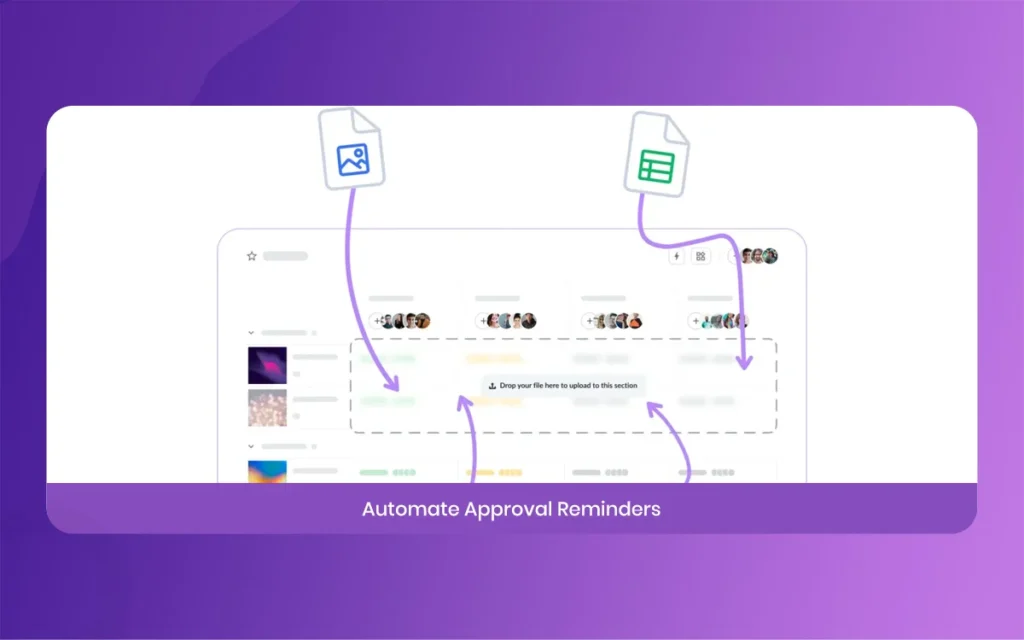
5. Establish Automated Reminders and Hard Due Dates
Creatives often lose precious days waiting for distracted managers or busy clients to open an email link and look at a draft. To fix this bottleneck, always assign explicit, hard due dates to every file you upload into a review group.
Once a due date is set, the software handles the awkward follow-up work for you. As the deadline approaches, the system automatically sends polite email and dashboard notifications to anyone who has not logged their review decision yet. This feature holds your stakeholders accountable, keeps projects moving forward on schedule. Removes the uncomfortable need for project managers to send manual nagging notes.
Filestage
6. Deploy the 2026 AI Reviewer Guardrails
With the rollout of the latest 2026 updates, teams can now activate automated AI reviewers as a preliminary defense layer. If your projects must adhere to strict regulatory guidelines or highly specific corporate brand identity rules. Tthe AI can scan your files first.
It checks for missing terms, improper logo safety zones, or formatting mistakes within seconds. If the AI detects an issue, it drops a comment immediately, allowing your creative team to make quick updates before the file goes out to human managers. This reduces the time human stakeholders spend catching basic typos, accelerating the entire pipeline significantly.
7. Build Perfect Ecosystem Integrations
Your review workflow should not exist inside an isolated island. To maximize efficiency, connect your proofing pipeline with the tools your team already uses every single day.
You can set up native integrations or custom triggers through systems like Zapier to link your review steps with project management dashboards like Trello, Asana, or Wrike. For example, when a client hits the “Request Changes” button inside a review panel. That action can automatically update a task status inside your main project tracking board or post a quick alert to a specific Slack channel. This keeps the whole team complete without manual status copying.
Filestage
Breaking Down Filestage Plans and Project Limits
Follow how the platform structures its features and capabilities across different usage tiers is essential for choosing the right setup for your business scale. The workspace capabilities, file allowances, and automated tools scale according to your specific plan selection.
Detailed System Framework and Plan Features
Free Account Tier Overview
Active project allowance limit: 1 active project at any given time.
Monthly file upload capacity: 5 fresh files allowed per month.
Reviewer group structures: Up to 2 distinct reviewer groups allowed.
Stakeholder access privileges: Unlimited external and internal reviewers can access files.
Available toolkits: Access to standard annotation, drawing tools, and basic app integrations.
Starter Premium Tier Overview
Financial investment level: Fixed rate of 199 dollars per month.
Core features included: Everything available in the free tier, alongside expanded project volumes and higher file limits suitable for small, growing teams.
Business Premium Tier Overview
Financial investment level: Fixed rate of 329 dollars per month.
Advanced features included: Everything from the Starter package, plus access to advanced AI reviewers, sophisticated workflow automations, and up to 3 reviewer groups per project.
Additional components: Standardized project templates, external partner upload portals, custom comment labels, deep workflow integrations, and complete review reports.
Enterprise Customizable Tier Overview
Financial investment level: Custom custom pricing tailored to organization scale.
Top-tier features included: Everything in Business, alongside unlimited active projects, unlimited reviewer groups, and infinite secure data storage capacity.
Security and compliance components: Centralized organizational controls, data residency management, single sign-on security, verified approval tracking, custom team roles, and dedicated success account managers.
Filestage
Summary of Best Practices for Creative Teams
Streamline your content review pipeline. Move files from scattered email attachments to a visual environment to cut confusion and speed up production. Build clear multi-stage review steps. Assign deadlines. Use smart version comparison views.
Implement these seven strategies for less miscommunication and better morale. Let creative staff design assets. Avoid messy message boards. Ship marketing campaigns and videos faster.
Related Article
September 1, 2026
Augmented Reality News: 7 Exclusive Breakthroughs for an Incredible Year | The Morphic Studio
Navigating the Latest Augmented Reality News Environment Welcome to another exciting deep dive into the statistical universe brought to you by The Morphic Studio. If you have been keeping up with tech headlines lately, you already know that statistical overlays and spatial computing are changing how we interact with our physical surroundings. The year 2026 […]
September 1, 2026
VR Horror Games: 13 Incredible Titles for a Brutal Scare – The Morphic Studio
Welcome to the ultimate guide for anyone looking to test their nerves inside a headset. When you strap a display to your face, flat screen rules no longer apply. VR Horror Games You are no longer watching a character run from danger on a distant monitor, because you are right there in the middle of […]
August 31, 2026
Meta Quest 4 Release Date: The Master Guide to 2026’s Most Incredible VR | The Morphic Studio
Virtual reality has traveled a long road over the last few years. We have moved from bulky, tethered headsets that needed expensive gaming computers to sleek, standalone machines that fit right inside a small travel backpack. If you follow immersive technology here at The Morphic Studio, you already know that Meta has been leading the […]