Welcome to The Morphic Studio, your favorite corner of the internet for all things design and animation. If you have ever wanted to make a lion talk or a little rabbit dance, you are in the right place. Creating Animal Cartoon Characters used to take months of frame-by-frame work, but thanks to modern tech, it is way easier now. In this guide, we are going to look at how to use Adobe Character Animator to bring your furry or feathered friends to life.
Why Adobe Character Animator is Perfect for Animal Cartoon Characters
Adobe Character Animator is a bit like magic, because it uses your own face and voice to move a statistical puppet. For Animal Cartoon Characters, this is a total game changer. You do not need to be a master of complex keyframes to get a tail to wag or eyes to blink. The software uses your webcam to track your movements and applies them to the character in real-time. This means if you smile, your cartoon bear smiles too.
Animal Cartoon Characters
As we move into 2026, the software has become even more powerful. It is not just about human faces anymore. The latest updates have improved how the AI understands animal anatomy. Whether you are working on a quadruped like a dog or a bird with wings, the movement feels much more natural than it did a few years ago. It is really the best tool for beginners and pros who want to work fast.
Getting Started: Setting Up Your Workspace for Animal Cartoon Characters
Before you even open Character Animator, you need a plan. You cannot just jump in without a puppet. Most creators start by drawing their Animal Cartoon Characters in either Adobe Photoshop or Adobe Illustrator. This is a very important step because the way you name your layers determines how the character will move later on. If you do not name the “Left Eye” layer correctly, the software will not know what to do with it.
In 2026, Adobe introduced a new “Smart Layering” feature that helps guess what your layers are, but it is still better to do it manually. You want to make sure the head, torso, arms, and legs are all on separate layers. For animals, think about the extras. Does your character have a long tail? Does it have floppy ears? These need their own layers too. Keeping your workspace clean is the secret to a puppet that does not break when it starts moving.
Animal Cartoon Characters
Designing Your Animal Cartoon Characters in Photoshop or Illustrator
When you are designing Animal Cartoon Characters, simplicity is usually your best friend. Even though the software is powerful, a design that is too complex might look “crunchy” when it moves. Focus on big, expressive eyes and a mouth that has different shapes for different sounds. This is called “Visemes.” These are the mouth positions that represent sounds like “Ah,” “Oh,” and “L.”
I think one of the coolest parts of designing for 2026 is the new texture engine. You can now add realistic fur or scale textures that react to the lighting in your scene. When you are drawing your Animal Cartoon Characters, try to think about how they will look in motion. A heavy tail should look like it has weight, and big ears should flop around when the character jumps. Once your file is saved as a PSD or AI file, you are ready to import it.
The 2026 Update: New Features for Rigging Animal Cartoon Characters
The latest 2026 update for Adobe Character Animator has brought some incredible tools specifically for people making Animal Cartoon Characters. The biggest update is the “Neural Gait” engine. In the past, making a four-legged animal walk was really hard because the software was built for two-legged humans. Now, the AI can automatically calculate how a horse or a cat should walk based on where you place the joints.
Another huge update is the “Advanced Physics 3.0.” This allows for much better secondary motion. If your Animal Cartoon Characters have whiskers, those whiskers will now jiggle naturally when the head moves, without you having to program every single movement. It makes the characters feel much more “alive” and less like flat drawings. This update also includes better wind effects, so if your character is outside, their fur will actually rustle in the breeze.
Animal Cartoon Characters
Using AI to Animate Animal Cartoon Characters Faster
We cannot talk about 2026 without mentioning Artificial Intelligence. Adobe has integrated Sensei AI even deeper into the workflow. Now, you can use a feature called “Speech-to-Animation” for your Animal Cartoon Characters. You just upload an audio file of someone speaking, and the AI rigs the entire body movement to match the tone of the voice. If the voice sounds sad, the character’s shoulders will droop automatically.
This is a massive time saver for educators and content creators. You no longer have to spend hours acting out every single scene in front of a webcam. Of course, you can still do the manual performance if you want that personal touch, but the AI gives you a great starting point. For Animal Cartoon Characters, the AI is specifically trained on animal behaviors, so it knows how to add little bird-like head tilts or dog-like sniffing motions without you even asking.
Step-by-Step Guide: Bringing Your Animal Cartoon Characters to Life
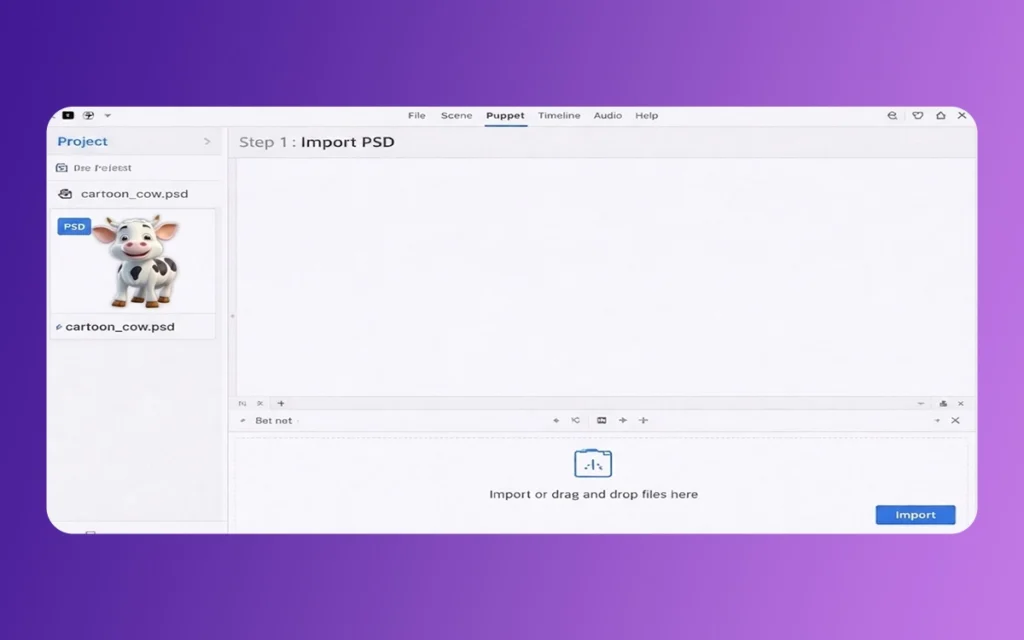
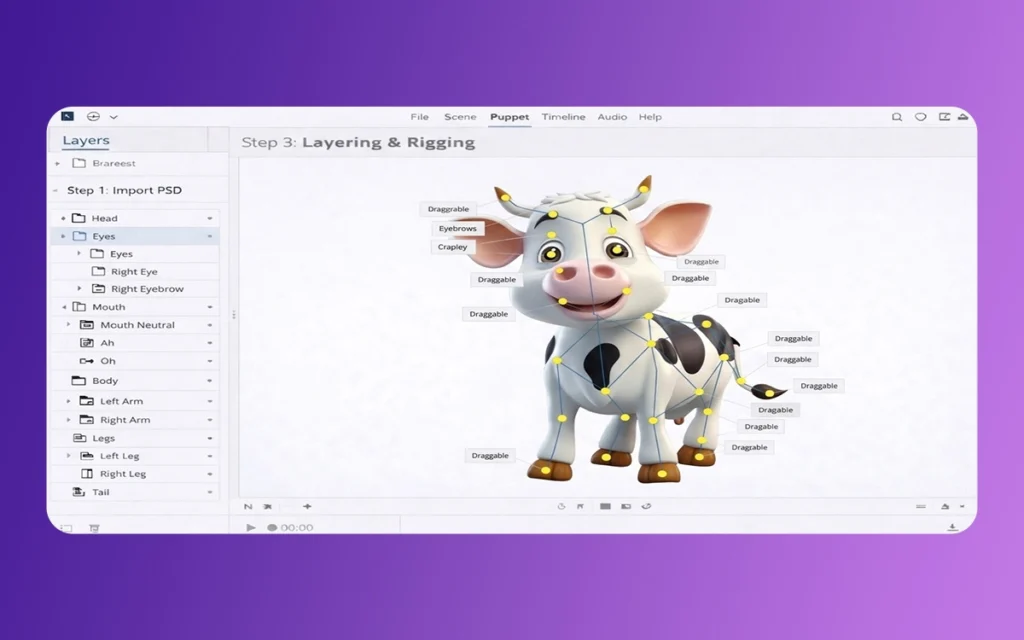
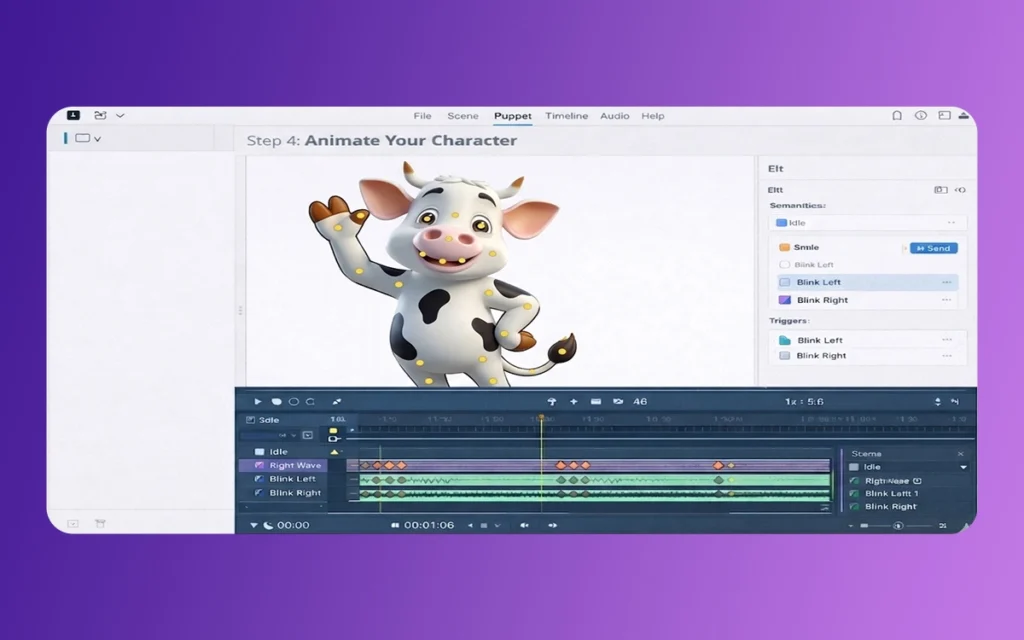
Step one is importing your file. When you bring your Photoshop file into Character Animator, the software looks at your layer names. If you used the right tags, like “+Head” or “Left Blink,” it will automatically rig those parts. For Animal Cartoon Characters, you will likely need to go into the “Rig” workspace and add some “Staples” and “Pins.” Pins keep certain parts of the character, like their feet, stuck to the ground so they don’t float away.
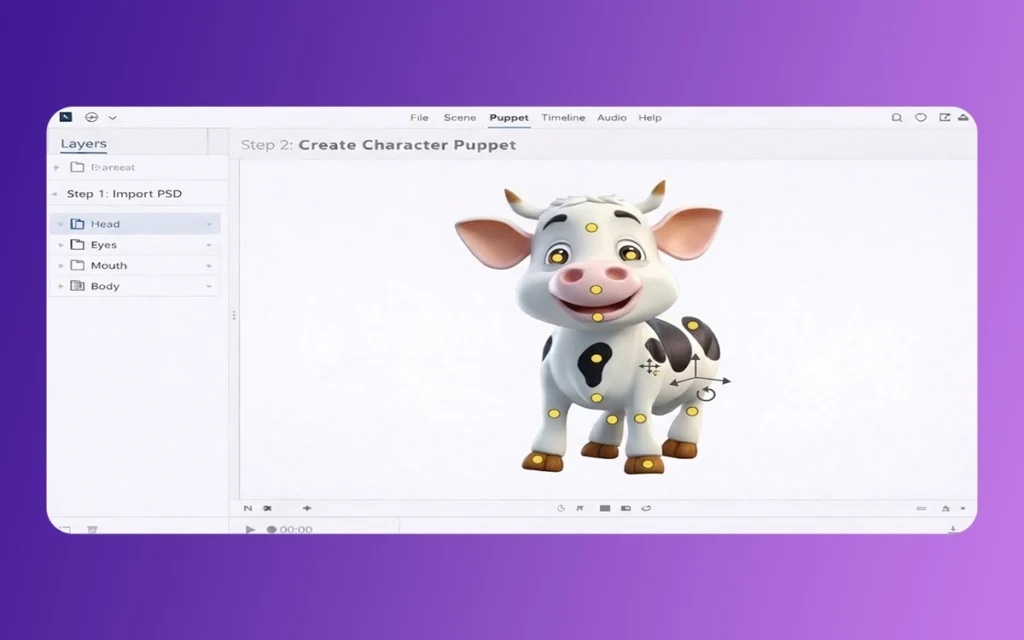
Step two is adding behaviors. This is where you add things like “Breathe,” “Wiggle,” or “Auto Blink.” For a tail, you will want to use the “Dangle” tool. You place a root at the base of the tail and then add “Dangle” points along the rest of it. This makes the tail swing back and forth based on how the body moves. It is honestly really fun to watch your Animal Cartoon Characters come to life for the first time during this stage.
Animal Cartoon Characters
Step three is the performance. Hit the “Record” button and start talking. Your webcam will track your eyes and mouth. If you move your head from side to side, your character will do the same. You can also use your keyboard to trigger specific animations, like a “wave” or a “jump.” The 2026 version allows for “Multi-Device Tracking,” which means you can use your phone to track your hand gestures while your webcam tracks your face. This gives your Animal Cartoon Characters much more expressive hand and paw movements.
Important Features Comparison for Animal Animation
Instead of a table, let us look at the basic differences between the old tools and the new 2026 features for creating Animal Cartoon Characters through these points:
Walking Mechanics: Previously, we only had “Walk Cycle” for bipeds (two legs), which made animals look awkward. In 2026, the “Neural Gait” handles quadrupeds (four legs) with realistic knee and ankle bending.
Facial Tracking: Older versions struggled with long snouts or beaks on Animal Cartoon Characters. The new “Profile Tracker” allows the camera to see your face from the side and translate that to a character with a long nose.
Fur and Hair Simulation: Before, fur was just a static image. Now, the “Energetic Fiber” system allows individual strands of fur to react to gravity and movement in real-time.
Automatic Lip Syncing: The old version was good but sometimes missed fast words. The 2026 “Neural Lip Sync” uses deep learning to match mouth shapes perfectly, even if the animal has a very different mouth structure than a human.
Trigger Systems: We used to have to set up every trigger manually. Now, the “Smart Trigger” system suggests actions based on the animal type you have selected, like “Bark” for a dog or “Chirp” for a bird.
Animal Cartoon Characters
Common Mistakes to Avoid with Animal Cartoon Characters
One of the biggest mistakes people make is forgetting to use the “Independent” tag on certain layers. If you don’t make the head independent, when the character moves its head, the whole body might stretch like it is made of rubber. This looks really weird for Animal Cartoon Characters unless you are going for a very surreal style. Always check your “crown” icons in the rigging panel to make sure parts move how they should.
Another mistake is over-animating. Sometimes, people want their Animal Cartoon Characters to move every single second. But real animals have moments of stillness. Let the “Breathe” behavior do the work. If you move too much, the tracking might get lost, and your character’s face might glitch out. Keep your movements smooth and deliberate, especially if you are working with a character that has a lot of “Dangle” physics applied to its ears or tail.
Lastly, do not ignore the background. Even the best Animal Cartoon Characters look a bit lost if they are just floating in a white void. Use the “Background Environments” feature in the 2026 update to place your character in a forest or a living room. The software can now even cast shadows from your puppet onto the background, which makes the whole scene look much more professional and “expensive” for your viewers.
Advanced Tips for Pro-Level Animal Animation
If you want to take your Animal Cartoon Characters to the next level, start playing with “Particle Systems.” This is great for things like a cat shedding a bit of fur or a fish blowing bubbles. In the 2026 update, particles can be “emitters” attached to specific body parts. So, a dragon could breathe fire, or a magical deer could leave a trail of sparkles wherever it walks. It adds that extra bit of “wow” factor.
Also, consider using “Parallax” for your backgrounds. This is when the background moves slower than the foreground. It gives a 3D feel to your 2D Animal Cartoon Characters. Even though Character Animator is mostly a 2D tool, using these depth tricks makes your work stand out on platforms like YouTube or TikTok. I’ve noticed that characters with a bit of depth always get more engagement because they look more like a high-budget TV show.
Final Thoughts on Exporting Your Animal Cartoon Characters
Once you are happy with your performance, it is time to export. You can export directly to Adobe Premiere Pro or After Effects if you want to add more effects later. For most people, exporting as an MP4 is the way to go. The 2026 version has a “One-Click Social” export that optimizes the video for different platforms automatically. This is great because a video for Instagram needs to be a different shape than a video for a website.
Creating Animal Cartoon Characters is a ride of trial and error. Do not be afraid if your first puppet looks a bit “wonky” or if the tail flies off the screen. That is part of the learning process. With the new 2026 tools, the barrier to entry is lower than it has ever been. Just keep practicing, keep drawing, and most importantly, have fun with your creations. The world always needs more fun and engaging animal characters to tell stories and teach lessons.
Thank you for following this guide at The Morphic Studio. We hope this “Education Guide” helps you start your animation ride with confidence. Now, go grab your drawing tablet and start making some awesome Animal Cartoon Characters! It is time to let your creativity run wild, and we cannot wait to see what you come up with in Adobe Character Animator. Think of every great Cartoon Animator 5 started with just one simple drawing and a lot of curiosity.
Related Article
September 1, 2026
Augmented Reality News: 7 Exclusive Breakthroughs for an Incredible Year | The Morphic Studio
Navigating the Latest Augmented Reality News Environment Welcome to another exciting deep dive into the statistical universe brought to you by The Morphic Studio. If you have been keeping up with tech headlines lately, you already know that statistical overlays and spatial computing are changing how we interact with our physical surroundings. The year 2026 […]
September 1, 2026
VR Horror Games: 13 Incredible Titles for a Brutal Scare – The Morphic Studio
Welcome to the ultimate guide for anyone looking to test their nerves inside a headset. When you strap a display to your face, flat screen rules no longer apply. VR Horror Games You are no longer watching a character run from danger on a distant monitor, because you are right there in the middle of […]
August 31, 2026
Meta Quest 4 Release Date: The Master Guide to 2026’s Most Incredible VR | The Morphic Studio
Virtual reality has traveled a long road over the last few years. We have moved from bulky, tethered headsets that needed expensive gaming computers to sleek, standalone machines that fit right inside a small travel backpack. If you follow immersive technology here at The Morphic Studio, you already know that Meta has been leading the […]