Ever look at a cartoon and think, “I wish I could do that,” but feel overwhelmed by drawing every frame? You are not alone. Animation used to be this scary, mountain-high task that required years of training and a lot of patience. But things have changed. With Adobe Character Animator, the game has shifted from “drawing” to “performing.”
It is a tool that lets you bring a character to life just by moving your own body and speaking into a mic. It is almost like statistical puppetry, and honestly, it is one of the most fun ways to create content today.
As we move into 2026, the world of statistical creation is moving faster than ever. We want results quickly, and we want them to look professional.
Whether you are a YouTuber, a teacher making lessons, or a business owner looking to add some spice to your website, this software is your best friend. It bridges the gap between being a total beginner and looking like a pro animator.
In this guide, we are going to dive into how you can master this tool with five simple tricks that will make your work stand out.
The Power of Adobe Character Animator in 2026
In the current year of 2026, Adobe Character Animator has matured into a powerhouse that works perfectly with the rest of the Creative Cloud. While other tools like Adobe Animate have seen big changes or shifts in focus, Character Animator remains the go-to for anyone who wants “live” or “performance-based” results.
The software uses your webcam and microphone to track your facial expressions and voice in real-time.
Why is this so important right now? Well, the demand for video content is at an all-time high. People do not just want to read text, they want to see a face, even if that face belongs to a colorful monster or a talking robot.
Using Adobe Character Animator allows you to create high-quality 2D animations without the traditional “frame-by-frame” headache. It uses artificial intelligence, specifically Adobe Sensei, to map your movements onto a puppet.
This means you can focus on the “acting” part of the animation, which makes the characters feel much more human and relatable.
The 2026 version has also become much more stable. Adobe has spent a lot of time making sure the software doesn’t lag when you are doing complex movements.
This is a huge win for creators who do live streams. Imagine being a VTuber and having your avatar react perfectly to your jokes without any delay.
That is the kind of power we are talking about. It is about making the technology invisible so that your creativity can be the star of the show.
Step 3: Descriptive Table Information (Points)
Instead of a table, here is the essential data for the 2026 update:
Software Version: Adobe Character Animator v26.0 (January 2026 Release).
Primary Focus: Performance stability, bug fixes, and enhanced integration with After Effects 2026.
Operating System (Windows): Windows 10 (64-bit) v22H2 or later (v24H2 recommended).
Operating System (macOS): macOS Monterey (v12) or later (Sonoma v14 recommended).
Processor Requirement: Intel 6th Gen or newer, or AMD Ryzen 1000 or newer (Apple M1+ for Mac).
RAM Requirements: 8 GB minimum, 16 GB or more highly recommended for 4K workflows.
Key Hardware: Webcam for face tracking, microphone for lip sync, and headphones to avoid audio feedback.
Adobe Character Animator
The Core Features of Adobe Character Animator
Before we get into the tricks, we need to talk about what makes Adobe Character Animator tick. At its heart, the software uses “puppets.” These are files you create in Photoshop or Illustrator. You layer them in a specific way, naming things like “Left Eye” or “Mouth,” and the software automatically knows how to move them. It is like building a skeleton for your artwork. Once the rig is set up, the software’s “Behaviors” take over.
One of the coolest features is the “Body Tracker.” It doesn’t just look at your face anymore, it can actually track your arms and torso. If you wave your hand in front of your camera, your puppet waves back. This adds a whole new level of expression. Then there is the “Lip Sync” feature.
It is incredibly accurate now. It listens to the sounds (phonemes) you make and matches the mouth shapes of your puppet perfectly. You don’t have to manually click through mouth positions anymore, which used to take hours.
Another big part of Adobe Character Animator is the “Starter Mode.” This is perfect if you are just dipping your toes in. It gives you pre-made puppets and a simplified interface so you can start animating in literally minutes.
For those who want more, the “Pro Mode” offers keyframes, advanced physics, and triggers. You can make hair dangle, clothes flow in the wind, or even have particles like sparks or bubbles follow your character around. It is a deep toolbox that is surprisingly easy to learn if you take it one step at a time.
5 Effortless Animation Tricks with Adobe Character Animator
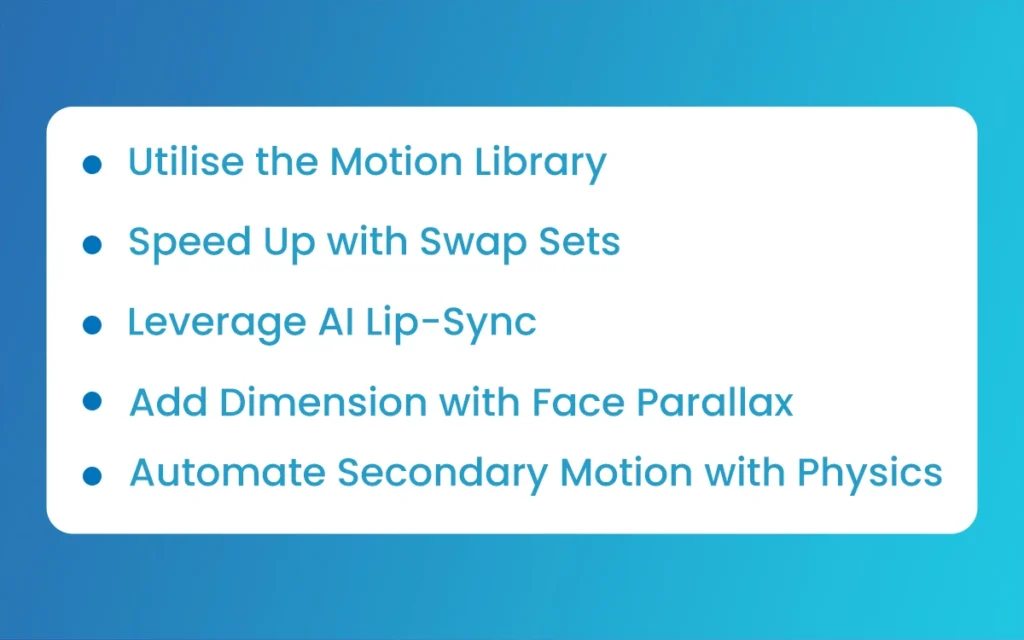
Now, let’s get into the good stuff. If you want to make your animations look like they were made by a big studio, try these five tricks within Adobe Character Animator.
1. Use Triggers for Instant Emotion
Triggers are like “hotkeys” for your character. While the webcam handles your basic face, you can set up triggers for specific things like a “surprised” expression or a “thumbs up” gesture. By pressing a key on your keyboard, you can swap a layer instantly.
This makes your character feel much more energetic. Instead of just talking, your character can suddenly pull out a coffee cup or wear sunglasses with one click. It adds a “pop” to the performance that face tracking alone can’t always capture.
2. Master the “Dangle” Physics
To make your character feel “real,” they need mass. In Adobe Character Animator, you can use the “Dangle” tool. Apply this to things like long hair, ears, or even a necktie. When your character moves their head, these parts will bounce and swing naturally based on gravity.
It is a very small detail, but it makes a massive difference. Without dangle, your character looks like a stiff piece of cardboard. With it, they feel like they are actually existing in a physical world.
3. Layering with Parallax for Depth
If you want your background to feel “3D” even though it is 2D, use parallax. In Adobe Character Animator, you can set different layers to move at different speeds when the camera pans. If your character walks, make the trees in the back move slower than the bushes in the front.
This creates an illusion of depth that draws the viewer in. It’s an old Disney trick that is super easy to do in the software by just adjusting the “position” strength of your background layers.
4. Speech-Aware Animation
Don’t just rely on the webcam for everything. Sometimes, your voice has more emotion than your face. Use the “Speech-Aware Animation” feature. This tool analyzes your audio file and automatically adds head tilts and eyebrow raises based on the tone of your voice.
If you sound excited, the character will move more energetically. It is a great way to “clean up” a performance after you have finished recording, making the movements feel more intentional and less “robotic.”
Adobe Character Animator
5. Subtle Eye Gaze Control
The eyes are the windows to the soul, right? In Adobe Character Animator, you can set the eyes to follow your mouse cursor or stay locked on the camera. A common mistake beginners make is letting the eyes wander too much. Try “smoothing” the eye gaze settings.
This makes the eye movements look less jittery and more focused. When a character looks directly at the audience at the right moment, it creates a strong connection that keeps people watching.
The January 2026 update, specifically version 26.0, has been a breath of fresh air for the community. While we didn’t see a massive overhaul of the interface, the “under the hood” changes are where the magic is. Adobe has focused heavily on stability.
If you have used older versions, you know that sometimes the face tracking could “glitch” if the lighting wasn’t perfect. The 2026 version handles low-light situations much better, thanks to improved AI algorithms.
Another big win in Adobe Character Animator this year is the tighter integration with After Effects 2026. You can now send your puppet scenes to After Effects and use the new “Advanced 3D renderer” to place your 2D characters into 3D environments more naturally.
There are also fewer bugs when importing complex Illustrator files. This means less time fixing “broken” rigs and more time actually being creative. It’s all about a smoother workflow, which is exactly what we need when we have deadlines to meet.
System Requirements and Performance
To get the most out of Adobe Character Animator in 2026, you do need a decent computer. Because the software is processing video and audio live, it can be a bit of a “resource hog.” You really want to have at least 16 GB of RAM.
If you try to run it on 8 GB, you might notice that the character’s movement looks “choppy,” which can be frustrating when you are trying to time a joke or a specific movement.
On the Windows side, make sure you are on a recent version like Windows 10 v22H2 or the newer v24H2. For Mac users, macOS Sonoma is the sweet spot. Also, do not overlook your hardware. A good quality webcam makes a world of difference for tracking.
If your camera is blurry, the software will struggle to see where your mouth or eyebrows are. And always, always use headphones. If your mic picks up the sound from your speakers, it can mess up the lip-syncing and create a messy audio loop.
Finally
At the end of the day, Adobe Character Animator is about having fun and telling stories. It has removed the “tech barrier” that used to stop so many people from trying animated videos. By using the five tricks we talked about, like mastering triggers and dangle physics, you can create something that looks truly professional without spending years in school for it.
As we look through the rest of 2026, the tools are only going to get better. But the technology is just a helper; the real heart of the animation is you. Your voice, your movements, and your ideas are what make the character come alive. So, head over to the Creative Cloud, download the latest version, and start playing around. You might be surprised at how easy it is to make your first cartoon. Here at The Morphic Studio, we can’t wait to see what you create!
Related Article
September 1, 2026
Augmented Reality News: 7 Exclusive Breakthroughs for an Incredible Year | The Morphic Studio
Navigating the Latest Augmented Reality News Environment Welcome to another exciting deep dive into the statistical universe brought to you by The Morphic Studio. If you have been keeping up with tech headlines lately, you already know that statistical overlays and spatial computing are changing how we interact with our physical surroundings. The year 2026 […]
September 1, 2026
VR Horror Games: 13 Incredible Titles for a Brutal Scare – The Morphic Studio
Welcome to the ultimate guide for anyone looking to test their nerves inside a headset. When you strap a display to your face, flat screen rules no longer apply. VR Horror Games You are no longer watching a character run from danger on a distant monitor, because you are right there in the middle of […]
August 31, 2026
Meta Quest 4 Release Date: The Master Guide to 2026’s Most Incredible VR | The Morphic Studio
Virtual reality has traveled a long road over the last few years. We have moved from bulky, tethered headsets that needed expensive gaming computers to sleek, standalone machines that fit right inside a small travel backpack. If you follow immersive technology here at The Morphic Studio, you already know that Meta has been leading the […]