Creating a memorable character often comes down to one standout feature. Think about the most famous toons in history. Many of them share a common trait, and that is a massive, goofy, or sharp set of chompers. When you set out to design Cartoon Characters with Big Teeth, you are not just drawing a mouth, you are building a personality. In this guide, we will look at how to use the latest January 2026 version of Adobe Character Animator to bring these toothy friends to life.
There is something naturally funny and expressive about a character with oversized teeth. Whether it is a rabbit with huge front buck teeth or a friendly monster with a wide, toothy grin, these features help tell a story. Big teeth allow for more exaggerated lip-syncing. When your character speaks, those large white shapes move up and down, making the animation feel more “bouncy” and alive.
In the 2026 update of Adobe Character Animator, the software has improved how it handles “Auto-swap” and “Mesh Deformations.” This means if you are designing Cartoon Characters with Big Teeth, the teeth will now stay more stable while the rest of the mouth stretches. This prevents the “jittery” look that used to happen in older versions of the app.
Cartoon Characters with Big Teeth
Step 1: Designing Your Character in Photoshop or Illustrator
Before you even open Character Animator, you need a solid foundation. You should create your artwork in layers. For Cartoon Characters with Big Teeth, the “Mouth” group is the most important part of your file.
The Upper Teeth Layer: In the 2026 workflow, it is best to keep the upper teeth as a static layer attached to the head. Since the upper jaw does not move in real life, keeping this still makes your cartoon look more professional.
The Lower Teeth Layer: These should be grouped with the jaw. When the mouth opens wide, the lower teeth should follow the downward motion of the chin.
The Lip Layers: Make sure your lips are thick enough to cover those big teeth when the mouth is “Neutral” or “Closed.”
Step 2: Setting Up the Mouth Group for Big Teeth
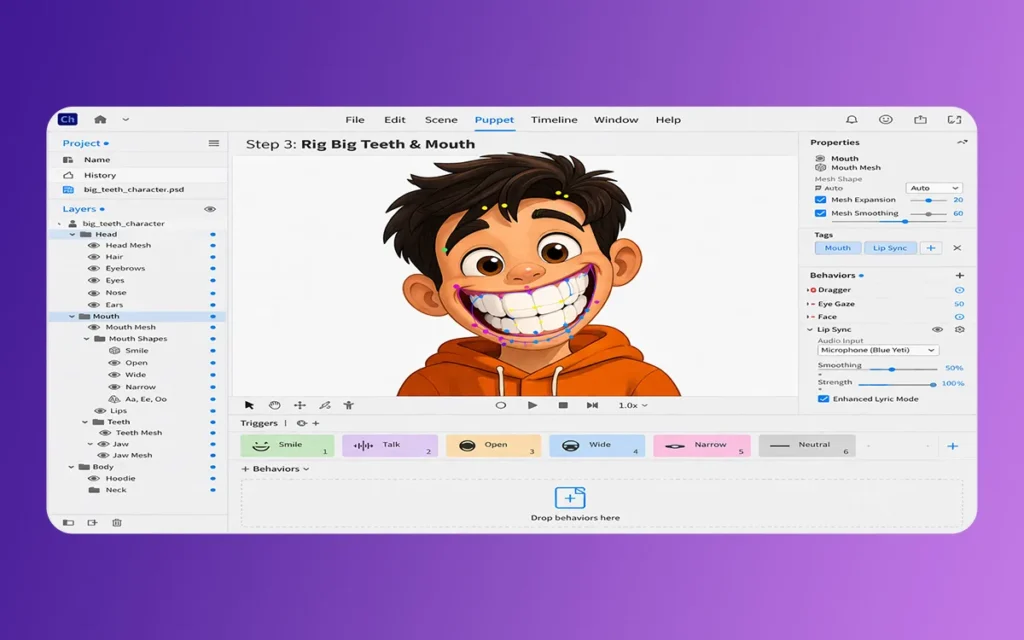
Adobe Character Animator uses specific naming conventions to recognize mouth shapes, also known as visemes. When you are making Cartoon Characters with Big Teeth, you have to be careful with how the teeth overlap the tongue and the throat layers.
You need to create 14 different mouth shapes. These include “Neutral,” “Smile,” “Surprised,” and various vowel sounds like “Aa,” “Ee,” and “Oh.” For a character with huge teeth, the “F” and “V” sounds are the most fun to animate. This is where the top teeth usually rest on the bottom lip. Because your character has such big teeth, you can really exaggerate this pose to make the animation “pop.”
One of the best techniques for Cartoon Characters with Big Teeth is the Nutcracker Jaw behavior. This is a classic style where the entire lower half of the face drops down.
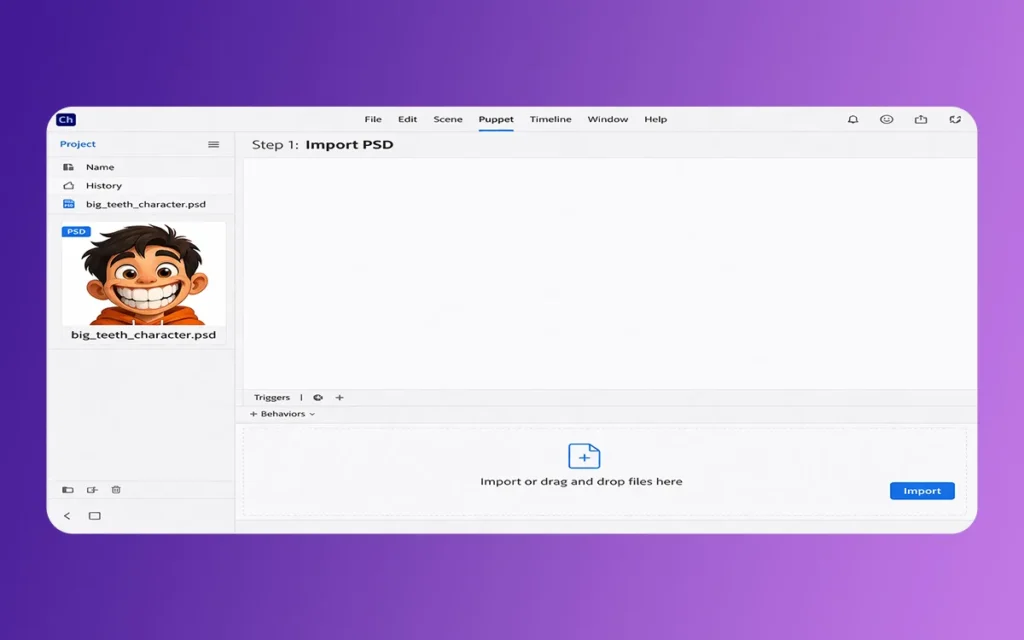
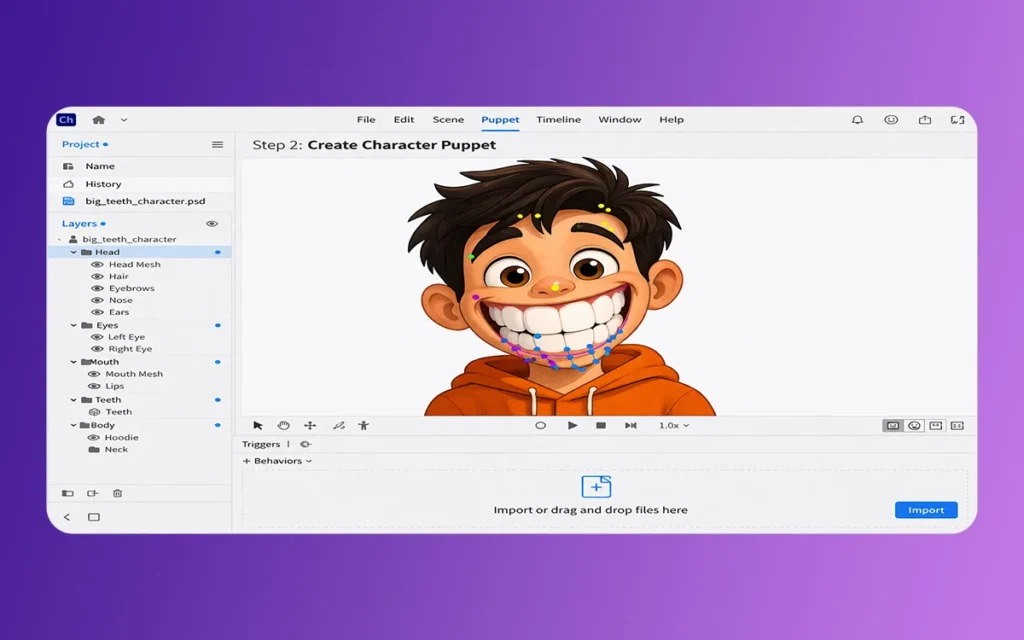
Open the Puppet panel in Character Animator.
Find the “Handle” tool and place a point on the chin of your character.
Tag this handle as “Jaw.”
In the Behaviors panel, add the “Nutcracker Jaw” effect.
Adjust the “Jaw Movement” slider. Since you have big teeth, you want the movement to be significant so the teeth don’t get hidden by the lips.
Cartoon Characters with Big Teeth
Important Elements for Toothy Character Design
Instead of a table, here is a detailed breakdown of the essential layers and settings you need for your project:
Neutral Mouth State: This is the default look. For Cartoon Characters with Big Teeth, you might want a little bit of the teeth peaking out even when the mouth is closed to show off their size.
The Masking Layer: You must use a clipping mask for the “Inner Mouth.” This ensures that when the big teeth move, they do not “leak” outside the lines of the face.
Physics Settings: In the 2026 update, you can add “Dangle” to individual teeth. If you have a character with a loose or wobbly tooth, adding a Dangle handle makes it wiggle whenever the character moves their head.
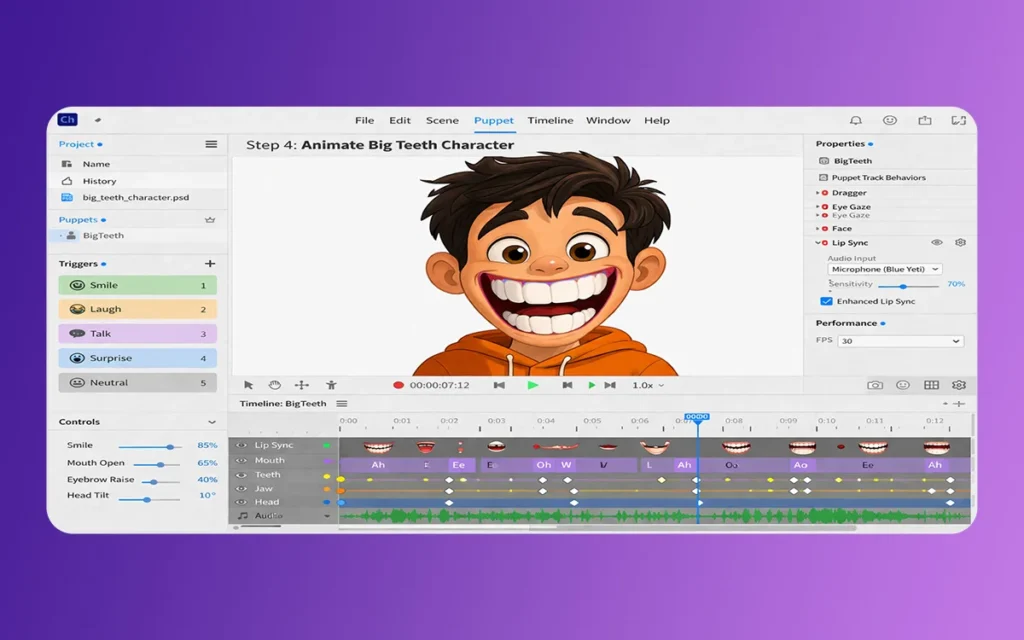
Lip Sync Sensitivity: Go to the properties panel and turn up the “Audio Sensitivity.” Big mouths require clear signals to trigger the wide-open mouth shapes correctly.
Basicboard Triggers: You can set a specific basic, like the “T” basic, to trigger a “Big Tooth Grin.” This allows you to show off the character’s best feature whenever you want, regardless of what they are saying.
Cartoon Characters with Big Teeth
Step 4: Using the 2026 “Sensei” Lip Sync
The 2026 release (Version 26.0) has brought major stability to the AI-powered lip-syncing engine. It is now much better at distinguishing between “S” sounds and “Th” sounds. For Cartoon Characters with Big Teeth, this is a game changer. Usually, big teeth can make the “S” mouth look crowded. The new engine handles the spacing better, making sure the “Big Teeth” don’t overlap the lips in a messy way.
To use this, simply record your audio or upload a WAV file. Then, go to Timeline > Compute Lip Sync Take from Scene Audio. The software will do the hard work for you. If a specific toothy pose looks wrong, you can simply click the viseme bar on the timeline and swap it for a better-looking one.
When working with Cartoon Characters with Big Teeth, many beginners make the mistake of making the teeth too bright. If the teeth are pure #FFFFFF white, they might glow too much on screen. Use a slightly off-white or cream color. Also, do not forget the “Gums” layer. Adding a little bit of pink or red at the top of the teeth adds a lot of depth and makes the character feel more “fleshy” and real.
Another mistake is forgetting to anchor the teeth. If your teeth are “floating” in the mouth, they will slide around awkwardly. Always make sure the “Upper Teeth” are a child of the “Head” group, and the “Lower Teeth” are a child of the “Jaw” group.
Creating Cartoon Characters with Big Teeth is all about having fun with shapes. Adobe Character Animator in 2026 has made it easier than ever for educators and students to jump into the world of 2D puppet animation. You don’t need to be a master animator to get a great result. You just need a good drawing, a webcam, and a little bit of patience to get the rigging right.
By following this guide, you can create a puppet that is expressive, funny, and technically sound. Think of to keep your layers organized, use the new 2026 stability features, and always test your lip-sync before you do a final export. Happy animating!
Related Article
April 3, 2026
How To Create Cartoon Characters with Braces Using Adobe Character Animator? (Education Guide)
Welcome to The Morphic Studio! If you are here, you probably want to add some unique personality to your statistical puppets. Adding braces to a character is not just about metal on teeth, it is about representation, relatability, and giving your character a specific “look” that stands out. The Morphic Studio shares the information about […]
April 2, 2026
How To Create Long Face Cartoon Characters Using Adobe Character Animator? (Education Guide)
Hello, creative souls! Characters like Waluigi, Phineas, and the classic Pink Panther all share one trait: a long, vertically gifted face. These designs stand out on screen and allow for expressive chin movements and unique silhouettes.Today, we are diving deep into the world of statistical puppetry. As we head into 2026, Adobe Character Animator has […]
April 2, 2026
How To Create Long Chin Cartoon Characters Using Adobe Character Animator? (Education Guide)
Welcome to The Morphic Studio, your go-to spot for everything related to animation and statistical creativity. Today, we are diving into a very specific, but super fun topic. We are talking about those iconic characters with the massive, jutting jaws. You know the ones, they usually look very heroic or maybe a bit goofy. If […]