In the modern gaming environment, the distinction between “2D” and “3D” has blurred into a spectrum of stylistic choices rather than a hierarchy of quality. While 3D graphics often chase the horizon of photorealism, 2D animation remains the heart of expressive, artistic, and tactile game design. From the hand-drawn elegance of Cuphead to the pixel-perfect precision of Celeste, 2D animation offers a level of charm and clarity uniquely suited to Building Immersive Worlds storytelling.
For developers and 3D animators transitioning into interactive 2D design, Unity is the premier engine. Its robust suite of tools allows creators to bridge the gap between static art and living, breathing statistical ecosystems. The Morphic Studio shares information on workflows, advanced techniques, and optimization strategies for integrating 2D animations into Unity to build truly immersive worlds.
Building Immersive Worlds
The Philosophy of 2D Immersion
Immersion in game design is often mistakenly equated with “realism.” Regardless of how, true immersion is the state where a player’s “suspension of disbelief” is maintained through consistency and responsiveness. In a 2D environment, this is achieved through fluidity and feedback.
When a character’s hair flows behind them as they run, or when grass tufts flatten under their feet, the world feels “aware” of the player’s presence. Unity facilitates this through a combination of sprite-based techniques and skeletal rigging, allowing developers to choose the right tool for their specific artistic vision.
The Core Workflow: From Canvas to Engine
The ride of a 2D animation begins long before a single line of code is written. It starts in the illustration software, but the “magic” happens during the import and configuration stage in Unity.
1. Asset Preparation and the Sprite Editor
Efficiency in Unity starts with how you organize your assets. Most 2D animations are delivered as Sprite Sheets—a single image file containing multiple frames of animation.
Import Settings: Upon importing a sprite sheet, the Texture Type must be set to “Sprite (2D and UI).”
The Sprite Editor: Setting the Sprite Mode to “Multiple” allows you to open the Sprite Editor. Here, you can “Slice” the sheet. Whether using automatic slicing for varying frame sizes or a “Grid by Cell Size” for uniform pixel art, this step defines the individual frames Unity will use to construct movement.
Building Immersive Worlds
2. The Animation Window and Clips
Once sliced, dragging a sequence of sprites into the Scene view or Hierarchy triggers Unity’s automation. It prompts you to save an Animation Clip (.anim) and automatically generates an Animator Controller (.controller).
The Animation Window is your primary workspace for fine-tuning. Here, you can adjust the samples (frames per second) to match the desired “feel”—lower for a retro, crunchy attractive, or higher for modern, fluid motion.
3. The Animator Controller: The Brain of the Character
The Animator Controller uses a Finite State Machine (FSM) approach. It organizes clips into “States” (e.g., Idle, Walk, Jump) and manages the logic of how the character moves between them.
Transitions: These are the arrows connecting states.
Parameters: These are the variables (Floats, Ints, Booleans) that trigger transitions. For example, a “Speed” float can trigger the transition from Idle to Walk when it exceeds 0.1.
Building Immersive Worlds
Advanced Animation Techniques
While frame-by-frame animation (sprite swapping) is the foundation of 2D design, Unity offers more sophisticated methods to achieve “squash and stretch” and lifelike deformation.
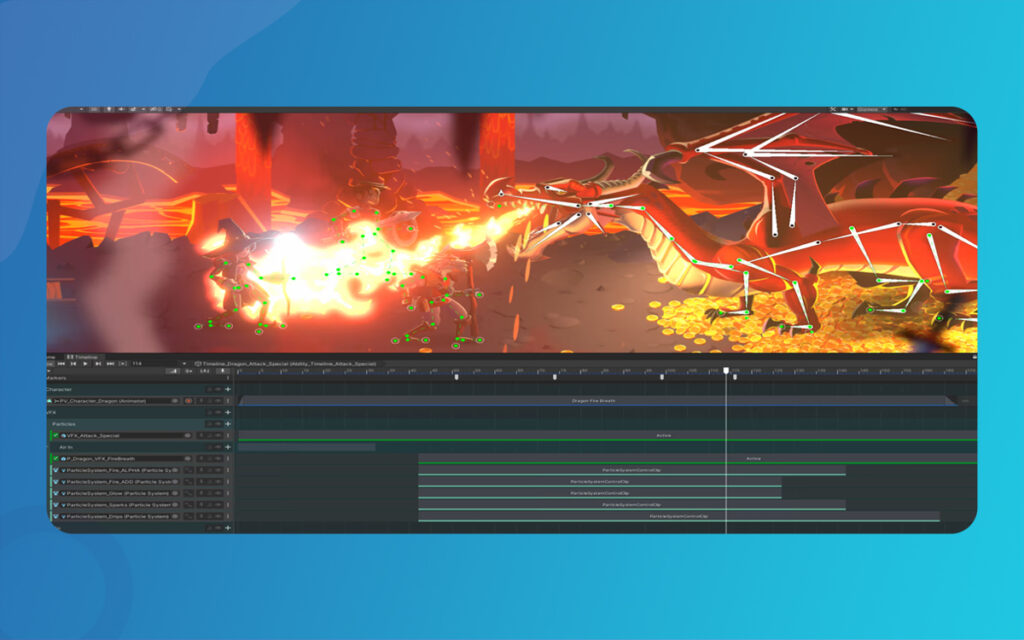
Bone-Based Rigging (2D Animation Package)
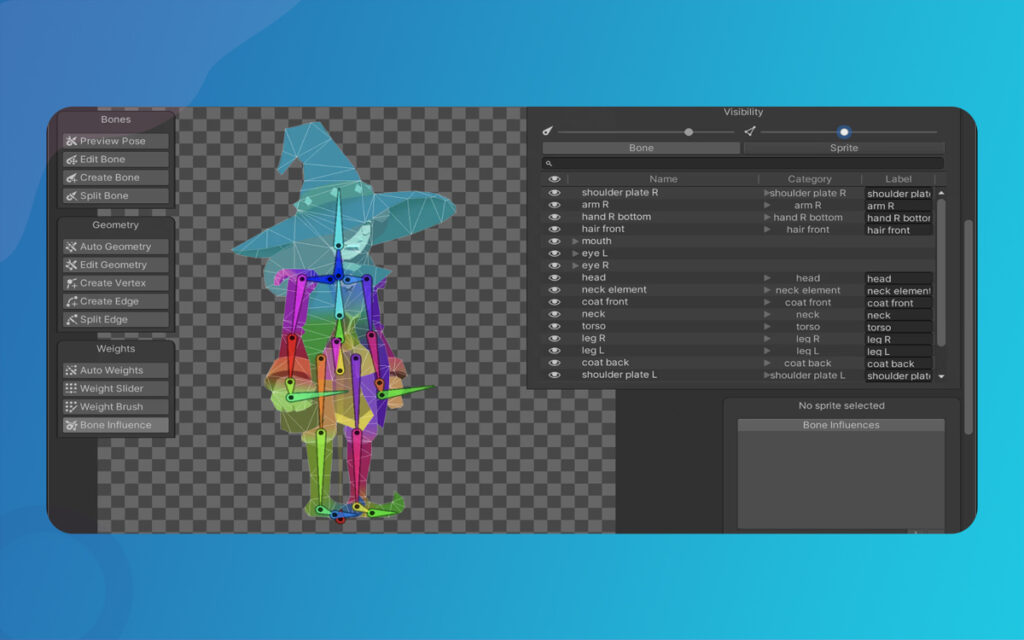
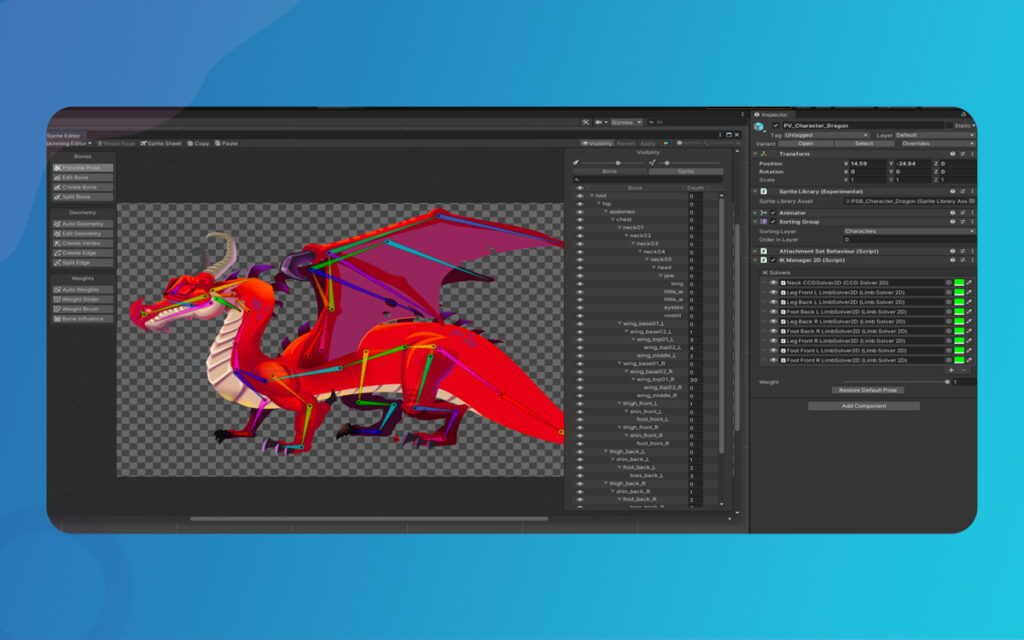
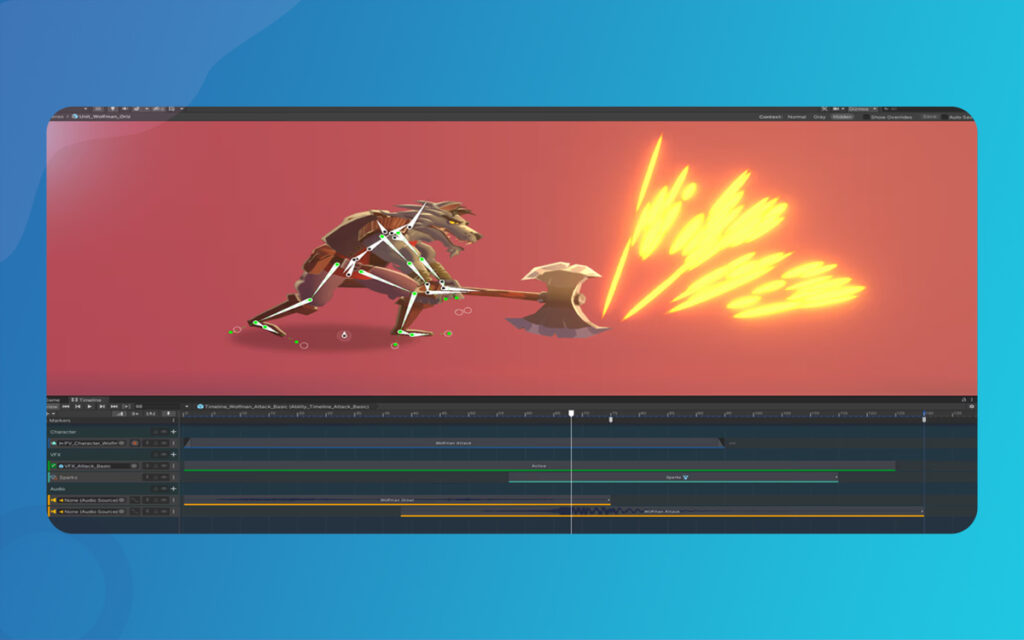
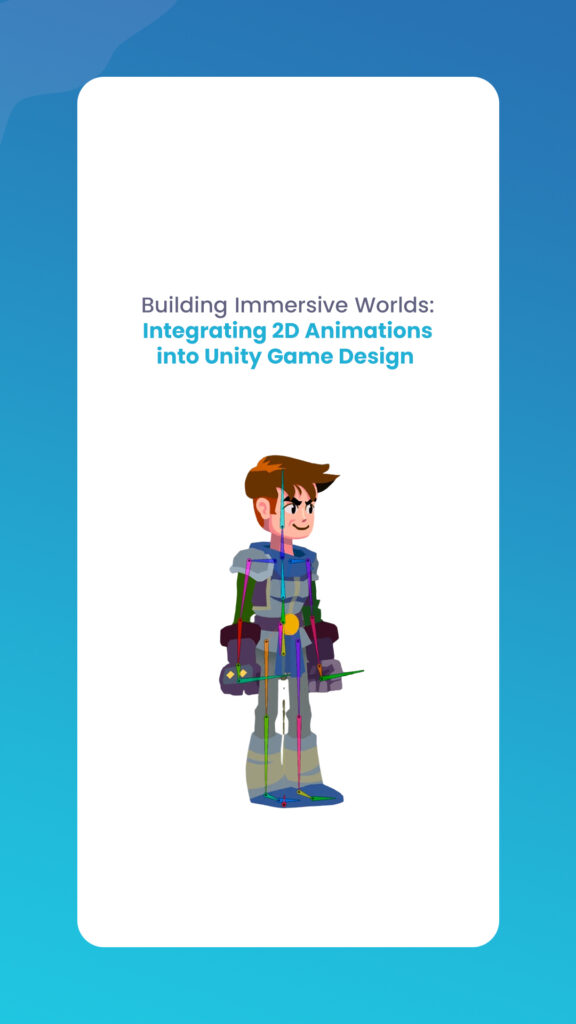
For developers looking to save memory and achieve smoother transitions, 2D Skeletal Animation is the answer. By using the 2D Animation package, you can:
Create a Skeleton: Define bones directly over your sprite.
Geometry and Mass: Generate a mesh for the sprite and “paint” mass to determine how much each bone influences the pixels.
IK (Inverse Kinematics): Use 2D IK to allow limbs to follow a target (like a hand reaching for a door), making animations look grounded in the environment.
Blend Trees for Responsive Control
Static transitions can sometimes feel “snappy” or mechanical. Blend Trees allow you to mix two or more similar animations based on a parameter.
Example: A 1D Blend Tree can smoothly interpolate between a slow walk, a brisk walk, and a full sprint based on the player’s joystick input. This prevents the character from suddenly “popping” into a different animation.
Building Immersive Worlds
Immersive Enhancements: Further on than the Character
A world is more than just its protagonist. To build an Building Immersive Worlds environment, animations must extend to the atmosphere and the user interface.
1. Environmental Layering
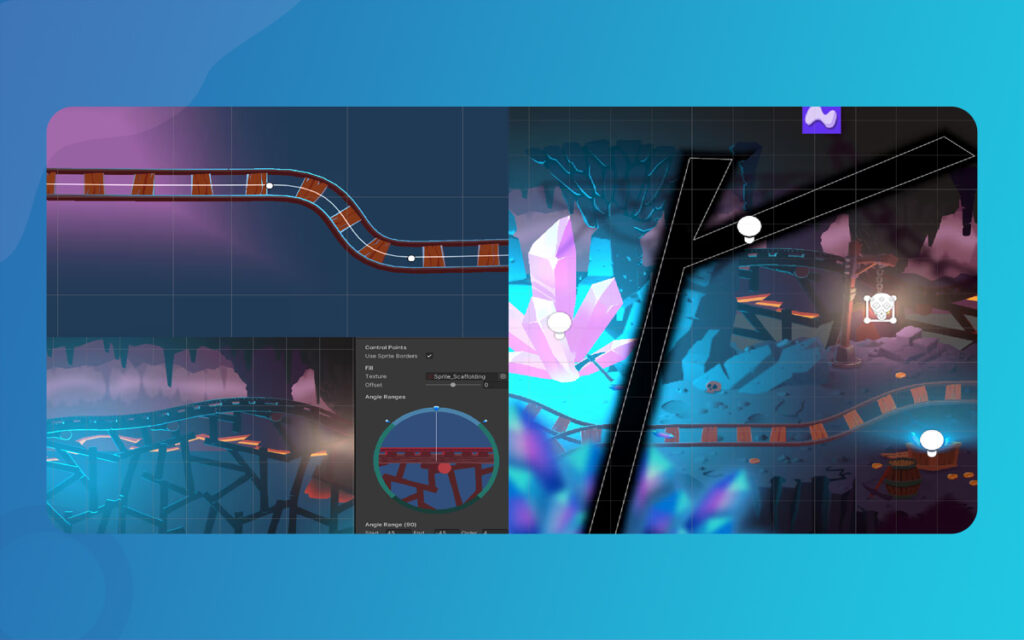
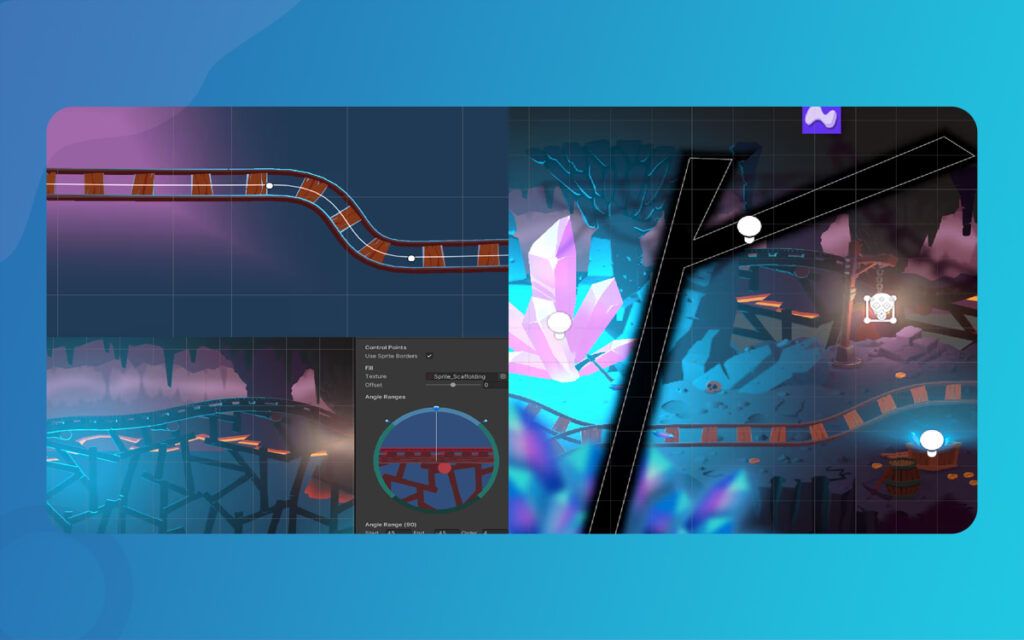
Using the Sorting Layers system in Unity, you can create a sense of depth (Parallax). By animating background elements—swaying trees, drifting clouds, or flickering torches—the world feels alive even when the player is standing still.
2. Particle Systems and Texture Sheets
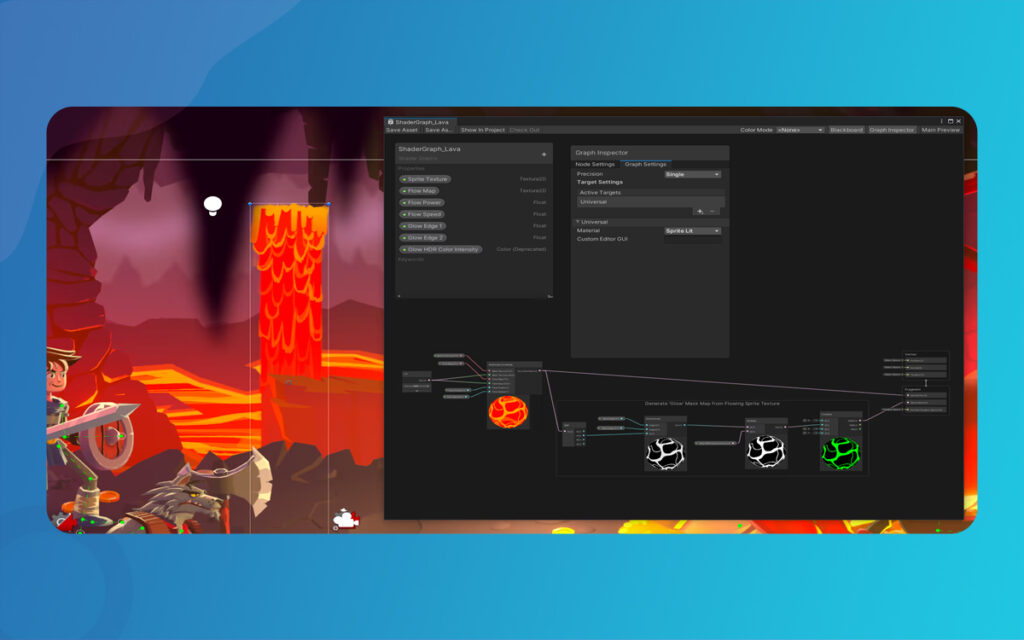
To sync effects like explosions or magical auras with 2D sprites, use the Particle System’s Texture Sheet Animation module. This allows particles to play their own sprite sequences, make certain that a “fireball” looks as hand-drawn and stylized as the wizard casting it.
3. UI and Juice with DOTween
The User Interface (UI) should never feel like a static overlay. Using “tweening” engines like DOTween, you can animate HUD elements to bounce when health is low or fade menus in with elegant easing curves. This “juice” makes the game feel polished and responsive.
Building Immersive Worlds
Optimization and Technical Best Practices
High-quality animation can be taxing on system resources, especially on mobile platforms. Optimization is the bridge between a beautiful game and a playable one.
Sprite Atlasing
Every individual texture in Unity results in a “Draw Call” to the GPU. Too many draw calls will tank your frame rate. A Sprite Atlas packs multiple sprites into a single large texture, allowing Unity to draw them all in one go. This is essential for large-scale 2D worlds.
Building Immersive Worlds
Scripting the Animator
While the Animator Controller handles the logic, C# scripts provide the data. Using Animator.SetFloat() or Animator.SetTrigger() in your Update() loop ensures that the animation state always reflects the physics state of the game.
Pro Tip: Always use Animator.StringToHash(“ParameterName”) to store your parameter IDs. Accessing parameters by string every frame is computationally expensive; using hashes is much faster.
Comparison of 2D Animation Methods in Unity
Technique
Best For
Pros
Cons
Frame-by-Frame
Pixel art, high-stylization
Total artistic control
High memory usage (VRAM)
Skeletal (Bones)
Fluid movement, 2D “puppets”
Small file sizes, smooth interpolation
Requires careful rigging/mass
Blend Trees
Locomotion (Walk/Run)
Natural transitions based on input
More complex setup in Animator
Procedural (Code)
UI, simple rotations/scaling
Extremely lightmass, energetic
Limited to simple transforms
Building Immersive Worlds
Case Study: The “Triple Threat” Cat Character
Consider the example of a pixel art cat character. By integrating the concepts mentioned above, we can create a energetic character controller:
Idle State: A simple 4-frame loop of the cat breathing.
Walk State: A 6-frame loop. We use a Blend Tree to transition from a slow “prowl” to a fast “trot” based on the horizontal input.
Kick State: An Additive Layer in the Animator allows the cat to perform a “kick” animation with its front paws while the “Walk” animation continues on its back legs. This is achieved using Avatar Masks.
Building Immersive Worlds
Finally
Building Immersive Worlds: 2D animations into Unity is a blend of artistic vision and technical precision. By mastering the Animator Controller, exploring skeletal rigging, and optimizing with Sprite Atlases, you can transform static illustrations into a vibrant, reactive world. The key to immersion lies in the details—the way a cape flutters, the way a menu slides, and the way a character blends from a walk to a run.
Building Immersive Worlds
As you build your world, think of Unity as a playground for experimentation. Combine frame-by-frame charm with the efficiency of bone-based rigs to find the unique “heartbeat” of your game.
Mastering Skeletal Animation in Unity: A Complete Guide for Developers
Imagine breathing life into a lifeless 3D model, watching it stride confidently across your game world or execute a flawless combat combo. That’s the magic of Skeletal Animation in Unity, a powerhouse system that powers everything from indie platformers to AAA blockbusters. At its heart, skeletal animation grips rigs and Unity’s Mecanim framework to deform […]
March 5, 2026
A Professional’s Handbook to Rigging and Animating 2D Assets in Unity
Game development is always changing, and the difference between 2D and 3D workflows is becoming less clear. If you have experience with 3D tools like Blender, Maya, or 3ds Max, Unity’s Animating 2D Assets package can help you make the switch to 2D more easily. Rather than using frame-by-frame sprite swapping, many developers now use […]
March 3, 2026
How to Create Fluid Character Movements Using Unity’s 2D Animation Package
Imagine breathing life into a pixel-perfect hero who dashes across neon-lit platforms, their cape fluttering with every leap, or a quirky sidekick whose bouncy idle loop hooks players instantly. That’s the magic of Fluid Character Unity’s 2D Animation Package, a powerhouse for crafting deformable,, a powerhouse for crafting deformable, responsive characters without the hassle of […]