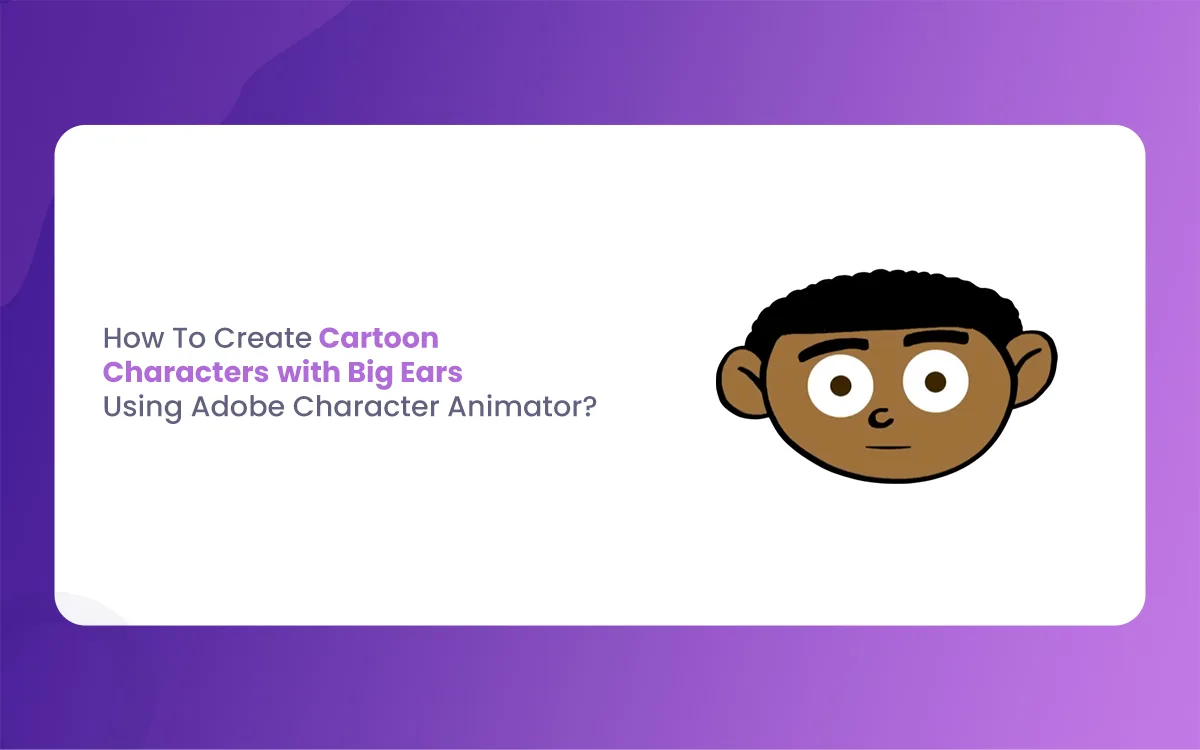
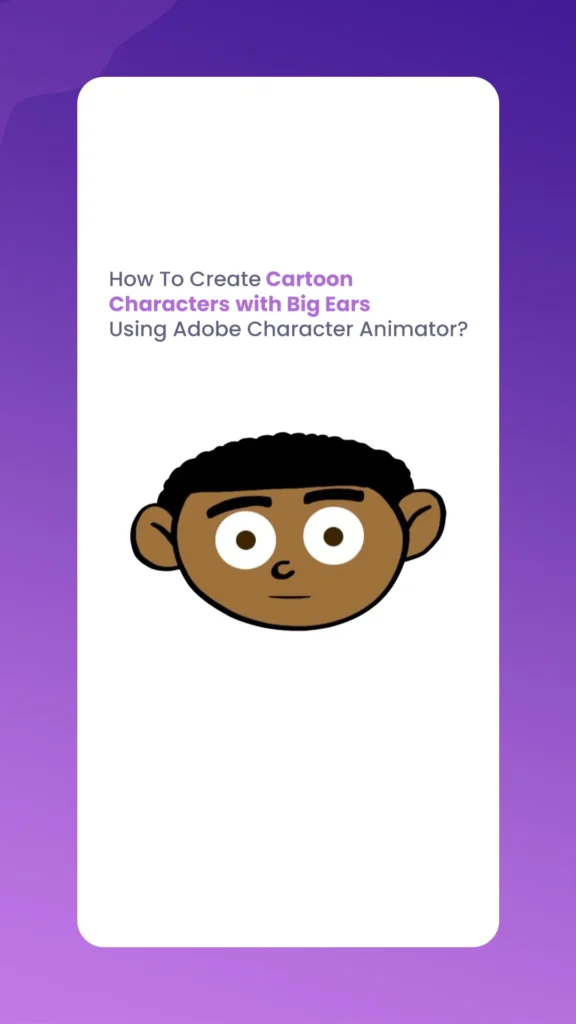
Big-eared cartoon characters are a playful and memorable way to begin your ride into 2D animation. There is something truly special about how a pair of oversized ears can make a character look instantly cute, funny, or even a bit magical. If you have ever watched a cartoon and noticed how the ears bounce when the character jumps, you have seen the power of “dangle physics” in action.The Morphic Studio shares the information about how to use Adobe Character Animator to bring your Cartoon Characters with Big Ears creations to life. Whether you use the latest January 2026 update or the free Starter mode, this article covers all you need to know—design, rigging, and making ears flop perfectly.
Why Cartoon Characters with Big Ears Are So Popular?
There is a long history of cartoon characters with big ears in the world of animation. Think of characters like Dumbo or even the modern “Bunnydude” template found in Adobe’s own library. Big ears serve a few important roles in storytelling and design.
First, they are great for showing emotion. If a character is sad, their big ears might droop low. If they are excited or surprised, the ears can perk up or even vibrate. Second, from a technical side, big ears are the perfect canvas for showing off physics. In Adobe Character Animator, you can make the ears move naturally as the character’s head turns, creating a sense of mass and life that small ears just cannot match.
Getting Started with Adobe Character Animator in 2026
Before we dive into the “how-to,” it is important to know which version of the software you are using. As of the January 2026 update (version 26.0), Adobe has focused on making the app more stable and faster. While there are not many “brand new” buttons to click this year, the existing tools like the Puppet Maker and Body Tracker are smoother than ever.
You can choose between two modes,
Starter Mode: This is great if you want to use a pre-made template. You can find several cartoon characters with big ears here and just start animating with your webcam right away.
Pro Mode: This is where the real magic happens. If you want to draw your own character in Photoshop or Illustrator and give them custom big ears, you will need Pro mode to set up the rigging.
Cartoon Characters with Big Ears
Step 1, Designing Your Character with Big Ears
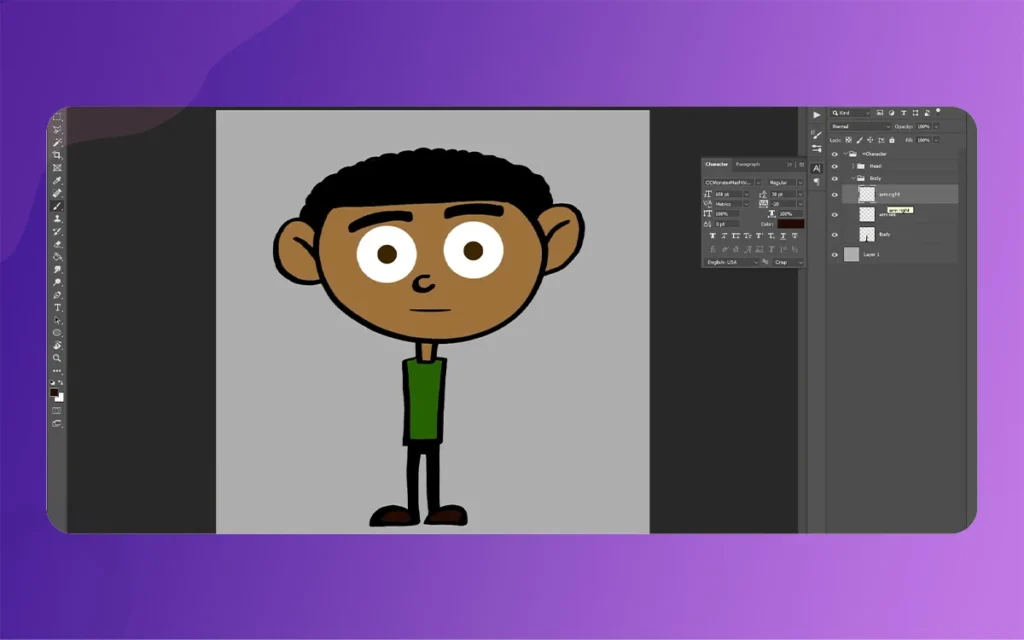
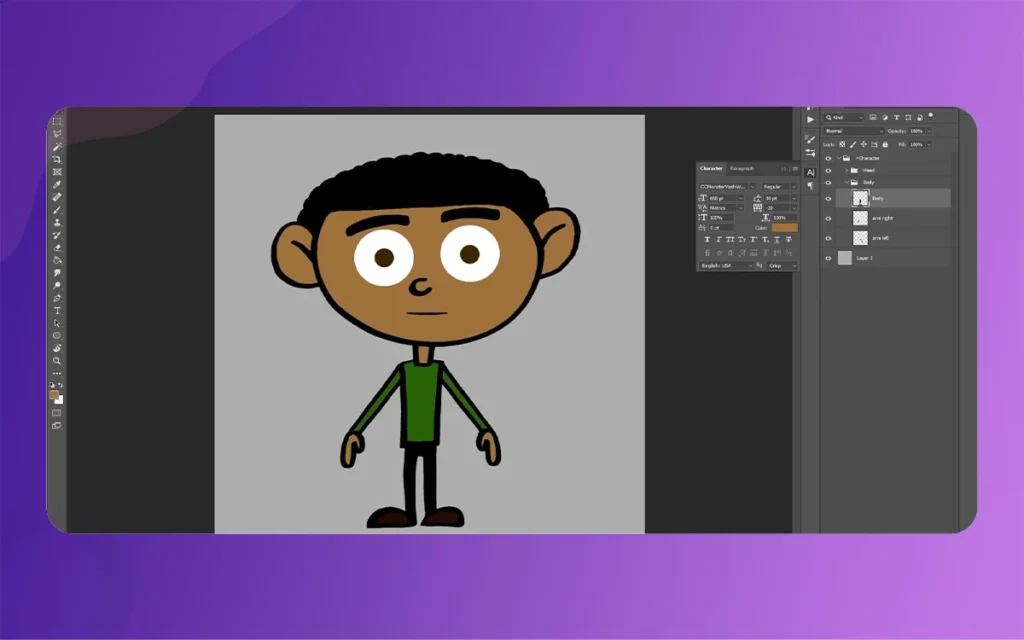
The first step is always the artwork. You should create your character in either Adobe Photoshop (PSD) or Adobe Illustrator (AI). When you are drawing cartoon characters with big ears, the way you organize your layers is very important.
You must keep the ears on separate layers from the head. For example, name your layers “Left Ear” and “Right Ear”. This allows the software to move the ears independently of the face. If you draw the ears as part of the head layer, they will look stiff and frozen when the character talks. Big ears need freedom to wiggle, so give them their own space in your file.
Once your art is ready, open Adobe Character Animator and import your file. The software will automatically try to “rig” or connect the parts of your character.
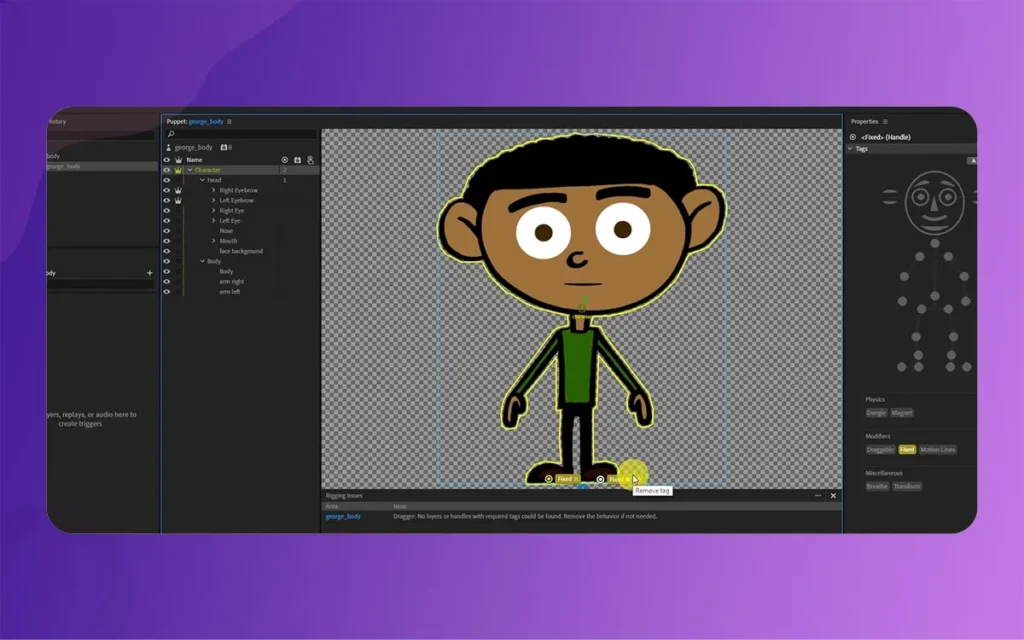
To make your cartoon characters with big ears look professional, you need to check the tags. Go to the Rig workspace and look at the Puppet panel. Make sure the layer for the left ear is tagged as “Left Ear” and the right one as “Right Ear”. If the software didn’t do it automatically, you can click the ear icons in the tags panel to fix it. This tells the computer that these specific parts should react to the physics engine.
Step 3, Adding Dangle Physics to the Big Ears
This is the most important part of the process. For cartoon characters with big ears, you want those ears to react to every movement. This is done using “Dangle” handles.
In the Rigging panel, select your ear layer. Use the “Handle Tool” to place a dot at the base of the ear (where it attaches to the head) and another dot at the very tip of the ear. Click on the tip dot and tag it as “Dangle”.
Now, when you move your character’s head, the tip of the ear will lag behind slightly, creating a beautiful floppy effect. You can adjust how “heavy” or “bouncy” the ears feel by changing the “Stiffness” and “Damping” settings in the Physics behavior panel on the right side of the screen.
Cartoon Characters with Big Ears
Important Features of Big Ear Animation in 2026
Instead of a table, here are the key features and settings you need to manage for the best results,
Dangle Stiffness, This controls how much the ear resists moving. Lower stiffness makes the ears feel like soft cloth, while higher stiffness makes them feel like thick leather.
Gravity Strength, You can increase this to make the ears feel heavier. This is great for cartoon characters with big ears that are supposed to look old or tired.
Wind Variation, Added in the physics section, this makes the ears move slightly even when the character is standing still, as if a light breeze is hitting them.
Mesh Deformation, This ensures the ear shape doesn’t “break” or look pixelated when it bends. In the 2026 version, the mesh calculation is much faster.
Collision Tags, If you want the big ears to bounce off the character’s shoulders instead of passing through them, you can add “Collision” tags to both the ears and the shoulders.
Step 4, Recording Your Animation
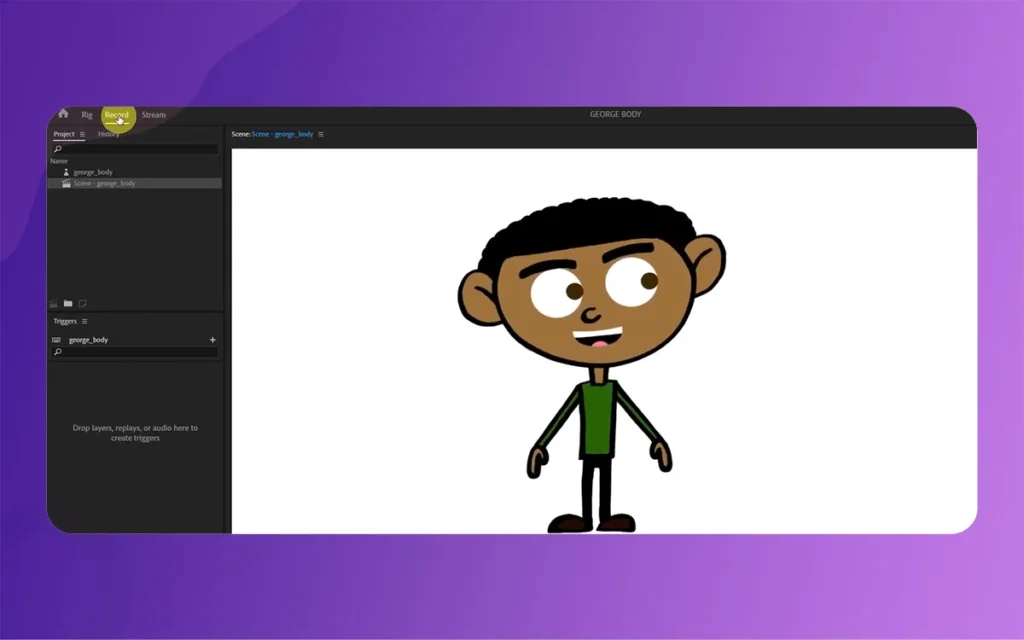
Now that your rig is set up, go to the Record workspace. This is where the fun begins. Turn on your webcam and calibrate it so the software sees your face. As you move your head from side to side, you will see your cartoon characters with big ears follow your lead.
The ears should now be swinging naturally. If they are swinging too much, go back to the Rigging panel and turn up the “Damping” value. This acts like a brake for the physics, stopping the ears from swinging forever. You can also use “Triggers” to make the ears do specific things, like perking up when you press a key on your keyboard.
To make your animation stand out, try these simple tricks,
Squash and Stretch, In the physics settings, look for the “Squashiness” slider. This lets the ears stretch a little bit when they swing fast, which is a classic rule of “human-style” cartoon animation.
Layer Parenting, Make sure the ears are “children” of the head layer. This means when the head moves, the ears go with it, but they still have their own physics movement.
Use Templates, If you are stuck, download the “Bunnydude” or “Meeb” puppets from the Adobe website. They are perfect examples of cartoon characters with big ears and you can look at how they are rigged to learn.
Common Mistakes to Avoid
When working with cartoon characters with big ears, many beginners make the mistake of putting the “Dangle” tag at the base of the ear. This will make the whole ear fall off the head! Always think of, the base should be “Pinned” or “Welded” to the head, and only the tips or the middle sections should have the “Dangle” tag.
Another common error is not giving the mesh enough “Expansion”. If the ear moves outside of its original invisible box, it might get cut off. You can fix this by clicking the ear layer in the Rig panel and increasing the “Mesh Expansion” value until the ear has plenty of room to swing.
Creating cartoon characters with big ears is a trial-and-error process. Don’t be afraid to experiment with the physics settings. Sometimes, making the ears move in a “wrong” or exaggerated way is exactly what makes a character memorable.
Adobe Character Animator in 2026 makes this process accessible to everyone. You don’t need to be a professional coder to understand how gravity and wind affect your artwork. Just draw, tag, and perform. Your character is waiting to come to life, and those big ears are ready to dance.
By following this guide, you now have the tools to create engaging, educational, and high-quality animations for your website or YouTube channel. Keep practicing, and soon you will be a master of character physics!
Related Article
September 1, 2026
Augmented Reality News: 7 Exclusive Breakthroughs for an Incredible Year | The Morphic Studio
Navigating the Latest Augmented Reality News Environment Welcome to another exciting deep dive into the statistical universe brought to you by The Morphic Studio. If you have been keeping up with tech headlines lately, you already know that statistical overlays and spatial computing are changing how we interact with our physical surroundings. The year 2026 […]
September 1, 2026
VR Horror Games: 13 Incredible Titles for a Brutal Scare – The Morphic Studio
Welcome to the ultimate guide for anyone looking to test their nerves inside a headset. When you strap a display to your face, flat screen rules no longer apply. VR Horror Games You are no longer watching a character run from danger on a distant monitor, because you are right there in the middle of […]
August 31, 2026
Meta Quest 4 Release Date: The Master Guide to 2026’s Most Incredible VR | The Morphic Studio
Virtual reality has traveled a long road over the last few years. We have moved from bulky, tethered headsets that needed expensive gaming computers to sleek, standalone machines that fit right inside a small travel backpack. If you follow immersive technology here at The Morphic Studio, you already know that Meta has been leading the […]