Welcome to the world of statistical animation! If you have ever wanted to bring your own drawings to life, you are in the right place. Today, we are going to look at how to design and animate Light Skin Cartoon Characters using the powerhouse software, Adobe Character Animator.
With the latest 2026 updates, Adobe has made it easier than ever for beginners to jump in. Whether you are making a video for a school project or starting your own YouTube channel, The Morphic Studio shares the information about the initial drawing to the final “magic” of motion capture.
Why Choose Light Skin Cartoon Characters for Your Next Project?
Choosing the right look for your puppet is a big deal. Light Skin Cartoon Characters are very popular in educational videos and storytelling because they allow for a wide range of expressive color palettes. When you use lighter skin tones, you can play with soft pinks, peaches, and warm beige colors to show emotions like blushing or embarrassment.
In the 2026 version of Character Animator, the new “Smart Color Palettes” tool actually suggests these subtle shading variations for you. This means your character won’t just look like a flat piece of paper, it will have depth and life. Using these tones also makes it easier to match your character with various colorful backgrounds without the colors “clashing” too much.
Step 1: Designing Your Light Skin Cartoon Characters in 2026
Before you even open Character Animator, you need a character. You can draw this in Adobe Photoshop or Illustrator. When designing Light Skin Cartoon Characters, think about the personality first. Is your character a shy student or a brave explorer?
In the latest update, Adobe has improved the “Puppet Maker” interface. If you are not a pro artist, you can use the built-in templates to customize your character. You can pick a base model and then use the skin tone slider to find the perfect light shade. The 2026 engine ensures that these light tones don’t look “washed out” on high-definition screens.
Light Skin Cartoon Characters
If you are drawing from scratch, use a soft brush for the skin. Avoid using pure white, instead, try a very light cream or a soft peach. This makes the character look more human and less like a ghost. Also, remember to give them big, expressive eyes, as this is where most of the “acting” happens in animation.
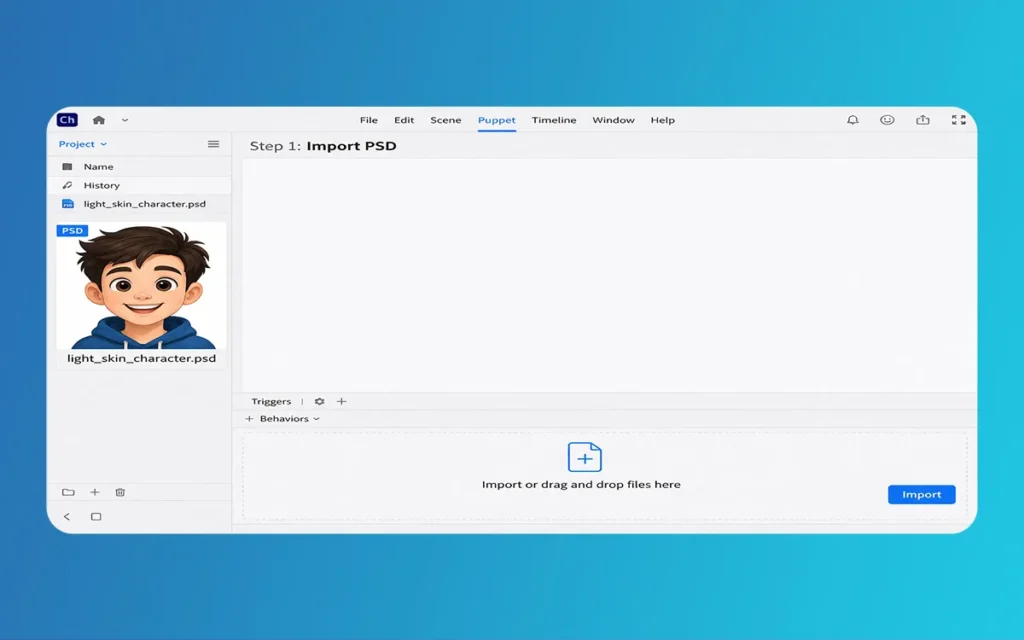
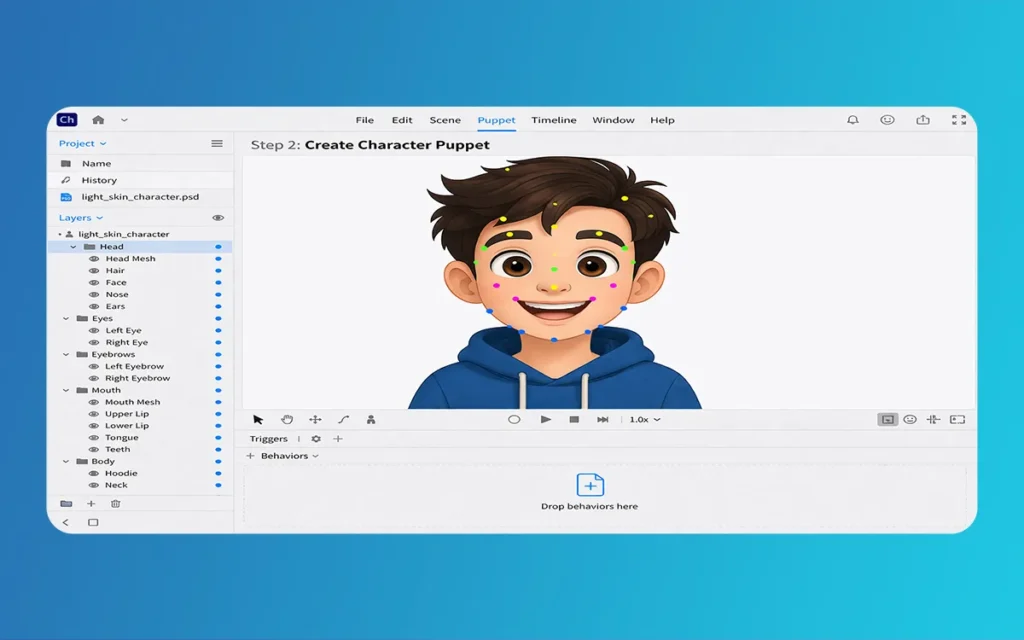
Once your drawing is done, you can’t just import a flat image. You have to “break” your character into pieces. This is often called “Puppet Preparation.” For Light Skin Cartoon Characters, keeping your layers organized is the secret to success.
You should have a folder for the “Head” and a folder for the “Body.” Inside the head folder, you need separate layers for the left eye, right eye, nose, and mouth. The 2026 update features an “Auto-Layer Tagging” system that is much smarter than before. If you name your layers correctly (like “+Right Eyebrow”), the software will automatically know how to move it when you move your own eyebrows in front of the webcam.
Light Skin Cartoon Characters
A pro tip for light skin tones: make sure your “Mouth” shapes (visemes) have a slightly darker interior color. This contrast helps the audience see the lip-syncing clearly, making your Light Skin Cartoon Characters feel much more professional.
Essential Elements for Character Creation (Table Information)
Instead of a standard table, here are the basic components you need to keep track of for your project:
Software Version: Adobe Character Animator 2026 (Version 26.0).
Primary Tool for Design: Adobe Photoshop or Illustrator for custom work.
Basic 2026 Feature: “Advanced Physics 2.0” for realistic hair and clothing movement.
Skin Tone Range: Soft Peach, Cream, Light Beige, and Warm Ivory.
Animation Method: Real-time motion capture via webcam and microphone.
Export Formats: H.264, QuickTime (with transparency), or direct to Social Media.
Light Skin Cartoon Characters
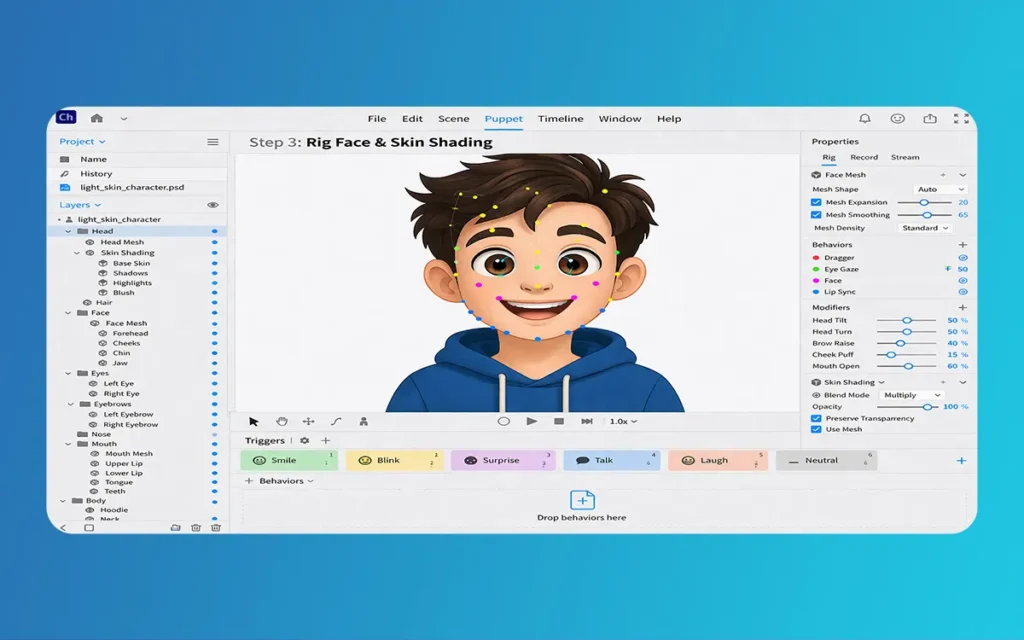
Step 3: Rigging Your Light Skin Cartoon Characters for Movement
Rigging sounds scary, but it’s just giving your character a skeleton. In the “Rig” workspace, you tell the computer where the joints are. You will place “handles” on the shoulders, elbows, and wrists.
For Light Skin Cartoon Characters, the 2026 “Body Tracker” is a game changer. You don’t have to manually click and drag limbs anymore. You can just stand in front of your camera, and as you move your arms, your character moves theirs.
If your character has long hair or a scarf, use the “Dangle” tool. This adds physics to those parts. In the 2026 update, the physics engine is much smoother. If your character turns their head quickly, the hair will bounce and settle naturally. This adds a “weight” to your Light Skin Cartoon Characters that makes them feel like they exist in a real world.
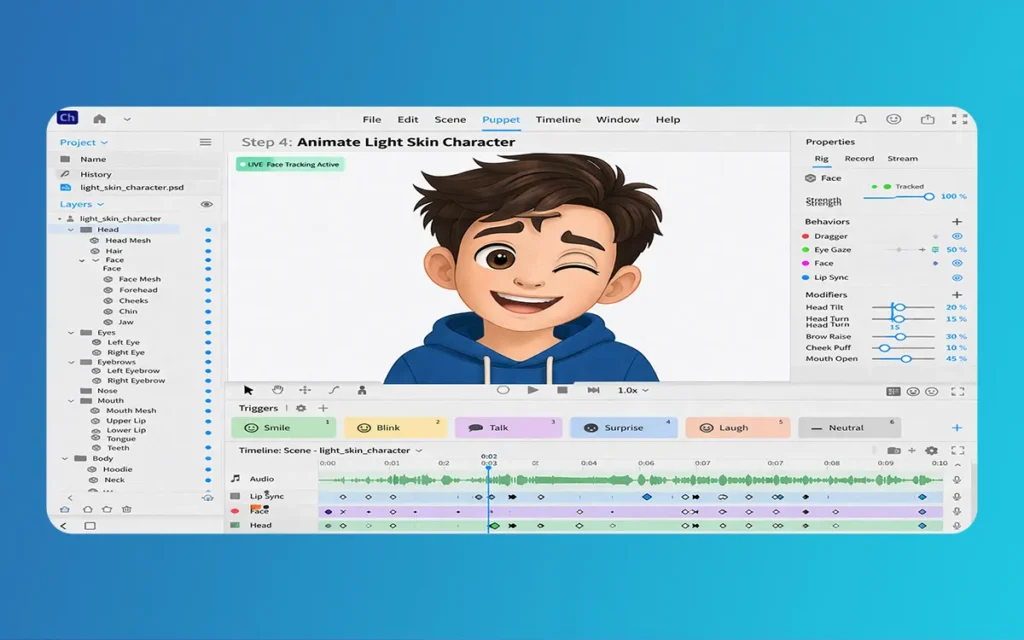
Step 4: Using the 2026 Motion Tracker and Mood Slider
This is where the real fun begins! Once your puppet is rigged, go to the “Record” workspace. Turn on your webcam and watch as the character mimics your face. The 2026 version has much better “Eye Gaze” tracking. It can follow your pupils even if you wear glasses.
A brand new feature in 2026 is the “Mood Slider.” This tool allows you to set a base emotion for your Light Skin Cartoon Characters. If you slide it toward “Happy,” the character’s eyes will brighten and the mouth will default to a slight smile. This saves you from having to “act” perfectly every single second. You can focus on the voice acting while the software handles the facial expressions.
Step 5: Perfecting the Lip-Sync and Exporting Your Masterpiece
Lip-syncing used to be the hardest part of animation. Now, Character Animator does it for you. It listens to your voice and picks the best mouth shape. In the 2026 release, the “Speech-Aware Animation” has been refined to handle different accents much better.
When you are happy with your performance, it’s time to share it. Hit the “Quick Export” button. The 2026 version has presets for TikTok, YouTube, and Instagram. If you want to put your Light Skin Cartoon Characters into a different background, export them with a “Transparent Background” (Alpha Channel). This lets you place your character in a real-life video or a 3D environment later on.
Creating Light Skin Cartoon Characters in Adobe Character Animator is a journey of creativity. The tools available in 2026 have removed the technical “walls” that used to stop people from animating. You don’t need to be a computer genius or a master artist; you just need a good idea and the willingness to play around.
Remember, the best animations come from practice. Don’t worry if your first puppet looks a little “wonky.” Even the pros make mistakes. Use the “Rigging Issues” panel to find errors, and keep experimenting with those 2026 features like the Mood Slider and Advanced Physics. Before you know it, your characters will be talking, dancing, and telling stories to the world!
Happy animating from The Morphic Studio!
Related Article
September 1, 2026
Augmented Reality News: 7 Exclusive Breakthroughs for an Incredible Year | The Morphic Studio
Navigating the Latest Augmented Reality News Environment Welcome to another exciting deep dive into the statistical universe brought to you by The Morphic Studio. If you have been keeping up with tech headlines lately, you already know that statistical overlays and spatial computing are changing how we interact with our physical surroundings. The year 2026 […]
September 1, 2026
VR Horror Games: 13 Incredible Titles for a Brutal Scare – The Morphic Studio
Welcome to the ultimate guide for anyone looking to test their nerves inside a headset. When you strap a display to your face, flat screen rules no longer apply. VR Horror Games You are no longer watching a character run from danger on a distant monitor, because you are right there in the middle of […]
August 31, 2026
Meta Quest 4 Release Date: The Master Guide to 2026’s Most Incredible VR | The Morphic Studio
Virtual reality has traveled a long road over the last few years. We have moved from bulky, tethered headsets that needed expensive gaming computers to sleek, standalone machines that fit right inside a small travel backpack. If you follow immersive technology here at The Morphic Studio, you already know that Meta has been leading the […]