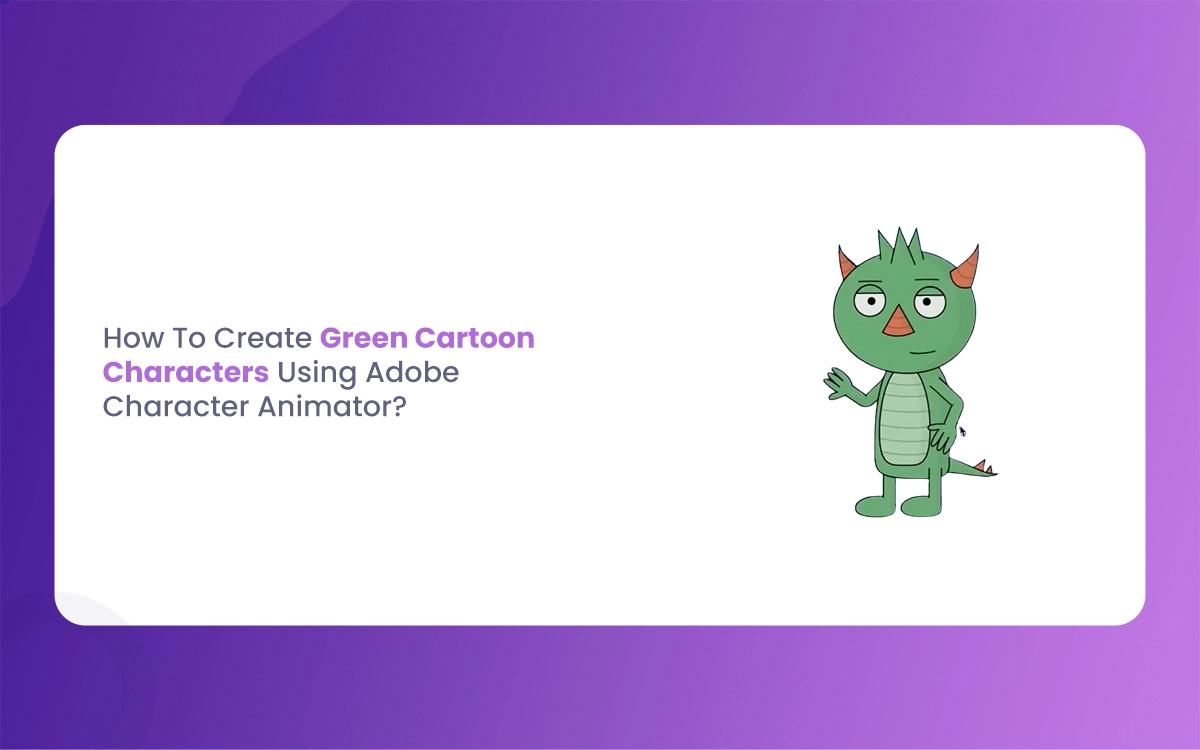
Creating your own animations can feel like a dream, especially when you want to bring unique personalities to life. If you have ever wanted to make your own Green Cartoon Characters, Adobe Character Animator is the best tool to use in 2026. This software uses your own movements and voice to make a puppet move in real time. It is like statistical puppetry that anyone can learn.
The Morphic Studio shares the information about how to build these colorful beings from scratch.h. We will cover everything from the first drawing to the final export. Whether you want to make a grumpy swamp ogre or a cute little alien, these steps will help you get there.
Why Use Adobe Character Animator for Green Cartoon Characters?
The year 2026 has brought some amazing updates to the Adobe Creative Cloud. The latest version, Adobe Character Animator 26.0, has improved how the software tracks your body. This makes it much easier to animate green cartoon characters because the green tones often stand out perfectly against standard backgrounds, making the tracking very sharp.
Using this tool saves a lot of time. Instead of drawing every single frame, you just move your head and arms in front of a webcam. The software does the hard work for you. It captures your blinks, your smiles, and even your “ooh” and “ahh” mouth shapes. For an educator or a hobbyist, this is a game changer.
Green Cartoon Characters
Step 1: Designing Your Green Cartoon Characters in Photoshop
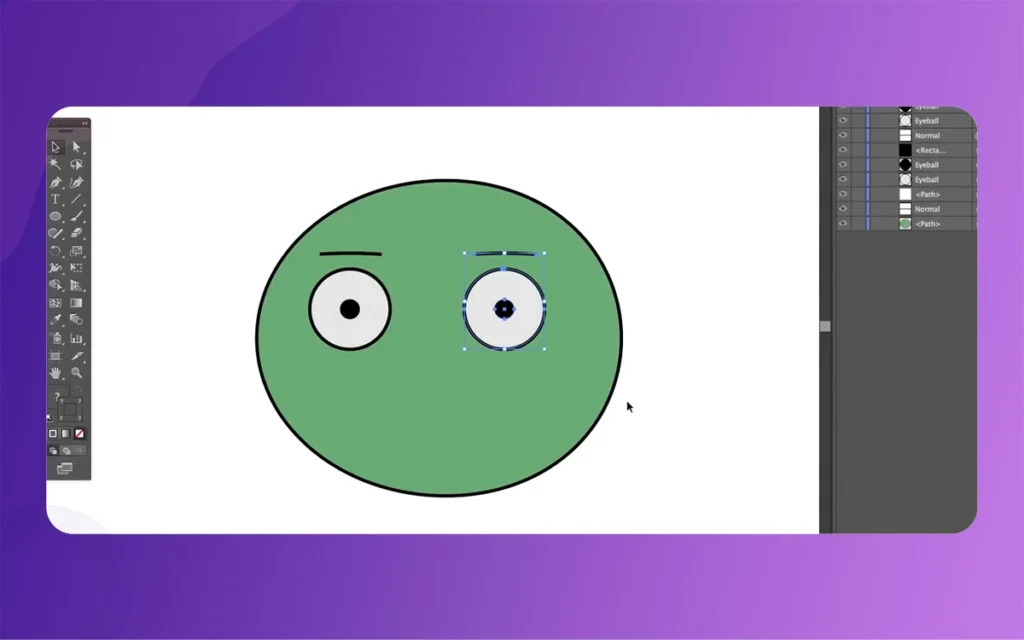
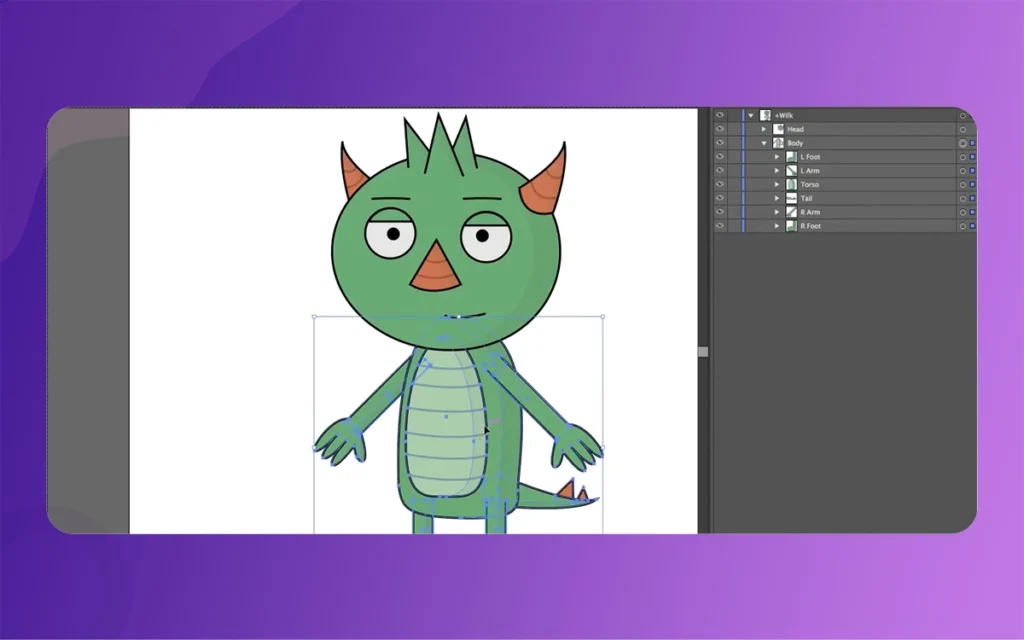
Before you open the animation software, you need a drawing. You can use Adobe Photoshop or Illustrator. Since we are making green cartoon characters, you should pick a variety of green shades. Use a bright lime for highlights and a deep forest green for shadows. This gives your character depth.
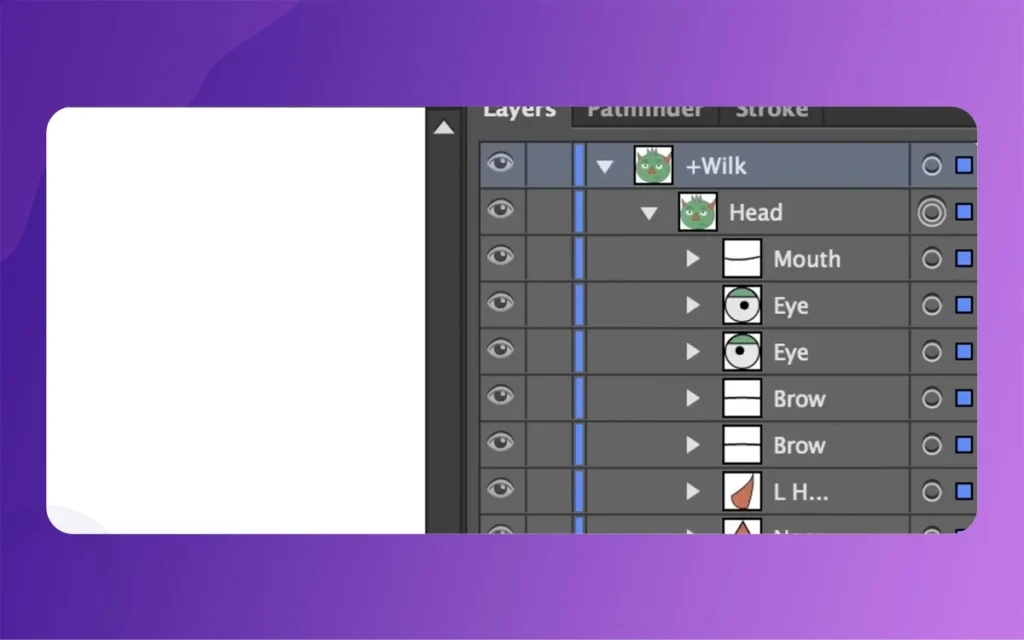
The most important part here is the naming of your layers. You must label them exactly how the animator expects, such as “+Head” and “+Left Arm”. If you don’t do this, the puppet won’t know how to move. Make sure the eyes and mouth are on separate layers so they can move independently later.
Step 2: Importing the Puppet into Character Animator
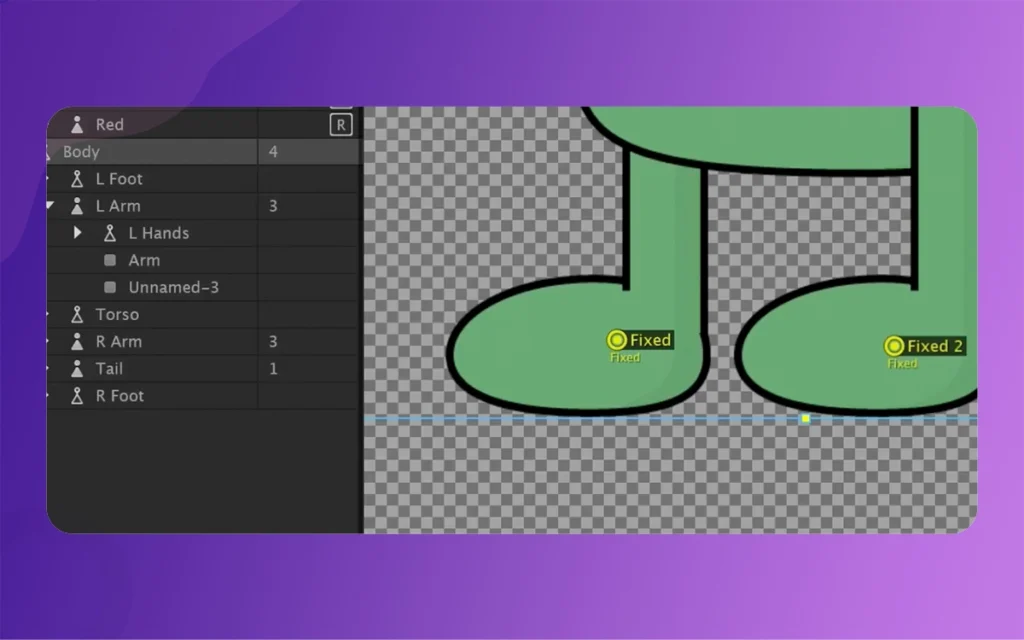
Once your artwork is ready, open Adobe Character Animator. Go to the “File” menu and select “Import”. Choose your saved Photoshop file. The software will automatically look at your layer names. If you followed the naming rules, you will see your green cartoon characters appear in the rigging workspace with little yellow tags.
These tags tell the computer, “This is a nose” or “This is a left pupil”. In the 2026 update, the “Auto-Rig” feature is much smarter. It can usually guess where the joints are, even if your character has a weird shape, like a green blob or a lizard with a long tail.
Step 3: Rigging Your Green Cartoon Characters for Movement
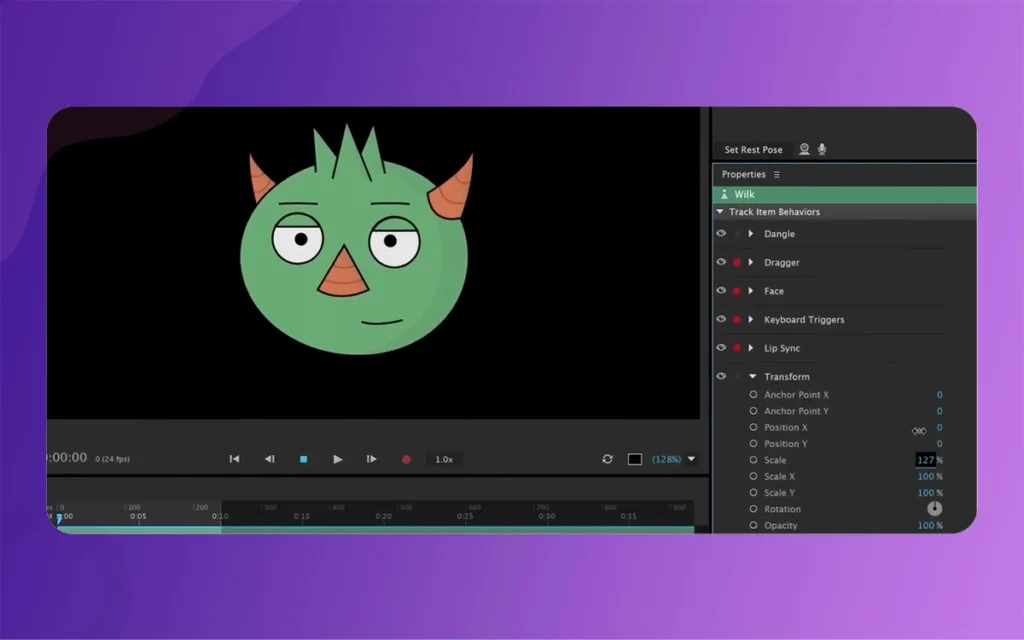
Rigging is just a fancy word for giving your character a skeleton. In the Rigging panel, you can add “Sticks” to make parts of the body stiff and “Draggers” to make hands move when you click them. For green cartoon characters, you might want to add a “Dangle” behavior to things like floppy ears or a long green cape.
Don’t forget to check the “Face” behavior. This is what connects your webcam to the puppet’s face. You can adjust the “Pose-to-Pose” settings to make the movement look more like traditional animation or more fluid like a movie. Testing the rig early saves you from a lot of headaches later on.
Green Cartoon Characters
Basic Elements for Success with Green Cartoon Characters
Instead of a table, let’s look at the essential parts you need for a great character:
Color Contrast: Ensure your green character has different shades so it doesn’t look like a flat shape.
Layer Naming: Use the “+” prefix for layers that should move independently, like the head or arms.
Webcam Quality: A clear camera helps the software track your face much better in the 2026 version.
Microphone Setup: Good audio ensures the lip-sync matches the “green cartoon characters” mouth movements perfectly.
Background Choice: Use a simple background so your green character really pops on the screen.
Step 4: Recording Your First Scene
Now comes the fun part. Switch to the “Record” tab. You will see yourself in a small circle in the corner. Click the “Set Rest Pose” button while looking straight at the camera. This tells the computer what your “normal” face looks like. Now, when you tilt your head, your green cartoon characters will do the same.
Hit the red record button and start talking. You can use the “Triggers” you set up earlier to make the character perform special actions. For example, pressing the “1” basic could make your green alien wave. The 2026 version allows for “Multi-Take” recording, so you can record the voice first and then record the arm movements separately.
Green Cartoon Characters
Step 5: Using the 2026 Motion Library
One of the best updates in the latest release is the expanded Motion Library. This is a collection of pre-made movements like walking, dancing, or jumping. If you aren’t a pro at moving your body, you can just pick a motion from the list and apply it to your green cartoon characters.
This feature is great for education. Teachers can quickly make a green mascot that walks across the screen to explain a math problem. You don’t need to be an athlete to make your character do a backflip anymore. You just click a button and the AI handles the physics of the green limbs moving through the air.
After the main recording is done, you might notice some mistakes. Maybe the green arm moves too fast or the eyes jitter. You can use the “Timeline” to smooth out these parts. In Character Animator 2026, the “Smoothing” slider is more powerful than ever. It acts like a statistical iron that flattens out the bumps in your performance.
Physics behaviors are also vital. If your green cartoon characters have hair or a tail, add the “Physics” behavior. This makes those parts react to gravity. When the character jumps, the tail will lag behind and then snap back, making the animation look very professional and “squishy” in a good way.
Green Cartoon Characters
Step 7: Exporting Your Masterpiece
When you are happy with your work, it is time to share it. Go to “File”, then “Export”, and choose “Quick Export”. This is the fastest way to get a video file ready for YouTube or social media. If you are working on a bigger project, you can send it to Adobe Premiere Pro or After Effects.
The 2026 export engine is very fast. It uses your computer’s graphics card to render the green cartoon characters in high definition without making the fans on your laptop scream. You can even export with a transparent background if you want to put your character into a real-world video later.
A lot of beginners make the mistake of having too many layers. Keep it simple at first. If your green cartoon characters have 50 layers for just the eyelashes, the software might slow down. Start with the basics: eyes, nose, mouth, and limbs. You can always add more detail later.
Another tip is to watch your lighting. If your room is too dark, the webcam won’t see your eyes properly. This makes the green character look like it’s falling asleep. Stand near a window or use a desk lamp to keep your face bright. This ensures the 2026 tracking software works at its best.
Finally
Creating Green Cartoon Characters in Adobe Character Animator is a rewarding ride. From the early sketches in Photoshop to the final “Action!” in the recording booth, you have the power to create anything. The 2026 updates have made the process faster, more stable, and more accessible for everyone.
Green Cartoon Characters
The basic idea is to have fun and experiment. Don’t be afraid to make your green character look a little silly or give it a strange voice. Animation is about personality. Now that you have this guide, open up your Creative Cloud and start building your first green friend today. Happy animating, and I can’t wait to see what you create on The Morphic Studio!
Related Article
September 1, 2026
Augmented Reality News: 7 Exclusive Breakthroughs for an Incredible Year | The Morphic Studio
Navigating the Latest Augmented Reality News Environment Welcome to another exciting deep dive into the statistical universe brought to you by The Morphic Studio. If you have been keeping up with tech headlines lately, you already know that statistical overlays and spatial computing are changing how we interact with our physical surroundings. The year 2026 […]
September 1, 2026
VR Horror Games: 13 Incredible Titles for a Brutal Scare – The Morphic Studio
Welcome to the ultimate guide for anyone looking to test their nerves inside a headset. When you strap a display to your face, flat screen rules no longer apply. VR Horror Games You are no longer watching a character run from danger on a distant monitor, because you are right there in the middle of […]
August 31, 2026
Meta Quest 4 Release Date: The Master Guide to 2026’s Most Incredible VR | The Morphic Studio
Virtual reality has traveled a long road over the last few years. We have moved from bulky, tethered headsets that needed expensive gaming computers to sleek, standalone machines that fit right inside a small travel backpack. If you follow immersive technology here at The Morphic Studio, you already know that Meta has been leading the […]