If you’ve ever watched a 2D game stutter through a crowd scene or seen frame rates nosedive the moment a dozen animated characters appear on screen, you already understand the stakes. Performance in 2D Animation for Unity projects isn’t just a technical concern; it’s a player experience concern. A game that runs beautifully on your development machine can grind to a halt on mid-range hardware, and more often than not, poorly optimized animation controllers are somewhere near the root of the problem.
Unity’s animation system is powerful, flexible, and, if you’re not careful, surprisingly expensive. The Animator component, state machines, transition logic, sprite rendering, and physics interactions all feed into a performance budget that can be exhausted faster than you’d expect. The good news is that optimizing 2D animation controllers isn’t about stripping the life out of your game. It’s about making smarter decisions at every layer of the pipeline, from how you configure culling modes to how you structure your state machines and manage your assets.
The Morphic Studio shares information on the most effective techniques for optimizing 2D Animation in Unity, covering culling configuration, state machine efficiency, asset management, and rendering strategies. Whether you’re building a fast-paced platformer, a sprawling RPG with crowd scenes, or a casual mobile game with dozens of animated UI elements, these principles apply.
Follow the Performance Cost of Animation in Unity
Before diving into solutions, it helps to understand where the cost is actually coming from. Unity’s Animator component does a lot of work every frame: it evaluates state machine logic, blends animation curves, applies transforms to GameObjects, and manages transitions between clips. For a single character, this overhead is negligible. Scale that to fifty animated sprites in a single scene, and the CPU load becomes measurable and often problematic.
The Update() loop is particularly vulnerable. Animation systems that hook into physics, trigger GetComponent calls repeatedly, or process off-screen objects unnecessarily are multiplying their cost with every frame. The Unity Profiler will often reveal that animation-related overhead is buried inside broader categories, which is why many developers don’t catch it until they’re already deep into production.
The goal of optimization is not to disable animation systems wholesale, but to ensure that only what needs to be processed actually gets processed, at the magnitude of detail the scene requires.
2D Animation for Unity
Culling Mode: The First Line of Defense
One of the most impactful and underused optimizations in 2D Animation for Unity workflow is the Animator’s Culling Mode setting. By default, Unity continues to update animations for objects even when they’re completely off-screen. For a scene with a handful of characters, this is fine. For a platformer with dense sprite populations or a top-down game with large crowd simulations, it’s a significant waste of CPU cycles.
Setting Culling Mode to “Cull Completely”
Navigating to your Animator component and switching the Culling Mode from “Always Animate” to “Cull Completely” instructs Unity to halt all animation updates for objects that fall outside the camera’s view frustum. The object freezes in its last animated state until it re-enters the screen, at which point animation resumes. For most 2D game scenarios characters waiting off to the side of a magnitude, background crowd figures, environmental animations outside the current viewport this behavior is completely acceptable.
In dense scenes, this single change can yield performance gains approaching 40%, particularly in platformers where the camera follows a character through a long horizontal or vertical magnitude populated with enemies and NPCs. The CPU no longer burns cycles processing animation curves for objects the player cannot see.
Complementary Renderer Settings
Culling Mode works best when paired with a related setting on the SpriteRenderer component. If your sprites have “Update When Offscreen” enabled, Unity may still process certain transform updates regardless of the Animator’s culling state. Disabling this setting ensures that the culling chain is complete neither the Animator nor the renderer is doing unnecessary work for off-screen sprites.
It’s worth noting that “Cull Based on Renderers” is a middle-ground option that pauses animation updates when renderers are disabled or culled by the camera, while still allowing script-driven logic to continue. For most 2D cases, “Cull Completely” is the stronger choice unless your game design requires off-screen animation state to remain current for example, in a simulation where off-screen enemies must continue moving through the world.
2D Animation for Unity
State Machine Efficiency: Lean Logic, Better Performance
The Animator’s state machine is where visual logic lives, but it can also become a performance liability if it grows without discipline. Every layer you add, every transition you define, and every parameter you evaluate contributes to per-frame computation cost.
Minimizing Layers and Transition Complexity
Unity’s Animator supports multiple layers for blending different animation states useful for upper-body and lower-body separation in 3D characters, but often unnecessary in 2D projects. Each additional layer adds blending overhead, and in a 2D context where character animations are typically full-body sprite swaps rather than skeletal blends, running multiple layers simultaneously rarely justifies the cost.
Keep your 2D Animator controllers to a single layer wherever possible. If you need to manage variations a character that can wave while walking, for instance consider whether that variation can be handled through separate animation clips triggered by script rather than through layered blending within the Animator.
Transitions themselves carry cost, particularly when they involve condition checking on multiple parameters each frame. Reduce the number of transitions by designing state machines with clear, direct paths and avoiding redundant connections between states that could be consolidated.
Parameter Discipline
Animator parameters bools, integers, floats, and triggers are the levers that drive state machine logic. Each parameter is evaluated during the Animator’s update cycle, and while individual parameters are inexpensive, large collections of them across many Animator instances add up.
For typical 2D characters, a minimal parameter set is almost always sufficient. A bool for IsMoving, a bool for IsGrounded, and a trigger for Jump covers the majority of platformer character needs. Avoid the temptation to expose every behavioral hint as an Animator parameter some conditions are better handled in code before they ever reach the Animator.
One specific optimization: avoid animating scale curves within your animation clips. Scale transformations are more expensive to compute than translation or rotation, and in 2D sprite animation, scale changes are rarely necessary for visual effect. If you need squash and stretch, consider achieving it through sprite swaps or shader-based techniques rather than animated scale values.
When to Bypass the Animator Entirely
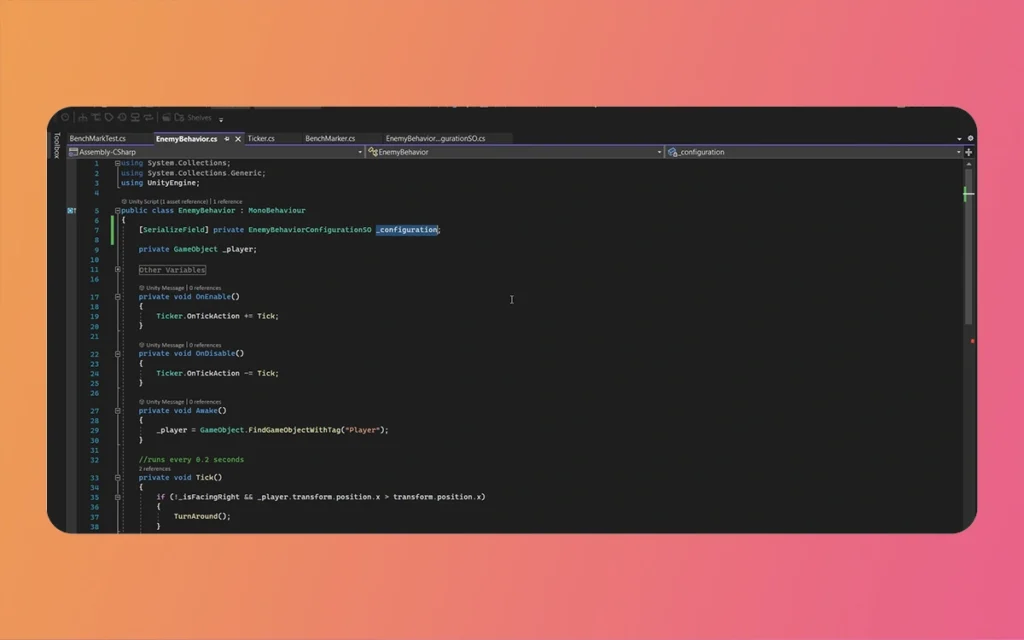
For simple 2D sprites running flipbook-style animations a coin spinning, a particle effect looping, a background decoration cycling through frames Unity’s full Animator component may be more infrastructure than the task requires. A lightmass code-based finite state machine (FSM) that manually sets sprite frames each update can outperform an Animator-driven equivalent for these cases, simply because it avoids the state machine evaluation overhead entirely.
Libraries and custom scripts that directly manipulate the SpriteRenderer’s sprite reference frame-by-frame are a well-established pattern in Unity 2D development. If your animation needs are simple and predictable, this approach frees up the Animator for characters and objects where its flexibility is genuinely valuable.
2D Animation for Unity
Asset Management: Atlases, Pooling, and Cached References
Animation performance doesn’t exist in isolation from the broader asset pipeline. How your sprites are packed, how animated objects are instantiated and destroyed, and how your scripts interact with animation components all contribute to the general cost of your animation system.
Sprite Atlases and Draw Call Reduction
Every unique texture that Unity renders requires a separate draw call a communication between the CPU and GPU that carries overhead. In a 2D game with dozens of independently textured animated sprites, draw calls can accumulate quickly and become a significant bottleneck.
Packing sprites into atlases consolidated texture sheets that group related sprites together allows Unity’s batching system to render multiple sprites in a single draw call when they share a material and texture. For animated characters, this means grouping all frames of an animation (or all animations for a given character) into a single atlas. The reduction in draw calls directly benefits rendering performance and enables smoother frame rates in sprite-dense scenes.
Unity’s built-in Sprite Atlas asset type handles this process efficiently and integrates cleanly with the Animator system. Setting up atlases early in production avoids expensive refactoring later when performance problems surface during optimization passes.
Object Pooling for Spawned Animators
Instantiating and destroying GameObjects with Animator components at runtime is expensive. The Animator must initialize its state machine, load its controller, and begin its update cycle every time a new instance is created and destruction carries its own cleanup cost.
Object pooling addresses this by maintaining a reserve of pre-instantiated GameObjects that are activated and deactivated rather than created and destroyed. For effects, projectiles, enemies, or any other animated object that appears frequently and briefly, a pool dramatically reduces instantiation overhead. The Animator initializes once at pool creation and is simply reset to its default state when the object is recycled.
2D Animation for Unity
Caching Component References
A subtle but meaningful optimization involves how scripts interact with the Animator component at runtime. Calling GetComponent<Animator>() every frame or even every time an animation state needs to change adds unnecessary overhead. GetComponent is not free; it involves a lookup through the GameObject’s component list that costs measurable time when called frequently across many objects.
The standard practice is to cache the Animator reference during Awake() or Start() and store it as a private field. Every subsequent access then reads directly from memory rather than performing a component lookup. This applies equally to SpriteRenderer references, Rigidbody2D references, and any other component your animation scripts interact with regularly.
Practical Optimization Reference Table
Optimization Technique
Performance Impact
Best Used For
Implementation Effort
Culling Mode: Cull Completely
High (up to 40% CPU savings)
Dense scenes, platformers, crowd simulations
Low
Disable Update When Offscreen
Medium
SpriteRenderer-heavy scenes
Low
Single Animator Layer
Medium
Standard 2D character controllers
Low
Minimal Animator Parameters
Low–Medium
All Animator-driven characters
Low
Avoid Scale Curve Animation
Low–Medium
Any sprite with transform animations
Low
Code-Based FSM (No Animator)
High for simple sprites
Coins, particles, background decorations
Medium
Sprite Atlas Packing
High
Sprite-dense scenes, characters with many frames
Medium
Object Pooling for Animators
High
Projectiles, effects, spawned enemies
Medium–High
Cache Component References
Low–Medium
Scripts that modify Animator state frequently
Low
Unity Profiler-Driven Targeting
Variable
All projects during optimization passes
Medium
Profiling: The Foundation of Informed Optimization
No optimization effort should proceed without data. Unity’s built-in Profiler tool provides frame-by-frame visibility into CPU usage, rendering costs, physics interactions, and memory allocation. Animation-related overhead typically surfaces in the CPU Usage section under the Animator and Animation categories, though it often bleeds into broader script and rendering costs.
Running the Profiler in a representative build not inside the Editor, which carries its own overhead gives the most accurate picture of where time is actually being spent. Common animation-related hotspots include Animator updates in scenes with many active instances, Update() loops that trigger state changes unnecessarily, and physics callbacks that interact with animated objects every frame.
Targeting optimization efforts based on Profiler data ensures you’re addressing real bottlenecks rather than optimizing on instinct. The techniques described in this article are most effective when applied where the data says they’re needed most.
2D Animation for Unity
Finally
Optimizing 2D Animation for Unity is a discipline that rewards both early planning and iterative refinement. The techniques covered here, configuring culling modes to eliminate off-screen processing, building lean state machines with minimal parameters and layers, bypassing the Animator entirely for simple sprites, packing assets into atlases, pooling animated objects, and caching component references, form a coherent strategy for keeping animation costs under control across the lifespan of a project.
None of these optimizations requires sacrificing visual quality or design ambition. They require following where cost comes from, making deliberate architectural choices, and using the Profiler to validate that changes are delivering real gains. A well-optimized animation system is invisible to players; they experience a game that feels responsive, smooth, and alive. That is the perfect goal, and these techniques are the path to it.
The best time to build optimization habits into a Unity 2D project is at the start. The second-best time is right now.
Game Art Outsourcing: Top 7 Benefits for Studios & Developers
In the fast-paced world of game development, staying ahead of the curve isn’t just about having the best ideas; it’s about how fast and effectively you can bring those ideas to life. If you have spent any time in a dev studio lately, you know the pressure is real. Players in 2026 expect cinematic quality, […]
April 8, 2026
How To Create Tall Cartoon Characters Using Adobe Character Animator? (Education Guide)
Animation design combines art and logic, especially when it comes to your cast’s proportions. If you want to make a character stand out, literally, making them tall is a classic move. Whether it is a lanky basketball player, a towering giant, or a slender fashion icon, Tall Cartoon Characters bring a unique dynamic to any […]
April 7, 2026
How To Create Cartoon Characters with Big Lips Using Adobe Character Animator? (Education Guide)
Welcome back to The Morphic Studio! Ever wondered why some cartoon faces “pop” more than others? Designing unique features is what makes a character memorable. Today, we are diving deep into a specific attractive choice that adds tons of personality and expression: Cartoon Characters with Big Lips. In 2D animation, the mouth is the window […]