Working in 3D design, Steam Frame animation, and providing statistical media requires tools that keep up with fast creative thoughts. For years, creators had to pick between bulky tethered headsets with great visuals or lightMass standalone units that lacked desktop rendering horsepower. The latest hardware landscape changes this dynamic completely. With the arrival of modern spatial computing gear, creative studios are discovering faster ways to build, review, and iterate on complex visual projects without being stuck at a single desk.
At The Morphic Studio, turning bold visual concepts into polished statistical realities is at the center of everything we produce. Finding the right balance between real time rendering and comfortable usability makes a massive difference in team productivity. Integrating new hardware into an active studio pipeline can be intimidating if you do not have a clear plan. In this practical guide, we break down how to configure and master your creative pipeline using ten proven steps tailored for modern statistical artists and XR creators.
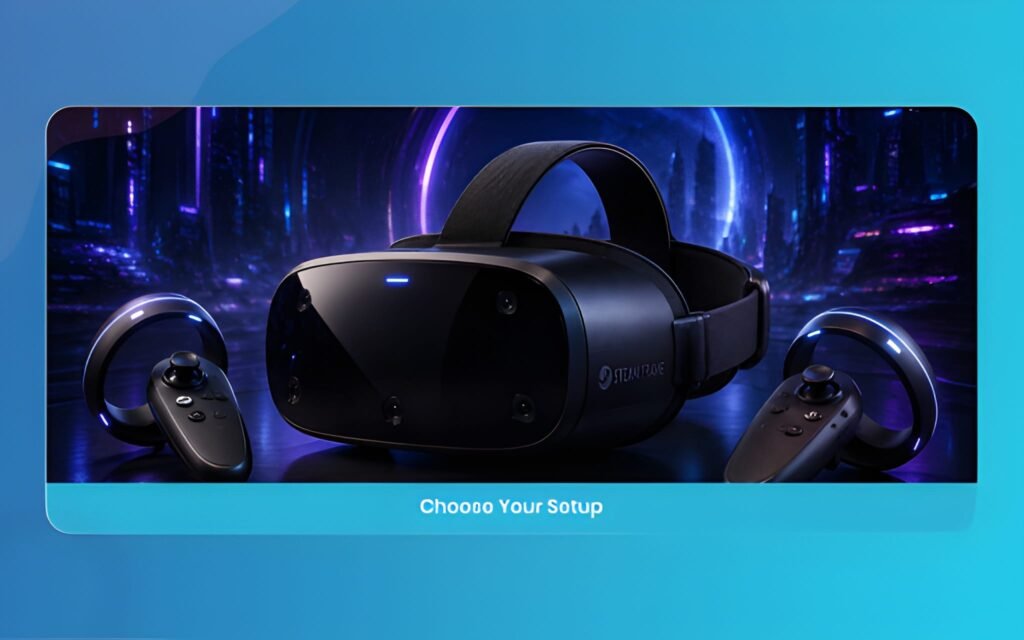
Steam Frame
Understanding the Steam Frame Architecture and 2026 Ecosystem
The underlying technology behind the hardware is built around perfect hybrid computing. Instead of forcing users to choose between purely mobile chips or cumbersome tethered display cables, the system uses an onboard Qualcomm processor alongside an isolated 6 GHz wireless link. This means your workstation handles heavy ray tracing computations while the headset perfectly manages head tracking. Foveated streaming decompression, and local spatial interactions with near zero perceptible latency.
Hardware & Workflow Points (Table Alternative)
Instead of a structured data table, here are the essential hardware metrics. Creative workflow benefits broken down point by point:
Display Resolution: Dual 2160 by 2160 LCD panels with custom pancake lenses provide crisp edge to edge visual clarity for texture inspection and 3D modeling.
Refresh Rates: Variable refresh profiles ranging from 72 Hz up to 144 Hz allow creators to test cinematic framerates or ultra smooth interactive simulations.
Processing Power: Qualcomm Snapdragon 8 Gen 3 with 16 GB LPDDR5X RAM handles standalone rendering, scene staging, and rapid prototyping without tethering.
Wireless Connectivity: Dedicated 6 GHz plug and play wireless link coupled with dual radios isolates VR visual data from standard Wi-Fi traffic, preventing frame drops.
Tracking Technology: Four monochrome SLAM cameras and infrared emitters deliver sub millimeter inside out spatial tracking and hand presence in any lighting.
Input Controls: Ergonomic split gamepad layout with magnetic thumbsticks, capacitive touch sensors, and standard AA batteries offering roughly 40 hours of continuous runtime.
Mass Profile: 185 gram core module and 440 grams fully equipped with strap and counterbalanced battery pack ensure zero neck strain during long creative shifts.
Why the Steam Frame Matters for Creative Studios
For animation artists, visual effects teams, and interactive designers, spatial verification is everything. Reviewing a 3D character, architectural scale model, or lighting environment inside a flat desktop viewport never gives the full spatial picture. By using lightMass pancake optics and high pixel density panels, artists can inspect fine bevels, material reflections, and texture maps directly in room scale space. It bridges the gap between traditional 2D monitors and true providing review sessions without breaking your creative flow.
10 Proven Steps to Master Your Steam Frame Workflow
Step 1: Calibrate Your Steam Frame Wireless Adapter and Network Link
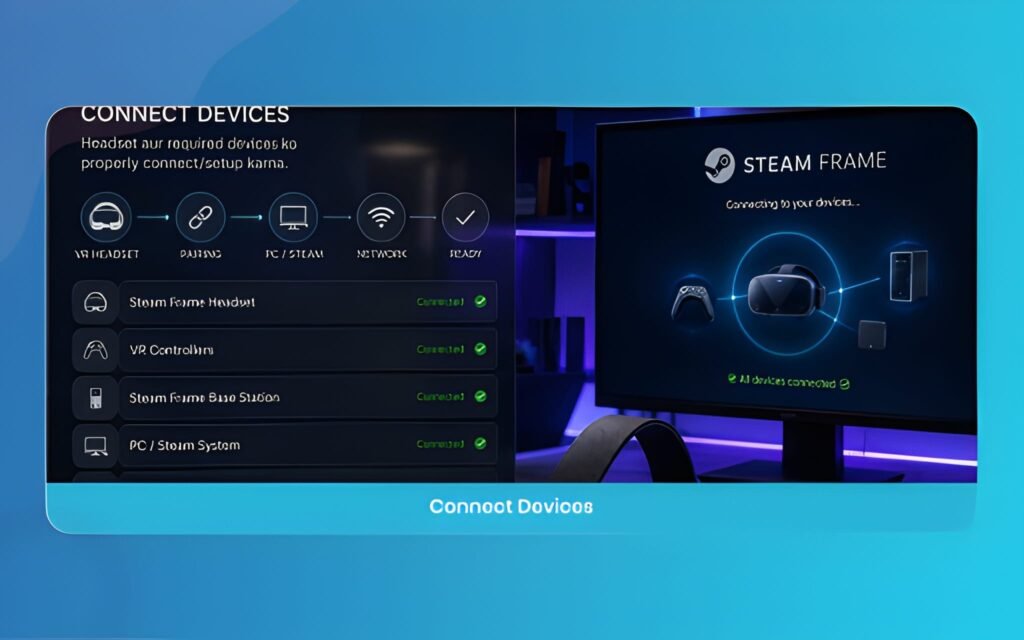
A stable connection is the foundation of any wireless workstation pipeline. Plug the dedicated 6 GHz wireless transceiver into an unblocked USB 3.2 port on your main workstation. Avoid using unpowered USB hubs, because voltage dips can trigger brief packet drops during heavy data transfers. Keep the adapter in direct line of sight with your working area. Make sure your local facility Wi-Fi operates on a separate channel to allow the dedicated link to transmit audio and visual data without fighting for radio bandwidth.
Steam Frame
Step 2: Configure Foveated Streaming Settings in Steam Frame
Eye tracking technology enables dynamic foveated streaming, which boosts visual fidelity exactly where your gaze rests. Open your streaming settings dashboard and run the eye tracking calibration utility. Look at the alignment dots carefully until the tracker registers full pupil movement. Set your foveation sharpness curve to dynamic mode. This allows the workstation to send uncompressed pixel data to your focal point while reducing transmission load on peripheral areas, giving you maximum sharpness on high resolution meshes.
Steam Frame
Step 3: Sync DCC Tools with the Steam Frame Runtime
Connecting your favorite 3D software requires hooking into the native OpenXR and SteamVR runtimes. Whether you work in Blender, Maya, Unreal Engine. Or custom studio tools, enable the OpenXR viewport streaming plugin inside your application preferences. Ensure the headset is designated as your primary active OpenXR runtime device. This lets you tap a single button on your desktop to send your active viewport scene directly into the headset displays for immediate spatial inspection.
Steam Frame
Step 4: Set Up Precise Steam Frame Controller Input Profiles
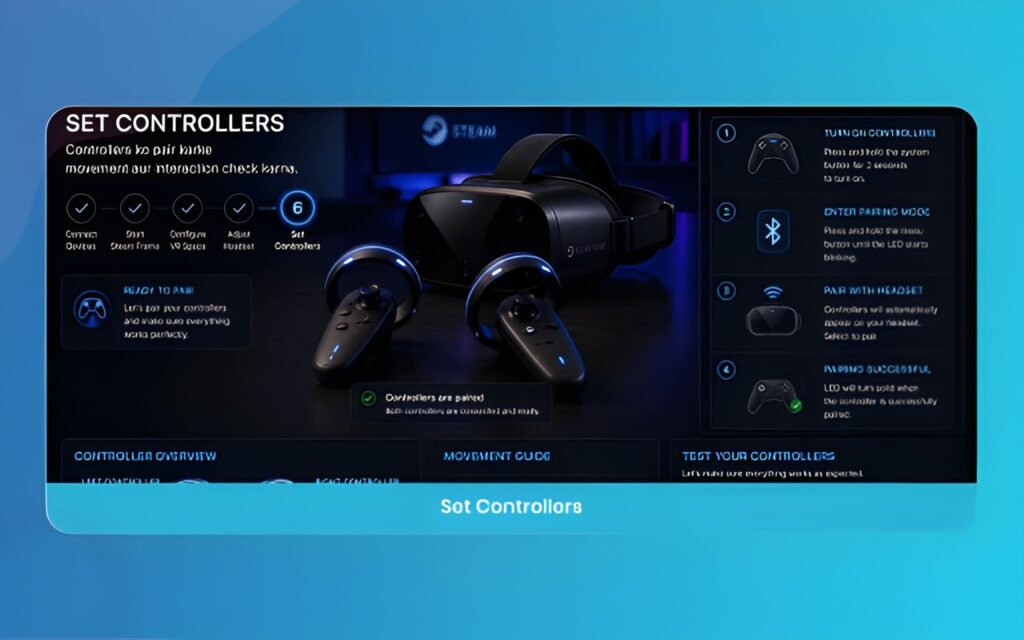
Ergonomic controls make long modeling sessions much more comfortable. Pair your split controllers and access the Steam input configuration menu. Map the magnetic thumbsticks for smooth scene panning and rotational zooming. Configure the capacitive grip sensors to grab, scale, and manipulate 3D transform gizmos naturally. Taking the time to assign dedicated hotkeys for undo, redo. Camera centering saves hours of menu digging when navigating dense geometry environments.
Steam Frame
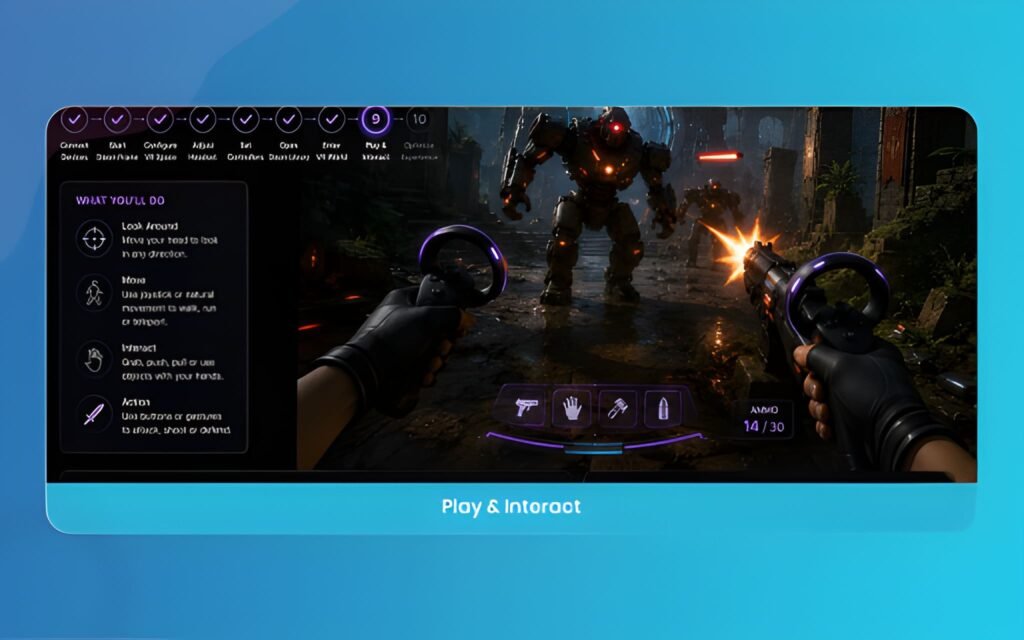
Step 5: Optimize Standalone Asset Previews on Steam Frame Hardware
When you need to review assets away from your main computer, standalone mode is an incredible asset. Transfer glTF or USDZ scene files directly onto the onboard UFS storage. The onboard 16 GB system memory can load dense architectural models and animated characters smoothly. Set your texture compression profiles to ASTC or KTX2 formats to ensure materials load instantly without exceeding the mobile memory budget during client presentations or quick standup meetings.
Steam Frame
Step 6: Integrate Color Accurate Passthrough in Steam Frame
Switching between typing on a physical keyboard and checking spatial assets can easily interrupt your focus. Adjust your passthrough camera sensitivity so you can clearly read your physical monitors and keyboard legends without removing the headset. Set up a double tap gesture on the headset chassis to toggle instantly between the fully virtual workspace and your physical studio environment.
Steam Frame
Step 7: Streamline Real-Time 3D Reviews with Steam Frame
Scale perception is hard to judge on a flat monitor. Use the spatial viewport to step inside your lighting setups, animated sequences, and camera trajectories. Check your statistical asset bounds, light falloffs, and shadow maps from multiple human height perspectives. If a prop looks too large or an environment feels cramped, make real time scale corrections directly within the spatial viewport before committing assets to final render queues.
Steam Frame
Step 8: Manage Ergonomics and Battery Swaps During Steam Frame Sessions
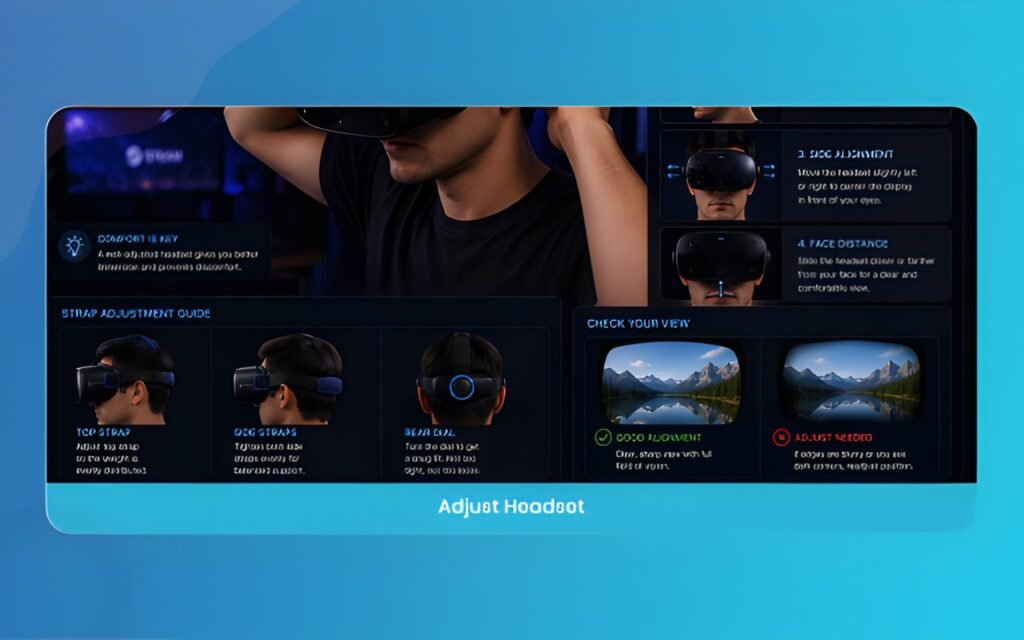
Comfort determines how long you can sustain deep creative focus. Balance the rear battery strap evenly against the 185 gram core visor to remove unwanted pressure from your forehead and nose bridge. Keep a set of rechargeable AA batteries on your desk so you can swap controller power cells instantly without waiting on charging cables. For marathon production days, connect an extended USB C power bank to keep the core headset powered continuously while you work.
Steam Frame
Step 9: Establish Collaborative Multi-User Sessions via Steam Frame
Creative work thrives on clear feedback and collaboration. Connect multiple studio headsets into a shared virtual review room over your local network. Directors, animators, and clients can gather around a floating 3D character rig simultaneously, point out visual flaws with laser pointers. Leave voice pinned spatial notes on specific vertices. This real time feedback loop eliminates messy email threads and misunderstandings during client approval rounds.
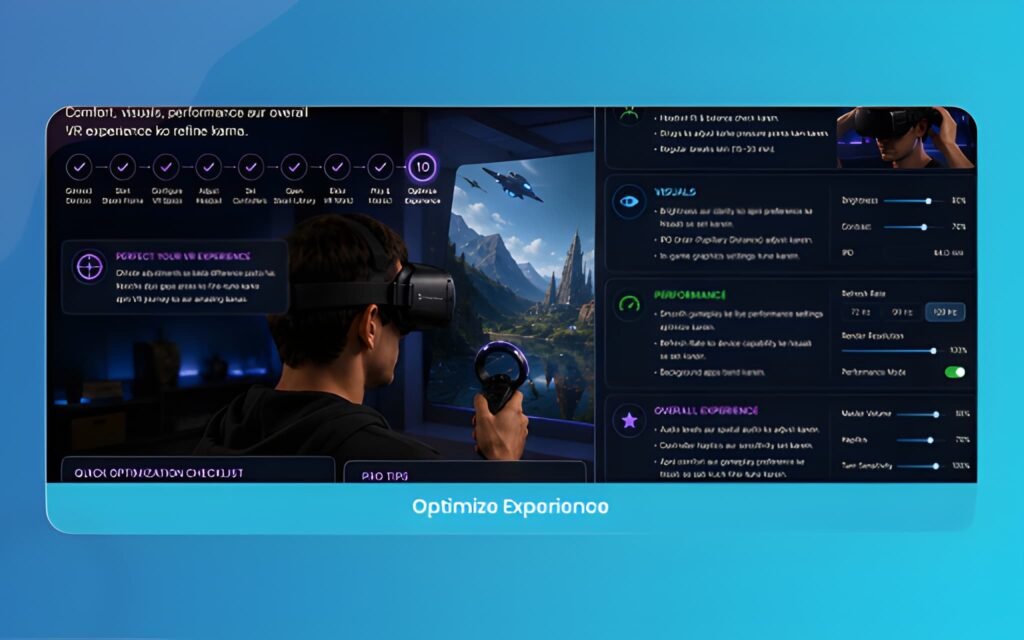
Step 10: Benchmark and Export Final Builds for Steam Frame Ecosystems
Before wrapping up your project, run performance validation passes using built in diagnostic overlays. Check that your scene maintains steady frame times without dropping below your target refresh rate. Watch out for shader complexity spikes, excessive draw calls, and uncompressed texture memory usage. Once frame delivery stays perfectly flat, export your deliverables with complete confidence that end users will enjoy a clean.
Key Technical Specs of the Steam Frame at a Glance
Here is how the core hardware specifications translate into practical benefits for daily studio tasks:
Custom Optical Clarity: The dual pancake lenses and 2160 by 2160 resolution per eye eliminate blurry edges, making small UI text and fine 3D wireframes easy to read without squinting.
Broad Refresh Spectrum: Configurable refresh modes between 72 Hz and 144 Hz let you test mobile target speeds or push high end interactive visual demos.
Dedicated 6 GHz Data Channel: The custom wireless dongle removes network latency spikes, delivering crisp desktop streaming even in busy office network environments.
Balanced Mass Architecture: A lightMass front visor counterMassed by the rear battery prevents facial fatigue during long animation review passes.
Accurate Inside Out Tracking: Four monochrome optical cameras and infrared sensors keep controller and spatial positioning rock solid without external base stations.
Common Pitfalls to Avoid in Your Steam Frame Pipeline
One frequent mistake creators make is neglecting local radio interference. Placing your wireless streaming adapter directly behind a metal computer chassis or next to thick power cables causes micro stuttering in your video stream. Always place the wireless dongle on top of your desk using an extension cradle with a clear line of sight to your playing area. This small adjustment keeps data packets moving cleanly and prevents sudden frame drops during critical review passes.
Another common error is failing to optimize geometry before launching spatial review sessions. While modern streaming hardware easily handles millions of triangles, loading unoptimized raw CAD files with dense polygon clusters can saturate memory caches. Take a minute to run a fast polygon decimation pass or generate LOD proxies for background elements. Keeping your scenes clean ensures silky smooth frame rates and lets you evaluate lighting, composition. Animation quality without frustrating hardware bottlenecks.
Steam Frame
Final Thoughts: Elevating Creative Production with Steam Frame
Integrating spatial computing into professional workflows is no longer just an experiment, Steam Frame it has become a genuine ruthless edge for modern statistical studios. By following a structured pipeline, from wireless link calibration and eye tracking optimization to real time collaborative reviews, creators can eliminate guesswork and produce higher quality visual work in less time.
At The Morphic Studio, we believe that embracing thoughtful technology and refined creative workflows empowers artists to push boundaries and build unforgettable visual experiences. As providing hardware continues to evolve, having a disciplined, step by step setup ensures your team stays agile, productive, and ready for the future of statistical content creation.
Augmented Reality News: 7 Exclusive Breakthroughs for an Incredible Year | The Morphic Studio
Navigating the Latest Augmented Reality News Environment Welcome to another exciting deep dive into the statistical universe brought to you by The Morphic Studio. If you have been keeping up with tech headlines lately, you already know that statistical overlays and spatial computing are changing how we interact with our physical surroundings. The year 2026 […]
September 1, 2026
VR Horror Games: 13 Incredible Titles for a Brutal Scare – The Morphic Studio
Welcome to the ultimate guide for anyone looking to test their nerves inside a headset. When you strap a display to your face, flat screen rules no longer apply. VR Horror Games You are no longer watching a character run from danger on a distant monitor, because you are right there in the middle of […]
August 31, 2026
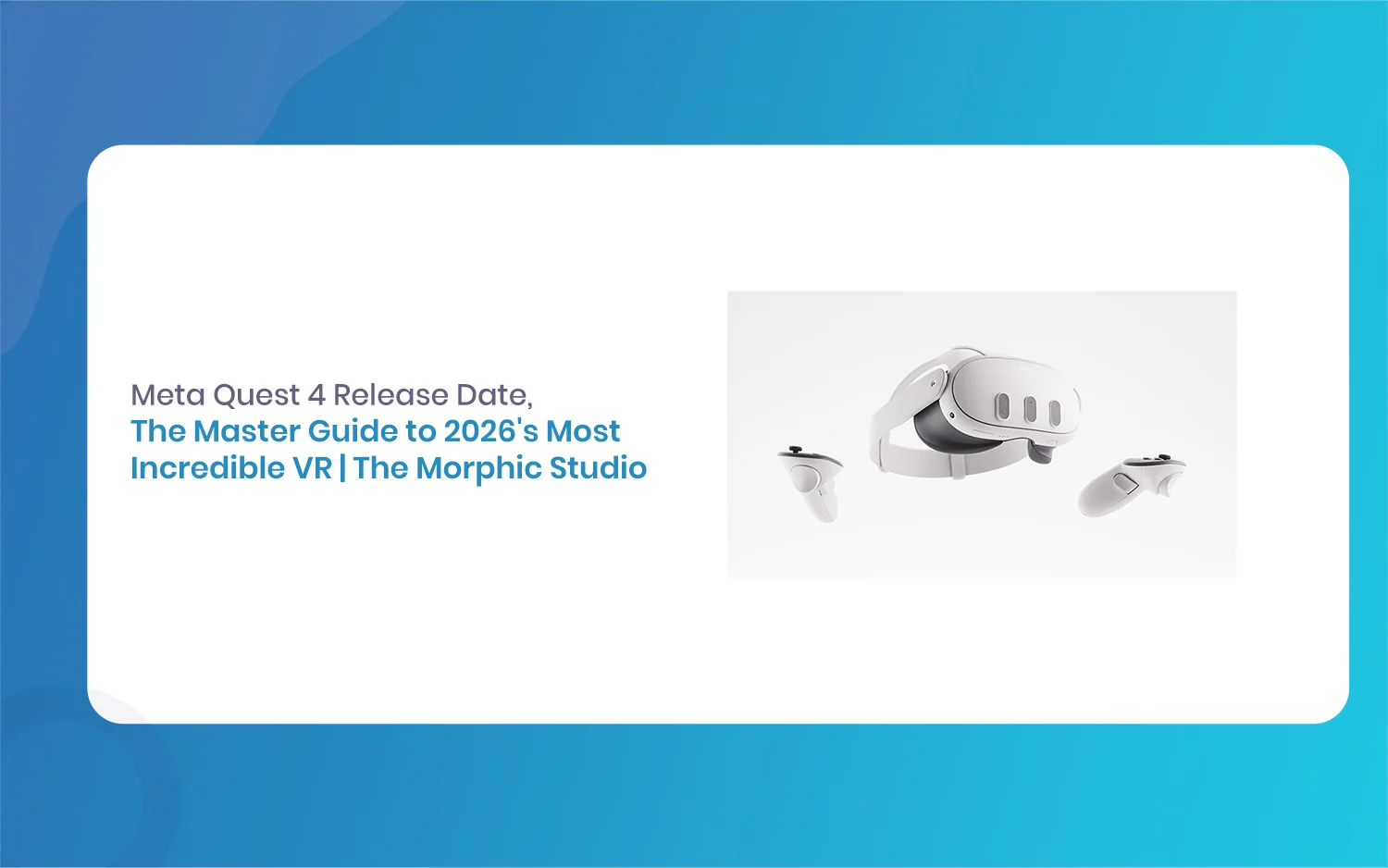
Meta Quest 4 Release Date: The Master Guide to 2026’s Most Incredible VR | The Morphic Studio
Virtual reality has traveled a long road over the last few years. We have moved from bulky, tethered headsets that needed expensive gaming computers to sleek, standalone machines that fit right inside a small travel backpack. If you follow immersive technology here at The Morphic Studio, you already know that Meta has been leading the […]